![BuyerBridge_LOGO-dark-2.png]](https://support.buyerbridge.com/hs-fs/hubfs/BuyerBridge_LOGO-dark-2.png?height=40&name=BuyerBridge_LOGO-dark-2.png)
The Change Log helps your team keep track of budget updates made in Meta Budgeting.
Instead of guessing what changed, you can use the Change Log to review recent activity, see who made the update, and compare the old value to the new one.
This guide walks through where to find the Change Log and how to use it in BuyerBridge.
Quick Links
- How to Find the Change Log in BuyerBridge
- What the Change Log Shows
- Breaking Down the Change Log Page
- Why the Change Log Matters
- Best Practices
- Need Help?
How to Find the Change Log in BuyerBridge
To access the Change Log in BuyerBridge:
- Log in to BuyerBridge.
- Scroll down to the Organization section in the left-hand menu.
- Expand the Reports dropdown.
- Scroll to Meta and expand the options.
- Select Meta Budgeting.
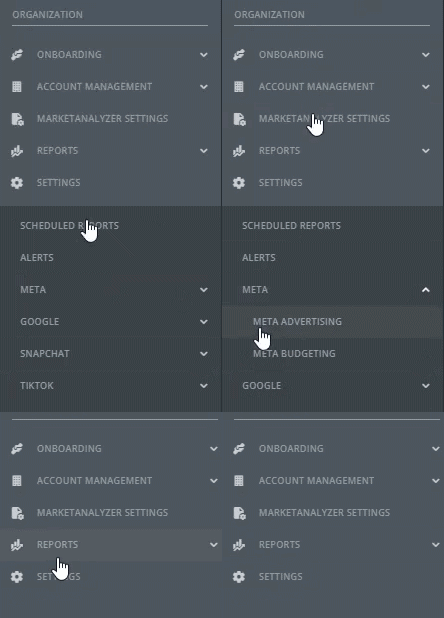
- Click the Change Log tab.
From there, you can review recent budget activity across your Meta accounts and campaigns.
What the Change Log Shows
The Change Log gives you a running record of budget updates made in Meta Budgeting.
This includes details like:
- When the change happened
- Which account was updated
- Whether the change was made at the account, campaign, or ad set level
- The name of the item that changed
- Which user or system made the update
- What action was taken
- The previous value and the new value
This gives your team a clearer way to review recent budget activity without having to piece it together manually.
Breaking Down the Change Log Page
When you open the Change Log, you’ll see a table of recent updates.
At the top of the page, you can use filters to narrow your view and find the updates you want to review faster. Depending on your setup, you may be able to filter by account, action, type, name, or date range.
The table below shows the main details for each update, including:
- Date so you can see when the change happened
- Account so you know which client or account was affected
- Type so you can tell whether the change was made at the account, campaign, or ad set level
- Name so you can identify the item that changed
- User so you can see whether the update was made by a team member or by BuyerBridge
- Action so you can understand what kind of update was made
- Change so you can compare the previous value to the new value
This view is designed to help your team quickly understand what changed and when.
Why the Change Log Matters
The Change Log gives your team a simple way to review budget updates and stay aligned.
It can be especially helpful when:
- Multiple people are managing budgets
- You want to confirm that a change was made
- You want to review auto-pacing activity
- You need a clearer record of recent budget updates
Instead of relying on memory or back-and-forth messages, your team can use the Change Log to see a shared history of updates in one place.
Best Practices
To get the most out of the Change Log, we recommend:
- Review it regularly when budgets are being updated often.
- Use filters to narrow your view faster.
- Check the user and action columns when reviewing recent changes.
- Compare the old and new values before making follow-up updates.
- Use the Change Log alongside Meta Budgeting when reviewing pacing and budget activity.
These habits can help your team stay organized and reduce confusion around recent changes.
Need Help?
If you have questions about the Change Log in Meta Budgeting, reach out to the BuyerBridge team for support.
Next Steps
Want to keep learning? Check out these related articles: