---
title: How to Build Product Sets Using Performance Filters
description: Learn how to build VINFlow Product Sets using performance filters (Plus/Elite), save them, and select them during Playbook deployment for AIAs.
---
[Skip to content](https://support.buyerbridge.com/knowledge/how-to-build-product-sets-using-performance-filters#main-content)
English
Show submenu for translations
[Submit a ticket](https://support.buyerbridge.com/knowledge/kb-tickets/new?hsLang=en)
![BuyerBridge\_LOGO-dark-2.png\]](https://support.buyerbridge.com/hs-fs/hubfs/BuyerBridge_LOGO-dark-2.png?height=40&name=BuyerBridge_LOGO-dark-2.png)
Open main navigation
Close main navigation
- English
Show submenu for translations
- [Submit a ticket](https://support.buyerbridge.com/knowledge/kb-tickets/new)
- Go to buyerbridge.com
Go to buyerbridge.com
Welcome to the BuyerBridge Help Center!
- There are no suggestions because the search field is empty.
1. [Help Center](https://support.buyerbridge.com/knowledge?hsLang=en)
2. [Platform Tools](https://support.buyerbridge.com/knowledge/platform-tools?hsLang=en)
3. [VINFlow](https://support.buyerbridge.com/knowledge/platform-tools?hsLang=en#vinflow)
# How to Build Product Sets Using Performance Filters
## Turn campaign performance into targeting. Build Product Sets using impressions, clicks, CTR, spend, leads, or views—then use the set during Playbook deployment.
Ads Performance filters are available to **Plus + Elite** tiers. Core users can still build Product Sets using standard filters like Body Type and Days on Lot.
### **What Are “Performance-Filtered” Product Sets?**
Performance-filtered Product Sets let you build a set based on what’s happening in your campaigns (example: “High spend, low leads” or “Over 100 impressions”).
These sets are especially useful when you want to:
- find waste quickly (spend without results)
- spot vehicles getting attention (high impressions/clicks)
- create a “fix list” without exporting spreadsheets
#### **Before you start**
You’ll need:
- Plus or Elite access (to use Ads Performance filters)
- At least one ad platform connected with campaign history (so performance data can load)
---
### **Step 1: Open Product Sets**
1. Log in to BuyerBridge
2. From the left menu, click **Inventory**
3. Click **Product Sets
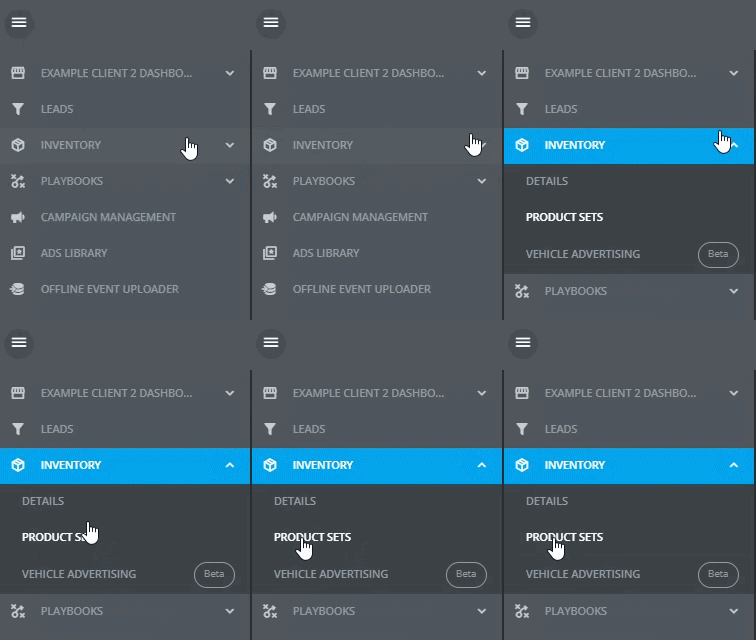**
### **Step 2: Select Platforms to Load Performance Data (multi-select)**
At the top of the page, under **Select Advertising Platforms**, choose one or more platforms.
Why this matters: platform selection is what loads the performance data VINFlow can filter by (impressions, clicks, CTR, spend, leads, views).
Tip: You can select multiple platforms at once.

### **Step 3: Choose a Time Period**
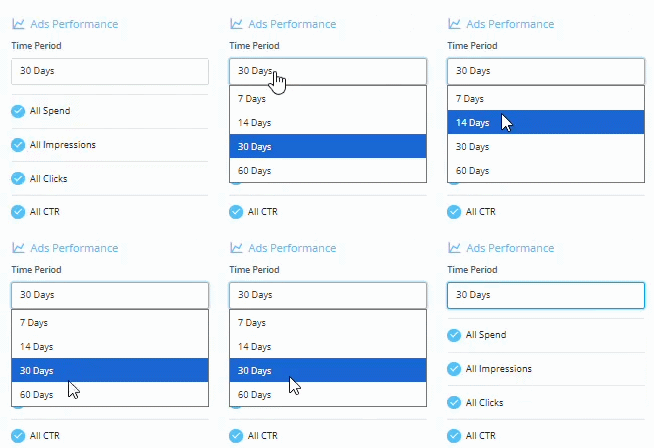
In the **Ads Performance** section, choose your **Time Period** (example: last 30 days).
This sets the window VINFlow uses when applying performance filters.
### **Step 4: Add Performance Filters**
In **Ads Performance**, turn on one or more filters and set your thresholds.
Common filters include:
- Spend
- Impressions
- Clicks
- CTR
- Leads
- Views
Examples you can copy:
- “Impressions over 100” (find vehicles getting exposure)
- “Spend over $25 + Leads = 0” (find budget leaks)
- “Clicks over 10 + CTR under 1%” (find vehicles needing creative/offer help)
Keep it simple: start with 1–2 performance filters, then narrow further if needed.
### **Step 5: Optional — Add Standard Vehicle Filters**
After your performance filters, use standard vehicle filters to keep the set focused, such as:
- Body Type (SUV / Truck / Sedan)
- Condition (New / Used / Certified)
- Make / Model
- Price Range
- Days on Lot
- Year Range
This is how you build targeted sets like:
- “High impressions + Used SUVs under $35K”
- “High spend + Trucks 45+ days on lot”
### **Step 6: Create + Save the Product Set**
When the filtered results look right:
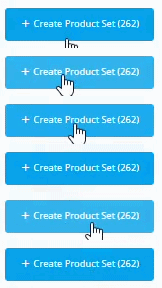
1. Click **Create Product Set** (upper right)
2. Name the set clearly
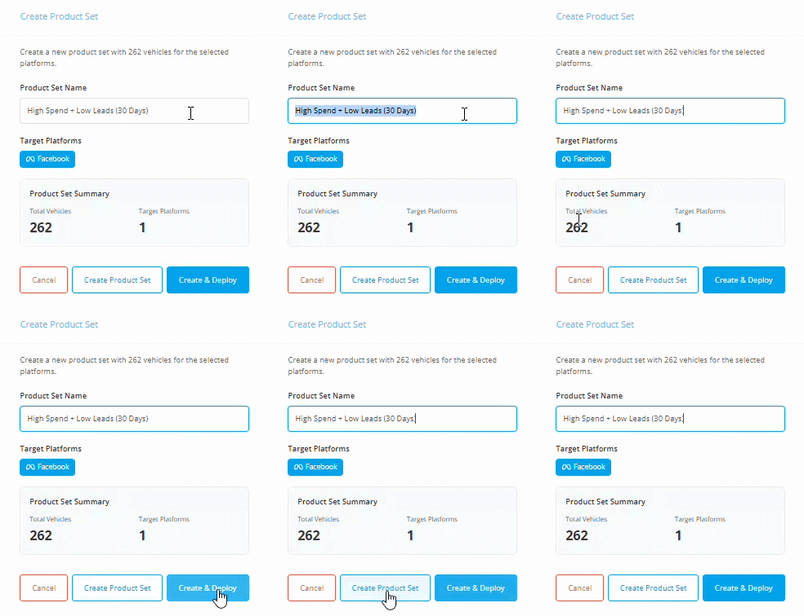
3. Click '**Create Product Set**,' or click '**Create + Deploy**' to open the Playbooks Library and launch an AIA campaign fast.
Naming tips (so your whole team gets it):
- “High Spend + Low Leads (30 Days)”
- “Over 100 Impressions – Used SUVs”
- “Low CTR Fix List – Trucks”
**▶️ Good to know**: Product Sets can stay updated as inventory changes and vehicles match your rules.
### **Step 7: Use Your Product Set During Playbook Deployment**
You’ll attach Product Sets during the Playbook deployment flow at:
**Targeting & Budgeting → Product Set**
BuyerBridge’s AIA workflow supports deploying with an automatically-created custom audience based on the vehicle set selected during deployment, and recommends deploying through BuyerBridge (instead of duplicating in Ads Manager) so targeting stays aligned with your set.
Helpful links:
- How to Deploy a Playbook: [https://support.buyerbridge.com/knowledge/how-to-deploy-a-playbook](https://support.buyerbridge.com/knowledge/how-to-deploy-a-playbook?utm_source=chatgpt.com&hsLang=en)
- AIA Playbooks: [https://support.buyerbridge.com/knowledge/aia-playbooks](https://support.buyerbridge.com/knowledge/aia-playbooks?utm_source=chatgpt.com&hsLang=en)
---
### **Troubleshooting**
**I don’t see Ads Performance filters**
Most common reasons:
- You’re not on **Plus or Elite**
- You didn’t select a platform at the top (platform selection is what loads performance data)
**My Product Set is empty (0 vehicles)**
Try this:
- widen your time period (example: 7 days → 30 days)
- loosen your thresholds (example: Spend \> $50 → Spend \> $10)
- remove one filter and add it back after you see results
**Platform selection is locked when editing**
Some performance-filtered sets lock platform selection during editing. If you need a different platform mix, clone the logic into a new Product Set and save it.
---
### **Continued reading**
- VINFlow 101: Starting Guide: [https://support.buyerbridge.com/knowledge/vinflow-starting-guide](https://support.buyerbridge.com/knowledge/vinflow-starting-guide?utm_source=chatgpt.com&hsLang=en)
- How to Create Product Sets in VINFlow (core + advanced): (your new article link)
- How to Deploy a Playbook: [https://support.buyerbridge.com/knowledge/how-to-deploy-a-playbook](https://support.buyerbridge.com/knowledge/how-to-deploy-a-playbook?utm_source=chatgpt.com&hsLang=en)
- AIA Playbooks: [https://support.buyerbridge.com/knowledge/aia-playbooks](https://support.buyerbridge.com/knowledge/aia-playbooks?utm_source=chatgpt.com&hsLang=en)
- [Getting Started](https://support.buyerbridge.com/knowledge/getting-started?hsLang=en#main-content)
- [Welcome Kit](https://support.buyerbridge.com/knowledge/getting-started?hsLang=en#welcome-kit)
- [Getting Started](https://support.buyerbridge.com/knowledge/getting-started?hsLang=en#getting-started)
- [Navigating the Platform](https://support.buyerbridge.com/knowledge/getting-started?hsLang=en#navigating-the-platform)
- [Account Management](https://support.buyerbridge.com/knowledge/getting-started?hsLang=en#account-management)
- [Onboarding Clients](https://support.buyerbridge.com/knowledge/onboarding-clients?hsLang=en#main-content)
- [Channel Onboarding](https://support.buyerbridge.com/knowledge/onboarding-clients?hsLang=en#channel-onboarding)
- [Google Onboarding](https://support.buyerbridge.com/knowledge/onboarding-clients?hsLang=en#google-onboarding)
- [Meta Onboarding](https://support.buyerbridge.com/knowledge/onboarding-clients?hsLang=en#meta-onboarding)
- [Pinterest Onboarding](https://support.buyerbridge.com/knowledge/onboarding-clients?hsLang=en#pinterest-onboarding)
- [SEO Onboarding](https://support.buyerbridge.com/knowledge/onboarding-clients?hsLang=en#seo-onboarding)
- [Snapchat Onboarding](https://support.buyerbridge.com/knowledge/onboarding-clients?hsLang=en#snapchat-onboarding)
- [TikTok Onboarding](https://support.buyerbridge.com/knowledge/onboarding-clients?hsLang=en#tiktok-onboarding)
- [Platform Tools](https://support.buyerbridge.com/knowledge/platform-tools?hsLang=en#main-content)
- [Ad Builder](https://support.buyerbridge.com/knowledge/platform-tools?hsLang=en#ad-builder)
- [Ad Launcher](https://support.buyerbridge.com/knowledge/platform-tools?hsLang=en#ad-launcher)
- [Ads Library](https://support.buyerbridge.com/knowledge/platform-tools?hsLang=en#ads-library)
- [Best Practices](https://support.buyerbridge.com/knowledge/platform-tools?hsLang=en#best-practices)
- [Budgeting](https://support.buyerbridge.com/knowledge/platform-tools?hsLang=en#budgeting)
- [Campaign Management](https://support.buyerbridge.com/knowledge/platform-tools?hsLang=en#campaign-management)
- [EventFlow](https://support.buyerbridge.com/knowledge/platform-tools?hsLang=en#eventflow)
- [MarketAnalyzer](https://support.buyerbridge.com/knowledge/platform-tools?hsLang=en#marketanalyzer)
- [Playbooks](https://support.buyerbridge.com/knowledge/platform-tools?hsLang=en#playbooks)
- [SEOFlow](https://support.buyerbridge.com/knowledge/platform-tools?hsLang=en#seoflow)
- [Reports](https://support.buyerbridge.com/knowledge/platform-tools?hsLang=en#reports)
- [VINFlow](https://support.buyerbridge.com/knowledge/platform-tools?hsLang=en#vinflow)
- [White Labeling](https://support.buyerbridge.com/knowledge/platform-tools?hsLang=en#white-labeling)
- [Multichannel Advertising](https://support.buyerbridge.com/knowledge/multichannel-advertising?hsLang=en#main-content)
- [Overview](https://support.buyerbridge.com/knowledge/multichannel-advertising?hsLang=en#overview)
- [Google](https://support.buyerbridge.com/knowledge/multichannel-advertising?hsLang=en#google)
- [Meta](https://support.buyerbridge.com/knowledge/multichannel-advertising?hsLang=en#meta)
- [Pinterest](https://support.buyerbridge.com/knowledge/multichannel-advertising?hsLang=en#pinterest)
- [Snapchat](https://support.buyerbridge.com/knowledge/multichannel-advertising?hsLang=en#snapchat)
- [TikTok](https://support.buyerbridge.com/knowledge/multichannel-advertising?hsLang=en#tiktok)
- [Agency Sales Assets](https://support.buyerbridge.com/knowledge/agency-sales-assets?hsLang=en#main-content)
- [Facebook Sales Assets](https://support.buyerbridge.com/knowledge/agency-sales-assets?hsLang=en#facebook-sales-assets)
- [Google Sales Assets](https://support.buyerbridge.com/knowledge/agency-sales-assets?hsLang=en#google-sales-assets)
- [Graphics & Web Elements](https://support.buyerbridge.com/knowledge/agency-sales-assets?hsLang=en#graphics-web-elements)
- [Instagram Sales Assets](https://support.buyerbridge.com/knowledge/agency-sales-assets?hsLang=en#instagram-sales-assets)
- [Meta Sales Assets](https://support.buyerbridge.com/knowledge/agency-sales-assets?hsLang=en#meta-sales-assets)
- [Omnichannel Sales Assets](https://support.buyerbridge.com/knowledge/agency-sales-assets?hsLang=en#omnichannel-sales-assets)
- [Pinterest Sales Assets](https://support.buyerbridge.com/knowledge/agency-sales-assets?hsLang=en#pinterest-sales-assets)
- [Snapchat Sales Assets](https://support.buyerbridge.com/knowledge/agency-sales-assets?hsLang=en#snapchat-sales-assets)
- [TikTok Sales Assets](https://support.buyerbridge.com/knowledge/agency-sales-assets?hsLang=en#tiktok-sales-assets)
- [SEO for Dealers](https://support.buyerbridge.com/knowledge/agency-sales-assets?hsLang=en#seo-for-dealers)
- [Product Updates & Enhancements](https://support.buyerbridge.com/knowledge/product-updates-enhancements?hsLang=en#main-content)
- [Enhancements](https://support.buyerbridge.com/knowledge/product-updates-enhancements?hsLang=en#enhancements)
- [Product Updates](https://support.buyerbridge.com/knowledge/product-updates-enhancements?hsLang=en#product-updates)
- [Announcements](https://support.buyerbridge.com/knowledge/product-updates-enhancements?hsLang=en#announcements)
- [Monthly Updates](https://support.buyerbridge.com/knowledge/product-updates-enhancements?hsLang=en#monthly-updates)
- [Metrics](https://support.buyerbridge.com/knowledge/metrics?hsLang=en#main-content)
- [Offline Events](https://support.buyerbridge.com/knowledge/metrics?hsLang=en#offline-events)
- [Metrics Defined](https://support.buyerbridge.com/knowledge/metrics?hsLang=en#metrics-defined)
- [Leads](https://support.buyerbridge.com/knowledge/metrics?hsLang=en#leads)
- [Reporting](https://support.buyerbridge.com/knowledge/metrics?hsLang=en#reporting)
- [SEO Reporting](https://support.buyerbridge.com/knowledge/metrics?hsLang=en#seo-reporting)
- [Supported Providers](https://support.buyerbridge.com/knowledge/supported-providers?hsLang=en#main-content)
- [CRM Integrations](https://support.buyerbridge.com/knowledge/supported-providers?hsLang=en#crm-integrations)
- [Inventory & Feed Providers](https://support.buyerbridge.com/knowledge/supported-providers?hsLang=en#inventory-feed-providers)
- [Website Providers](https://support.buyerbridge.com/knowledge/supported-providers?hsLang=en#website-providers)
- [3rd Party Support](https://support.buyerbridge.com/knowledge/3rd-party-support?hsLang=en#main-content)
- [Google Help Center](https://support.buyerbridge.com/knowledge/3rd-party-support?hsLang=en#google-help-center)
- [Facebook Platform Help](https://support.buyerbridge.com/knowledge/3rd-party-support?hsLang=en#facebook-platform-help)
- [TikTok Help Center](https://support.buyerbridge.com/knowledge/3rd-party-support?hsLang=en#tiktok-help-center)
[](https://buyerbridge.com/)
buyerbridge.com | Help Center
Copyright © 2026, Dealers United