![BuyerBridge_LOGO-dark-2.png]](https://support.buyerbridge.com/hs-fs/hubfs/BuyerBridge_LOGO-dark-2.png?height=40&name=BuyerBridge_LOGO-dark-2.png)
Prompts are the questions AI Visibility asks AI assistants every day. Competitors are the rooftops your client is scored against. This guide covers both. New to AI Visibility? Start with How to Use AI Visibility in BuyerBridge.
Quick Links
- How Prompts Are Built
- How to Manage Prompts
- How to Set Competitors
- How to Add Brand Names
- Common Questions
How Prompts Are Built
When you set up AI Visibility for a client, it writes a starting set of prompts from:
- the client's website, including pages like About Us
- Google Search Console, if it's connected for that client
- search data on the terms the client ranks for, and the terms it doesn't
Prompts are grouped by topic, like Car Financing, Commercial Work Truck Sales or Used Vehicle Sales. During setup you can suggest more prompts, remove ones that don't fit, and tell AI Visibility to write more or fewer prompts like a given one.
How to Manage Prompts
- Go to AI Visibility and select Manage prompts in the top right.
- Review each topic. Prompts are listed with the strongest search demand first.
- Check the prompts you want tracked. Uncheck the rest.
- To change a prompt's wording or intent, select the pencil icon next to it.
- To get more ideas, select Suggest more.
- Select Save prompts.
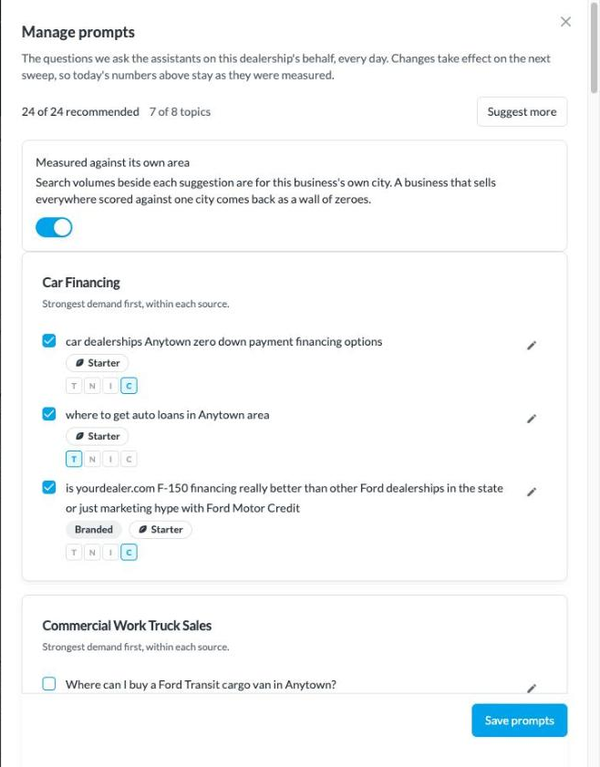
Note: Changes apply on the next daily run. Numbers already measured stay as they were.
Each prompt has an intent letter you can filter by later:
- T Transactional: ready to buy or book
- N Navigational: looking for a specific dealer or page
- I Informational: learning about a topic
- C Commercial: comparing options
Tip: Leave the Measured against its own area toggle on for a dealer that sells locally. Search volumes then reflect the client's own city.
How to Set Competitors
Competitors are edited from the Competitors tab. Select Edit competitors to open the panel. What you see there depends on whether the client has Market Intelligence.
Car dealers with Market Intelligence
AI Visibility starts with dealers in a radius around your client. You can edit the list at any time.
- Search for a dealer by name, city or state in the Add a competitor box and select it.
- Use the distance filters (≤10 mi, ≤25 mi, ≤50 mi) to narrow the list.
- Close the panel. Share of voice updates for the tracked set.
The panel also shows each competitor's distance, advertised inventory and average price next to your client's. During onboarding, AI Visibility offers to copy the client's Market Intelligence competitors with Start from the Market Intelligence list? so you don't pick them twice.
Everyone else
For a client without Market Intelligence, including businesses outside automotive, you pick competitors from Google business listings.
- Type a competitor's name in the search box, the way it appears on Google, and select it.
- Repeat for each business. They show under Measured against.
- Close the panel. Share of voice updates for the tracked set.
A business without a website on file is matched by name only, so add brand names for it if the AI assistants spell it differently.
Tip: Ask your client who their top competitors are and add those. The stores they lose deals to matter more than the closest ones.
Note: AI Visibility keeps its own competitor list. Changing it doesn't change Market Intelligence.
How to Add Brand Names
AI assistants don't always spell a dealer's name the same way. Add other spellings so every mention counts.
- In the left panel, select Brand names.
- Find your client or a competitor and select Add alias.
- Type the other spelling and save.
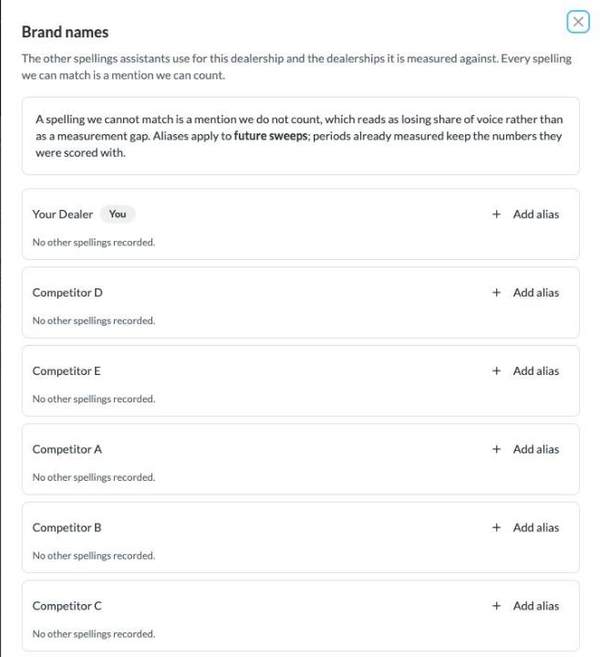
Note: Aliases apply to future runs. Periods already measured keep their numbers.
Common Questions
A competitor says "Not matched yet." What does that mean?
AI Visibility hasn't matched that dealer to its records yet. Its mentions still count toward share of voice.
Why didn't my numbers change after I saved prompts?
Prompt changes apply on the next daily run. Check back tomorrow.
The Competitors tab says the tracked list could not be read. Is it empty?
Not necessarily. The list couldn't load. Reload the page, and email support@buyerbridge.com if it keeps happening.