---
title: How to Target Exact VINs in Product Sets
description: Learn how to paste VINs into VINFlow to target exact vehicles, save the set, and use it during Playbook deployment.
---
[Skip to content](https://support.buyerbridge.com/knowledge/how-to-target-exact-vins-in-product-sets#main-content)
English
Show submenu for translations
[Submit a ticket](https://support.buyerbridge.com/knowledge/kb-tickets/new?hsLang=en)
![BuyerBridge\_LOGO-dark-2.png\]](https://support.buyerbridge.com/hs-fs/hubfs/BuyerBridge_LOGO-dark-2.png?height=40&name=BuyerBridge_LOGO-dark-2.png)
Open main navigation
Close main navigation
- English
Show submenu for translations
- [Submit a ticket](https://support.buyerbridge.com/knowledge/kb-tickets/new)
- Go to buyerbridge.com
Go to buyerbridge.com
Welcome to the BuyerBridge Help Center!
- There are no suggestions because the search field is empty.
1. [Help Center](https://support.buyerbridge.com/knowledge?hsLang=en)
2. [Platform Tools](https://support.buyerbridge.com/knowledge/platform-tools?hsLang=en)
3. [VINFlow](https://support.buyerbridge.com/knowledge/platform-tools?hsLang=en#vinflow)
# How to Target Exact VINs in Product Sets
## Paste a VIN list to target specific vehicles fast—perfect for manager specials, aged-unit pushes, and “sell these today” lists.
VIN paste targeting is available for **Plus + Elite partners**. Core partners can still build sets using standard filters like Body Type and Days on Lot.
This is the fastest way to advertise exact vehicles with purpose. Copy VINs from anywhere (one-by-one or from a spreadsheet), add them to the **VIN Filter**, and save the set.
**Best practice:** Aim for **15+ VINs per set** whenever possible. Smaller sets can limit delivery and results.
**Quick Links**
- Where to add your VIN list
- How to build a VIN list set
- Save + name your VIN set
- Use your VIN set during Playbook deployment
- Quick tips + common issues
- Continued reading
---
### **Where to add your VIN list**
1. Log in to BuyerBridge
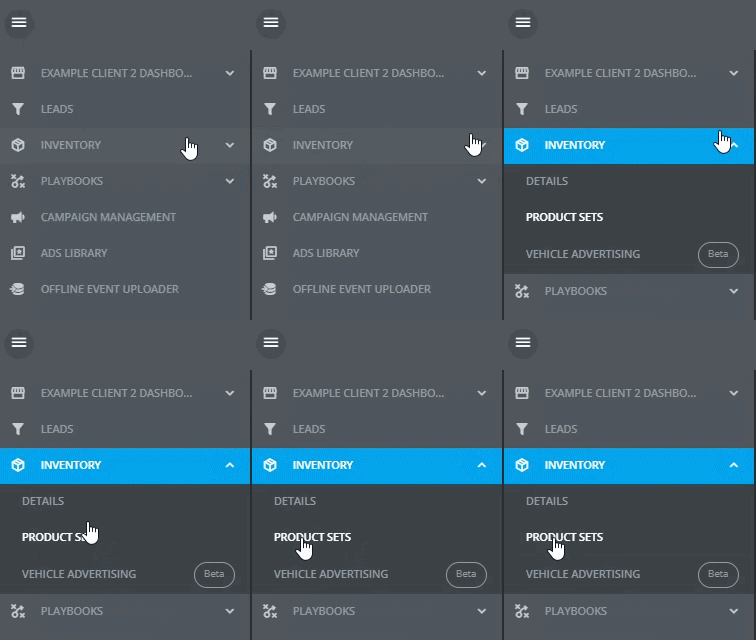
2. Go to **Inventory → Product Sets
**
3. On the left side, find the box labeled **VIN Filter
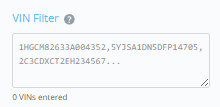**
This is where you’ll add your VIN list.
---
### **How to build a VIN list set (step-by-step)**
#### **Step 1: Copy your VINs**
You can copy VINs:
- one at a time, or
- as a column from a spreadsheet
#### **Step 2: Paste into the VIN Filter**
Click inside **VIN Filter** and paste your list.
**Format:** one VIN per line, or comma-separated
#### **Step 3: Confirm VINs were recognized**
Under the box, you’ll see a counter (example: **“0 VINs entered”**). After you paste, that number should update to reflect how many VINs were detected.
#### **Step 4: Create the set**
Click **Create Product Set** (upper right).
#### **Step 5: Save + Name Your VIN set**
Give it a name your team will recognize later.
Good examples:
- “Manager Specials — VIN List”
- “Priority VINs — Aged Units”
- “Weekend Push — VIN List”
#### **Step 6: Use your VIN set during Playbook deployment**
VIN sets don’t launch ads by themselves. You’ll select them during Playbook deployment at:
**Targeting & Budgeting → Product Set**
Helpful links:
- [https://support.buyerbridge.com/knowledge/how-to-deploy-a-playbook](https://support.buyerbridge.com/knowledge/how-to-deploy-a-playbook?utm_source=chatgpt.com&hsLang=en)
- [https://support.buyerbridge.com/knowledge/aia-playbooks](https://support.buyerbridge.com/knowledge/aia-playbooks?utm_source=chatgpt.com&hsLang=en)
---
### **Quick tips + common issues**
**Minimum VIN count**
**Aim for 15+ VINs per set.** If you’re below that, consider adding more VINs (or using a broader filter-based set) so delivery isn’t limited.
**“0 VINs entered”**
Most common causes:
- extra text got pasted with the VINs (like “VIN:” labels)
- VINs aren’t full length
- special characters or extra spaces
Fix: paste **one VIN per line** with no extra words.
**I don’t see the VIN Filter box**
VIN list sets are a **Plus + Elite** feature. If you don’t see it, contact PX to confirm access.
---
#### Continued reading
- VINFlow 101: Starting Guide: [https://support.buyerbridge.com/knowledge/vinflow-starting-guide](https://support.buyerbridge.com/knowledge/vinflow-starting-guide?utm_source=chatgpt.com&hsLang=en)
- How to Create Product Sets in VINFlow: (your Product Sets article link)
- How to Deploy a Playbook: [https://support.buyerbridge.com/knowledge/how-to-deploy-a-playbook](https://support.buyerbridge.com/knowledge/how-to-deploy-a-playbook?utm_source=chatgpt.com&hsLang=en)
- AIA Playbooks: [https://support.buyerbridge.com/knowledge/aia-playbooks](https://support.buyerbridge.com/knowledge/aia-playbooks?utm_source=chatgpt.com&hsLang=en)
Need help validating your VIN list or confirming the right Playbook? Contact PX and we’ll help you get it live fast.
- [Getting Started](https://support.buyerbridge.com/knowledge/getting-started?hsLang=en#main-content)
- [Welcome Kit](https://support.buyerbridge.com/knowledge/getting-started?hsLang=en#welcome-kit)
- [Getting Started](https://support.buyerbridge.com/knowledge/getting-started?hsLang=en#getting-started)
- [Navigating the Platform](https://support.buyerbridge.com/knowledge/getting-started?hsLang=en#navigating-the-platform)
- [Account Management](https://support.buyerbridge.com/knowledge/getting-started?hsLang=en#account-management)
- [Onboarding Clients](https://support.buyerbridge.com/knowledge/onboarding-clients?hsLang=en#main-content)
- [Channel Onboarding](https://support.buyerbridge.com/knowledge/onboarding-clients?hsLang=en#channel-onboarding)
- [Google Onboarding](https://support.buyerbridge.com/knowledge/onboarding-clients?hsLang=en#google-onboarding)
- [Meta Onboarding](https://support.buyerbridge.com/knowledge/onboarding-clients?hsLang=en#meta-onboarding)
- [Pinterest Onboarding](https://support.buyerbridge.com/knowledge/onboarding-clients?hsLang=en#pinterest-onboarding)
- [SEO Onboarding](https://support.buyerbridge.com/knowledge/onboarding-clients?hsLang=en#seo-onboarding)
- [Snapchat Onboarding](https://support.buyerbridge.com/knowledge/onboarding-clients?hsLang=en#snapchat-onboarding)
- [TikTok Onboarding](https://support.buyerbridge.com/knowledge/onboarding-clients?hsLang=en#tiktok-onboarding)
- [Platform Tools](https://support.buyerbridge.com/knowledge/platform-tools?hsLang=en#main-content)
- [Ad Builder](https://support.buyerbridge.com/knowledge/platform-tools?hsLang=en#ad-builder)
- [Ad Launcher](https://support.buyerbridge.com/knowledge/platform-tools?hsLang=en#ad-launcher)
- [Ads Library](https://support.buyerbridge.com/knowledge/platform-tools?hsLang=en#ads-library)
- [Best Practices](https://support.buyerbridge.com/knowledge/platform-tools?hsLang=en#best-practices)
- [Budgeting](https://support.buyerbridge.com/knowledge/platform-tools?hsLang=en#budgeting)
- [Campaign Management](https://support.buyerbridge.com/knowledge/platform-tools?hsLang=en#campaign-management)
- [EventFlow](https://support.buyerbridge.com/knowledge/platform-tools?hsLang=en#eventflow)
- [MarketAnalyzer](https://support.buyerbridge.com/knowledge/platform-tools?hsLang=en#marketanalyzer)
- [Playbooks](https://support.buyerbridge.com/knowledge/platform-tools?hsLang=en#playbooks)
- [SEOFlow](https://support.buyerbridge.com/knowledge/platform-tools?hsLang=en#seoflow)
- [Reports](https://support.buyerbridge.com/knowledge/platform-tools?hsLang=en#reports)
- [VINFlow](https://support.buyerbridge.com/knowledge/platform-tools?hsLang=en#vinflow)
- [White Labeling](https://support.buyerbridge.com/knowledge/platform-tools?hsLang=en#white-labeling)
- [Multichannel Advertising](https://support.buyerbridge.com/knowledge/multichannel-advertising?hsLang=en#main-content)
- [Overview](https://support.buyerbridge.com/knowledge/multichannel-advertising?hsLang=en#overview)
- [Google](https://support.buyerbridge.com/knowledge/multichannel-advertising?hsLang=en#google)
- [Meta](https://support.buyerbridge.com/knowledge/multichannel-advertising?hsLang=en#meta)
- [Pinterest](https://support.buyerbridge.com/knowledge/multichannel-advertising?hsLang=en#pinterest)
- [Snapchat](https://support.buyerbridge.com/knowledge/multichannel-advertising?hsLang=en#snapchat)
- [TikTok](https://support.buyerbridge.com/knowledge/multichannel-advertising?hsLang=en#tiktok)
- [Agency Sales Assets](https://support.buyerbridge.com/knowledge/agency-sales-assets?hsLang=en#main-content)
- [Facebook Sales Assets](https://support.buyerbridge.com/knowledge/agency-sales-assets?hsLang=en#facebook-sales-assets)
- [Google Sales Assets](https://support.buyerbridge.com/knowledge/agency-sales-assets?hsLang=en#google-sales-assets)
- [Graphics & Web Elements](https://support.buyerbridge.com/knowledge/agency-sales-assets?hsLang=en#graphics-web-elements)
- [Instagram Sales Assets](https://support.buyerbridge.com/knowledge/agency-sales-assets?hsLang=en#instagram-sales-assets)
- [Meta Sales Assets](https://support.buyerbridge.com/knowledge/agency-sales-assets?hsLang=en#meta-sales-assets)
- [Omnichannel Sales Assets](https://support.buyerbridge.com/knowledge/agency-sales-assets?hsLang=en#omnichannel-sales-assets)
- [Pinterest Sales Assets](https://support.buyerbridge.com/knowledge/agency-sales-assets?hsLang=en#pinterest-sales-assets)
- [Snapchat Sales Assets](https://support.buyerbridge.com/knowledge/agency-sales-assets?hsLang=en#snapchat-sales-assets)
- [TikTok Sales Assets](https://support.buyerbridge.com/knowledge/agency-sales-assets?hsLang=en#tiktok-sales-assets)
- [SEO for Dealers](https://support.buyerbridge.com/knowledge/agency-sales-assets?hsLang=en#seo-for-dealers)
- [Product Updates & Enhancements](https://support.buyerbridge.com/knowledge/product-updates-enhancements?hsLang=en#main-content)
- [Enhancements](https://support.buyerbridge.com/knowledge/product-updates-enhancements?hsLang=en#enhancements)
- [Product Updates](https://support.buyerbridge.com/knowledge/product-updates-enhancements?hsLang=en#product-updates)
- [Announcements](https://support.buyerbridge.com/knowledge/product-updates-enhancements?hsLang=en#announcements)
- [Monthly Updates](https://support.buyerbridge.com/knowledge/product-updates-enhancements?hsLang=en#monthly-updates)
- [Metrics](https://support.buyerbridge.com/knowledge/metrics?hsLang=en#main-content)
- [Offline Events](https://support.buyerbridge.com/knowledge/metrics?hsLang=en#offline-events)
- [Metrics Defined](https://support.buyerbridge.com/knowledge/metrics?hsLang=en#metrics-defined)
- [Leads](https://support.buyerbridge.com/knowledge/metrics?hsLang=en#leads)
- [Reporting](https://support.buyerbridge.com/knowledge/metrics?hsLang=en#reporting)
- [SEO Reporting](https://support.buyerbridge.com/knowledge/metrics?hsLang=en#seo-reporting)
- [Supported Providers](https://support.buyerbridge.com/knowledge/supported-providers?hsLang=en#main-content)
- [CRM Integrations](https://support.buyerbridge.com/knowledge/supported-providers?hsLang=en#crm-integrations)
- [Inventory & Feed Providers](https://support.buyerbridge.com/knowledge/supported-providers?hsLang=en#inventory-feed-providers)
- [Website Providers](https://support.buyerbridge.com/knowledge/supported-providers?hsLang=en#website-providers)
- [3rd Party Support](https://support.buyerbridge.com/knowledge/3rd-party-support?hsLang=en#main-content)
- [Google Help Center](https://support.buyerbridge.com/knowledge/3rd-party-support?hsLang=en#google-help-center)
- [Facebook Platform Help](https://support.buyerbridge.com/knowledge/3rd-party-support?hsLang=en#facebook-platform-help)
- [TikTok Help Center](https://support.buyerbridge.com/knowledge/3rd-party-support?hsLang=en#tiktok-help-center)
[](https://buyerbridge.com/)
buyerbridge.com | Help Center
Copyright © 2026, Dealers United