---
title: How To Use Ad Builder
description: Step-by-step guide to BuyerBridge Ad Builder. Upload creative, select channels, add copy, and deploy ads across multiple platforms in minutes.
---
[Skip to content](https://support.buyerbridge.com/knowledge/how-to-use-ad-builder-in-buyerbridge#main-content)
English
Show submenu for translations
[Submit a ticket](https://support.buyerbridge.com/knowledge/kb-tickets/new?hsLang=en)
![BuyerBridge\_LOGO-dark-2.png\]](https://support.buyerbridge.com/hs-fs/hubfs/BuyerBridge_LOGO-dark-2.png?height=40&name=BuyerBridge_LOGO-dark-2.png)
Open main navigation
Close main navigation
- English
Show submenu for translations
- [Submit a ticket](https://support.buyerbridge.com/knowledge/kb-tickets/new)
- Go to buyerbridge.com
Go to buyerbridge.com
Welcome to the BuyerBridge Help Center!
- There are no suggestions because the search field is empty.
1. [Help Center](https://support.buyerbridge.com/knowledge?hsLang=en)
2. [Platform Tools](https://support.buyerbridge.com/knowledge/platform-tools?hsLang=en)
3. [Ad Builder](https://support.buyerbridge.com/knowledge/platform-tools?hsLang=en#ad-builder)
# How To Use Ad Builder
## Build Ads for Meta, TikTok, Pinterest and Snapchat in 3 Steps: Creative, Media and Copy
### To Start Using The BuyerBridge Ad Builder:
Ad Builder has 3 steps, shown in the bar at the top of the screen: Creative, Media and Copy. A check mark appears next to each step you finish. There are multiple ways to reach the BuyerBridge Ad Builder.

- Find the **Create New** green +icon in the top right of the navigation bar inside the BuyerBridge platform, then click **Create New Ad**.
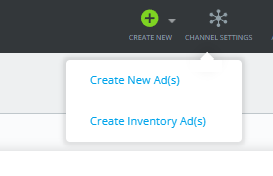
- Or, locate the Ad Builder via the **Ad Library** tab in the left side navigation panel

- Step 1, Creative: You will be immediately prompted to **upload an image or video file** by either dragging a file into the upload box or by pressing the button “Select File From Your Computer”.
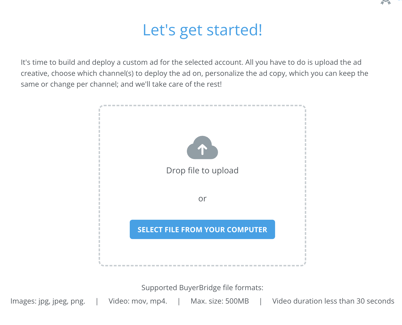
**📖 Supported file formats are:**
- Image: .jpg, .jpeg, or .png
- Video: .mp4 or .mov
- Max file size: 500MB
- Minimum size: 500x500
- Video length: under 60 seconds
- Click [here](https://support.buyerbridge.com/knowledge/best-practices-omnichannel-creative?hsLang=en) to view the recommended dimensions, file sizes, and more for your uploaded files
> **NOTE:** TikTok only supports video image formats, so if you are wanting to deploy an ad on TikTok, be sure to upload a video in this step!
>
> We recommend following our [Creative Best Practice Guide](https://support.buyerbridge.com/knowledge/best-practices-omnichannel-creative?hsLang=en)to ensure your ad images are optimized for the different channels you wish to advertise on.
- Step 2, Media: Once your file is uploaded, you will be prompted to select the channels you wish to create the ad for.
\> If you see “Missing Dependencies,” you will need to complete the Channel Setup for any of the channels you want to deploy to.
- Rename your ad by clicking the pencil icon next to the file name. We recommend using specific naming conventions so you can easily locate this ad in Campaign Management later.
**IMPORTANT:** If you do not rename your ad, the ad name will automatically default to the name of the media that was uploaded.
- Select your desired **channels**
- Once you select your desired channels, the Channels count shows how many are selected (for example, 4 of 4 selected) and the previews on the right show each aspect ratio and placement.

> **⏳ NOTE:** Reddit Coming Soon! Get ready for this new ad channel by reading our blog: **[There's a New AIA in Town: Reddit Dynamic Vehicle Ads](https://buyerbridge.com/blog/new-aia-ad-reddit-dynamic-vehicle-ads/)**
### **Configure Media Styles**
On the Media step, pick your channels and choose how your creative fits each aspect ratio. Previews on the right update as you change settings.

#### Media Styles Switch
When the Allow supported channels to control media styles toggle is on (Recommended), Meta and Pinterest pick the best treatment for each placement. Those ratios show a lock icon and the label Controlled by Meta, Pinterest, and your media is sent in its original size.

Aspect ratios shows your original size (for example, Original is 9:16 · 1080×1920). Pick a Fill style for each ratio that is not controlled by Meta or Pinterest: Fill blur, Fill or Fill color. When the media styles toggle is off, you set the fill style for every ratio yourself.

- **Fill Blur**: The space behind the media will be blurred. This is the default format.
- **Fill**: Fills the available space.
- **Fill Color**: Allows the background color to be selected.
- If a video is being used, the default Fill Color will be black.
- If an image is being used, the default Fill Color with be the dominant color of the image.
- This only applies the first time you upload your media. If you upload a custom image, it will not select the dominant color.
**Simple vs Advanced Formatting**
Simple and Advanced formatting are only available when the Media Style Control toggle is off. Selecting “Advanced” mode allows you to set custom formats for each controlled media style. Selecting “Simple” mode will switch back to shared control by the platform.
\[VERIFY BEFORE PUBLISHING: Simple and Advanced do not show in the new Media screen. Confirm with Derek they still exist, or cut this section and its image.\]
-png-1.png)
**NOTE**: If customizations were made, changing back to “Simple” mode will revert any customizations made to formatting.
#### Meta Advantage+ Switch
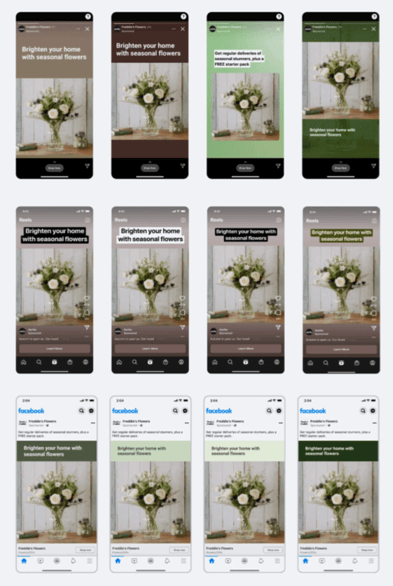
Advantage+ Creative Standard Enhancements is for Ads using a single image or video. Advantage+ Creative automatically creates multiple variations of the Ad and shows a personalized variation to each user based on what they're most likely to respond to. To use it, switch on Enable Meta Advantage+ creative standard enhancement on the Media step. Meta may adjust brightness and contrast and apply templates.
**NOTE**: You can only create Ads with Advantage+ Creative Standard Enhancements using Traffic, Leads, Engagement, Sales and App Promotion objectives.
When creating an Ad with Advantage+ Creative Standard Enhancements, a single image or video and a variety of text options can be added. Multiple variations of the Ad will automatically be created with different text combinations, media enhancements, and compositional changes. Creative inputs, Ad setup, and Placement selections determine which variations are automatically created.
Below are some of the types of media enhancements and compositional changes that can occur in this ad creation flow to automatically optimize creative:
**IMPORTANT**: The Media Style Configurations can only be completed when creating a new Ad. They can not be accessed from the “Edit” function of an Ad.
When your media looks right, click Continue to copy.
Create Multiple Ads At Once
You can also use the Ad Builder to create multiple ads at one time.
Click + Add ad, next to your ad thumbnails at the top of the Media or Copy step, then upload your next file. Click a thumbnail to switch between ads.

### Customize Your Ad Details & View Instant Previews
Step 3, Copy: add your copy, links and a call to action (CTA), then preview how your ad looks on each channel. Above the copy fields you will find links to Best practices and the Ad Builder cheat sheet.
> Check out the [Ad Builder Cheat Sheet](https://support.buyerbridge.com/knowledge/ad-builder-cheat-sheet?hsLang=en) for helpful tips!
Using the left panel, you now can edit the details of your ad.
#### Customize content per channel
Write your copy once for every channel, or switch on Customize content per channel to override any field for a single channel. If you are creating for multiple channels, we recommend turning this on. With it on, pick the channel whose fields you want to change, then edit them.

A preview will display on the right in real-time as you begin entering your ad details.
**Ad Fields:**
- Primary headline: all channels
- Description: Meta only
- Call to action: Meta, Snapchat and TikTok
- Body text: Meta and Pinterest
- Destination URL: all channels
- URL Parameters \[VERIFY: not visible in Derek's Copy screenshot, confirm it is still on the Copy step\]
The channel icons next to each field show which channels use it.
#### **Copy / Character Limits**
Each text field shows a character counter, such as 8 / 100.
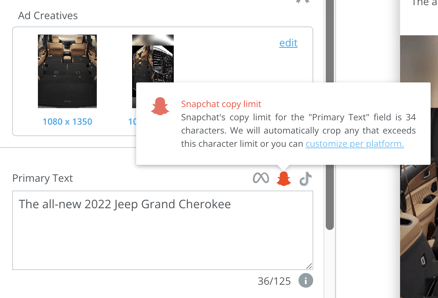
If a channel allows fewer characters, a note appears under the field, such as Snapchat allows 34 characters (Primary headline) or Pinterest allows 500 characters (Body text). With Customize content per channel off, keep your copy within the lowest limit.
We recommend switching on Customize content per channel so you can write the right length for each selected channel.
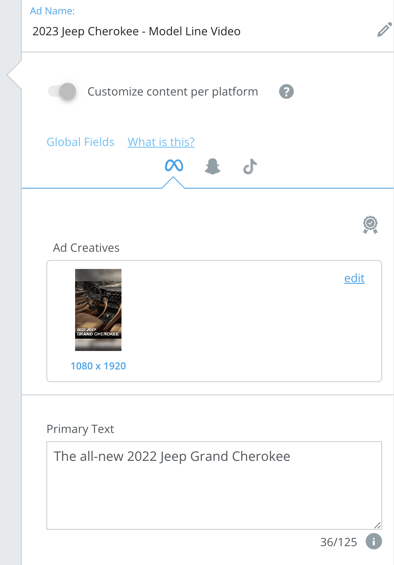
**TIP:** We recommend checking out the [Ads Builder Fields Cheat Sheet](https://support.buyerbridge.com/knowledge/ads-builder-cheat-sheet?hsLang=en) if you need help with any of the Ad Fields or need to know more about the Copy/Character Limits.
### Preview Panel
The preview panel on the right shows live previews of your ad with all of the details and copy you added. They update as you type.

- Choose the previews you want to see by selecting the channel icons at the top of the panel. Click them again if you wish to hide the previews from your current view.

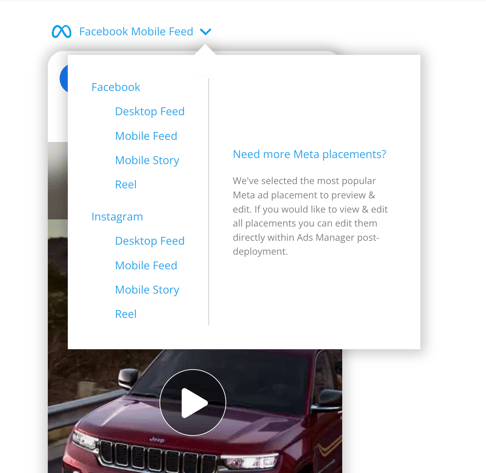
- For Meta previews, use the placement dropdown (for example, Facebook Feed) to view other placements such as Instagram Stories.
### How To Change Your Canvas View
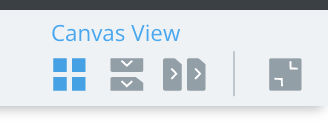
On the right-side of the preview panel, you can choose between various canvas views to change how your ads are displayed.
#### Grid
Grid view shows the ad previews side by side. 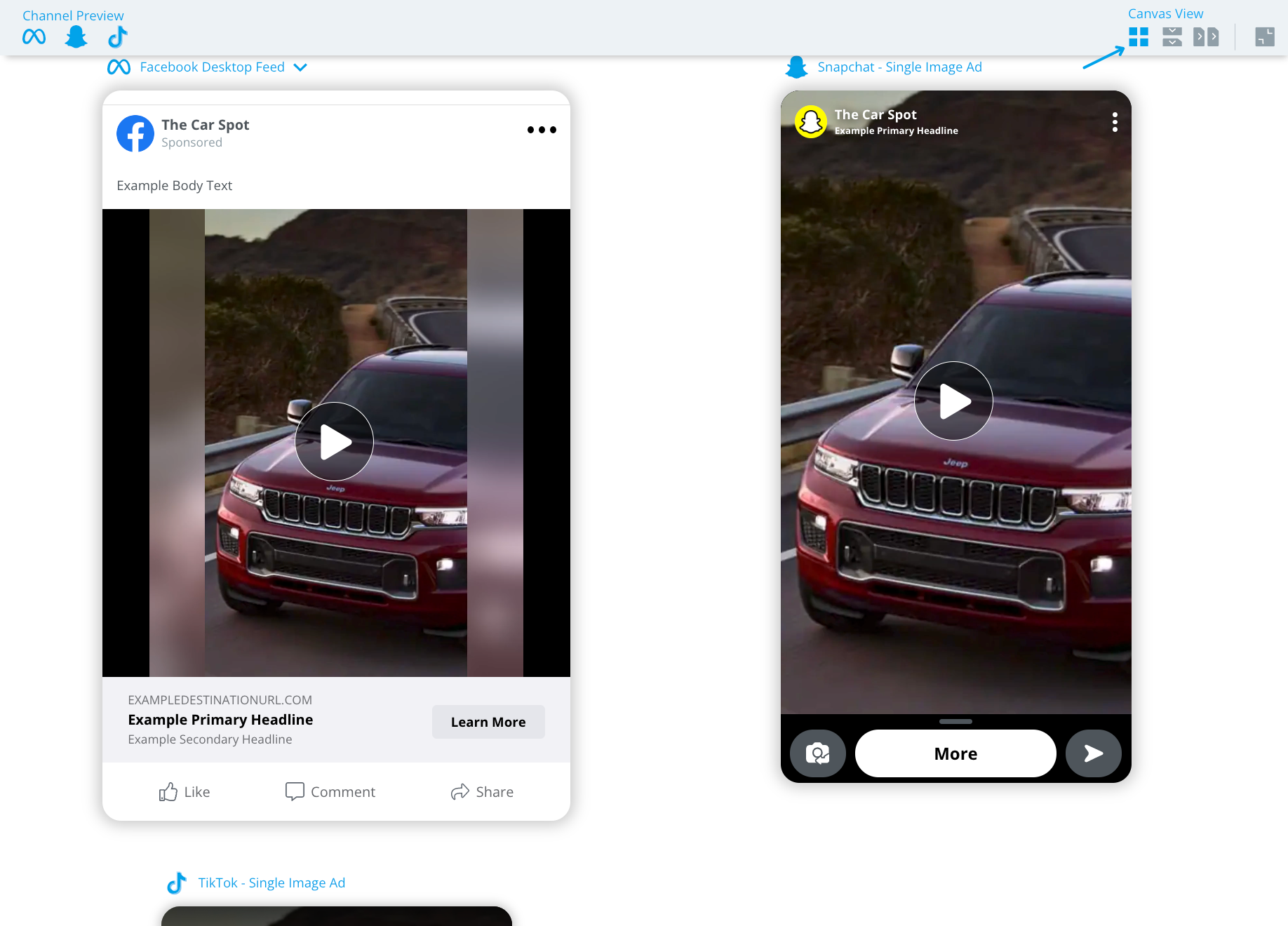
#### Vertical Scroll
Vertical Scroll shows the ad previews above and below each other allowing you to scroll up and down to view each preview. 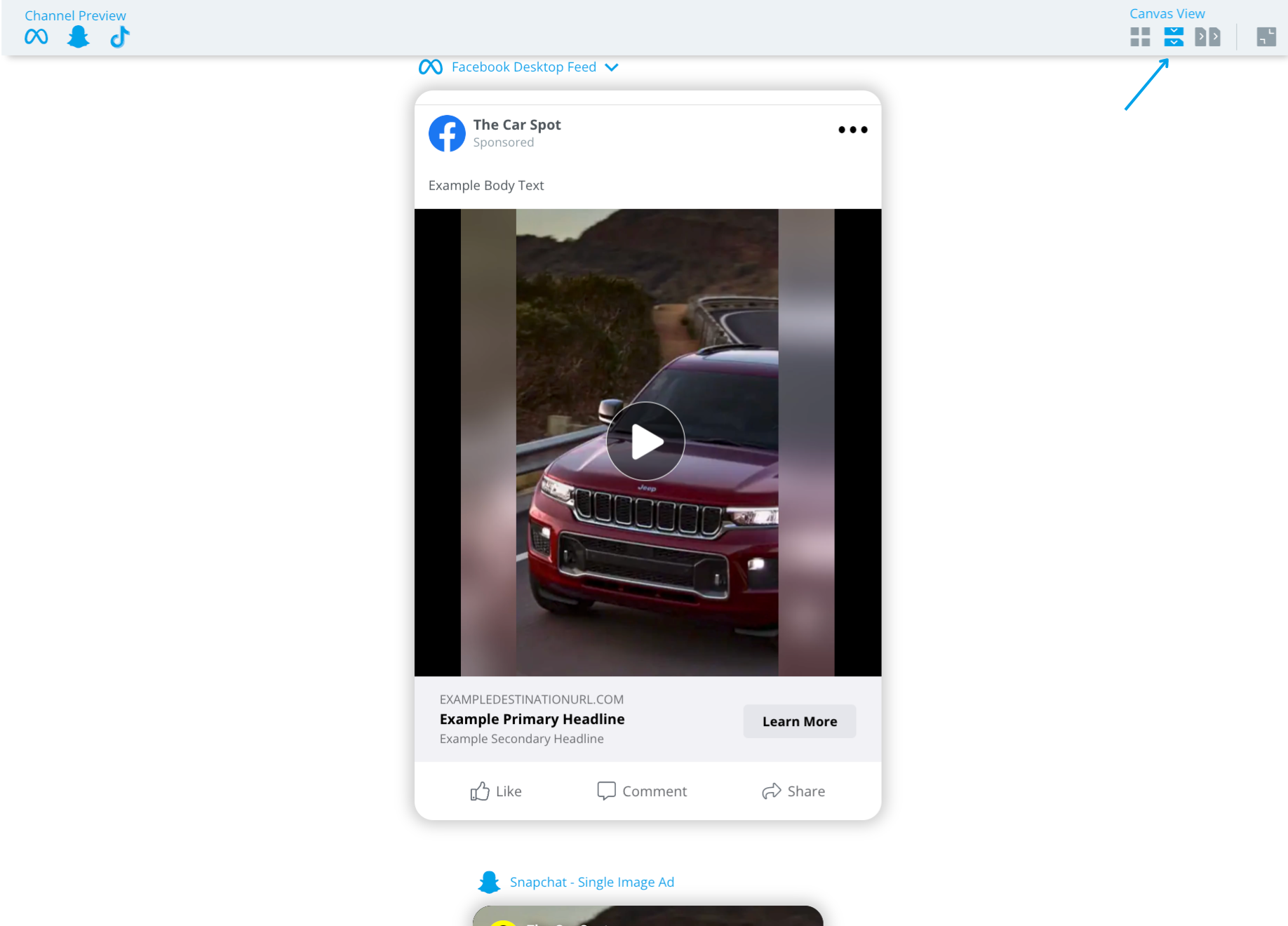
#### Horizontal Scroll
Horizontal Scroll shows the ad previews in a line allowing you to scroll side to side to view each preview.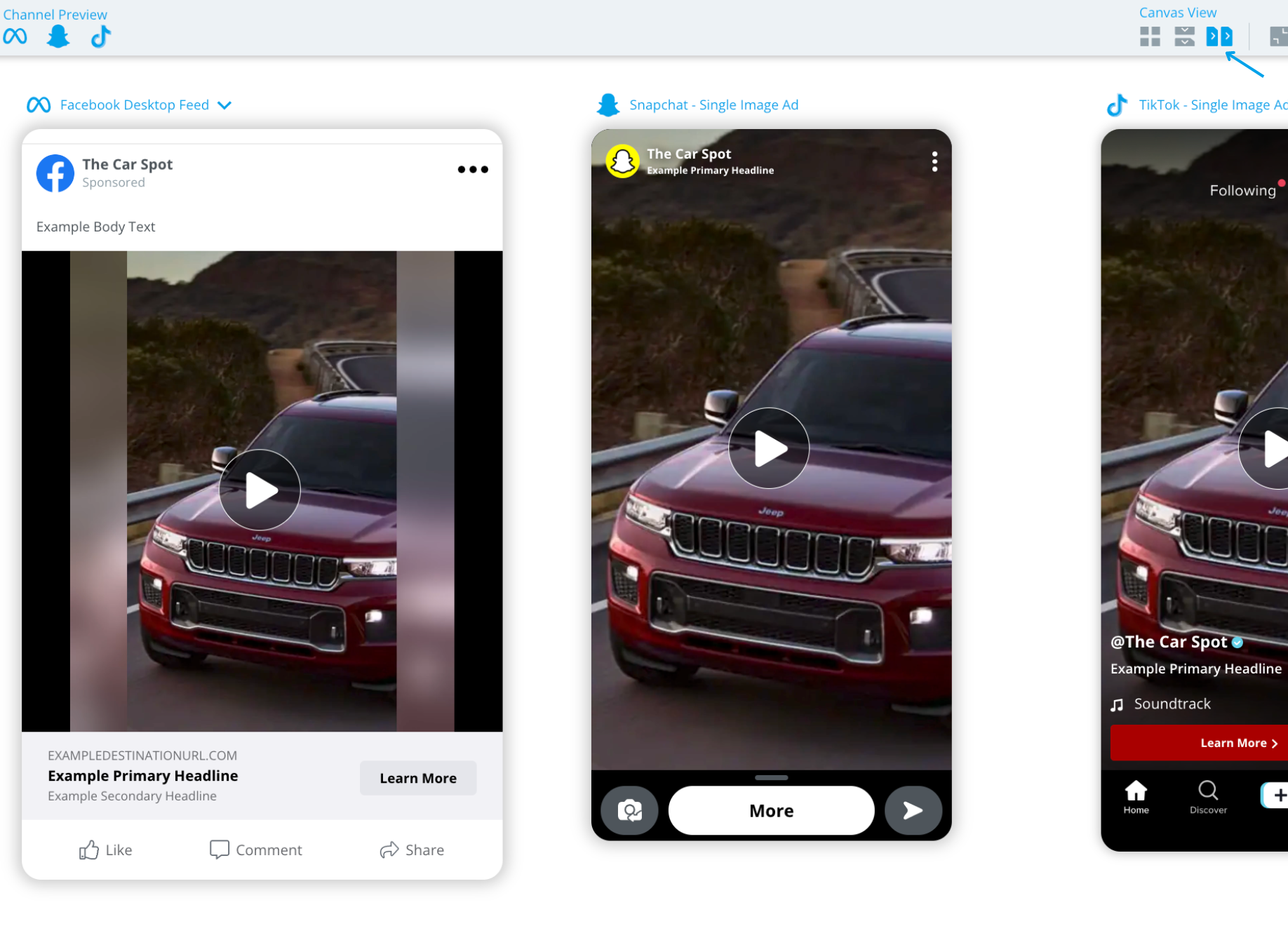
#### Fill
Fill shows the ad previews all at once. 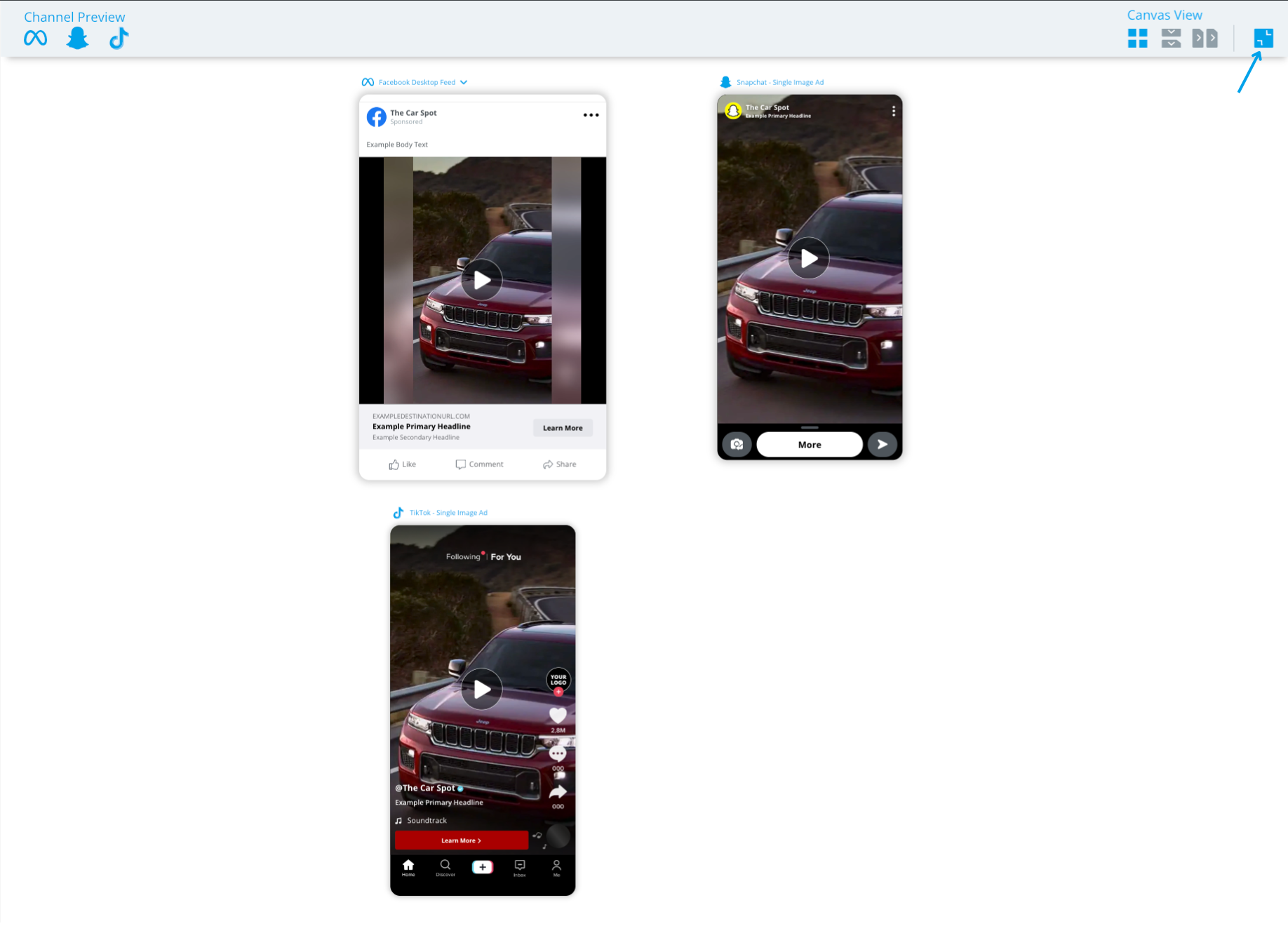
> **NOTE:** When using the Fill view, Grid, Vertical Scroll, or Horizontal Scroll must be selected as well.
When your ad is ready, use the buttons at the top right of Ad Builder:
- **Save & Exit -** Save a draft of your created ads into the BuyerBridge Ads Library. Learn more
- **Save & Deploy -** Begin deployment with our Omni Ad Launcher tool where you can select your budgets, targeting, and more!
**Up Next:** [How To Use The BuyerBridge Ad Launcher](https://support.buyerbridge.com/knowledge/how-to-ad-launcher?hsLang=en)
- [Getting Started](https://support.buyerbridge.com/knowledge/getting-started?hsLang=en#main-content)
- [Welcome Kit](https://support.buyerbridge.com/knowledge/getting-started?hsLang=en#welcome-kit)
- [Getting Started](https://support.buyerbridge.com/knowledge/getting-started?hsLang=en#getting-started)
- [Navigating the Platform](https://support.buyerbridge.com/knowledge/getting-started?hsLang=en#navigating-the-platform)
- [Account Management](https://support.buyerbridge.com/knowledge/getting-started?hsLang=en#account-management)
- [Onboarding Clients](https://support.buyerbridge.com/knowledge/onboarding-clients?hsLang=en#main-content)
- [Channel Onboarding](https://support.buyerbridge.com/knowledge/onboarding-clients?hsLang=en#channel-onboarding)
- [Google Onboarding](https://support.buyerbridge.com/knowledge/onboarding-clients?hsLang=en#google-onboarding)
- [Meta Onboarding](https://support.buyerbridge.com/knowledge/onboarding-clients?hsLang=en#meta-onboarding)
- [Pinterest Onboarding](https://support.buyerbridge.com/knowledge/onboarding-clients?hsLang=en#pinterest-onboarding)
- [SEO Onboarding](https://support.buyerbridge.com/knowledge/onboarding-clients?hsLang=en#seo-onboarding)
- [Snapchat Onboarding](https://support.buyerbridge.com/knowledge/onboarding-clients?hsLang=en#snapchat-onboarding)
- [TikTok Onboarding](https://support.buyerbridge.com/knowledge/onboarding-clients?hsLang=en#tiktok-onboarding)
- [Platform Tools](https://support.buyerbridge.com/knowledge/platform-tools?hsLang=en#main-content)
- [Ad Builder](https://support.buyerbridge.com/knowledge/platform-tools?hsLang=en#ad-builder)
- [Ad Launcher](https://support.buyerbridge.com/knowledge/platform-tools?hsLang=en#ad-launcher)
- [Ads Library](https://support.buyerbridge.com/knowledge/platform-tools?hsLang=en#ads-library)
- [Best Practices](https://support.buyerbridge.com/knowledge/platform-tools?hsLang=en#best-practices)
- [Budgeting](https://support.buyerbridge.com/knowledge/platform-tools?hsLang=en#budgeting)
- [Campaign Management](https://support.buyerbridge.com/knowledge/platform-tools?hsLang=en#campaign-management)
- [EventFlow](https://support.buyerbridge.com/knowledge/platform-tools?hsLang=en#eventflow)
- [MarketAnalyzer](https://support.buyerbridge.com/knowledge/platform-tools?hsLang=en#marketanalyzer)
- [Playbooks](https://support.buyerbridge.com/knowledge/platform-tools?hsLang=en#playbooks)
- [SEOFlow](https://support.buyerbridge.com/knowledge/platform-tools?hsLang=en#seoflow)
- [Reports](https://support.buyerbridge.com/knowledge/platform-tools?hsLang=en#reports)
- [VINFlow](https://support.buyerbridge.com/knowledge/platform-tools?hsLang=en#vinflow)
- [White Labeling](https://support.buyerbridge.com/knowledge/platform-tools?hsLang=en#white-labeling)
- [Multichannel Advertising](https://support.buyerbridge.com/knowledge/multichannel-advertising?hsLang=en#main-content)
- [Overview](https://support.buyerbridge.com/knowledge/multichannel-advertising?hsLang=en#overview)
- [Google](https://support.buyerbridge.com/knowledge/multichannel-advertising?hsLang=en#google)
- [Meta](https://support.buyerbridge.com/knowledge/multichannel-advertising?hsLang=en#meta)
- [Pinterest](https://support.buyerbridge.com/knowledge/multichannel-advertising?hsLang=en#pinterest)
- [Snapchat](https://support.buyerbridge.com/knowledge/multichannel-advertising?hsLang=en#snapchat)
- [TikTok](https://support.buyerbridge.com/knowledge/multichannel-advertising?hsLang=en#tiktok)
- [Agency Sales Assets](https://support.buyerbridge.com/knowledge/agency-sales-assets?hsLang=en#main-content)
- [Facebook Sales Assets](https://support.buyerbridge.com/knowledge/agency-sales-assets?hsLang=en#facebook-sales-assets)
- [Google Sales Assets](https://support.buyerbridge.com/knowledge/agency-sales-assets?hsLang=en#google-sales-assets)
- [Graphics & Web Elements](https://support.buyerbridge.com/knowledge/agency-sales-assets?hsLang=en#graphics-web-elements)
- [Instagram Sales Assets](https://support.buyerbridge.com/knowledge/agency-sales-assets?hsLang=en#instagram-sales-assets)
- [Meta Sales Assets](https://support.buyerbridge.com/knowledge/agency-sales-assets?hsLang=en#meta-sales-assets)
- [Omnichannel Sales Assets](https://support.buyerbridge.com/knowledge/agency-sales-assets?hsLang=en#omnichannel-sales-assets)
- [Pinterest Sales Assets](https://support.buyerbridge.com/knowledge/agency-sales-assets?hsLang=en#pinterest-sales-assets)
- [Snapchat Sales Assets](https://support.buyerbridge.com/knowledge/agency-sales-assets?hsLang=en#snapchat-sales-assets)
- [TikTok Sales Assets](https://support.buyerbridge.com/knowledge/agency-sales-assets?hsLang=en#tiktok-sales-assets)
- [SEO for Dealers](https://support.buyerbridge.com/knowledge/agency-sales-assets?hsLang=en#seo-for-dealers)
- [Product Updates & Enhancements](https://support.buyerbridge.com/knowledge/product-updates-enhancements?hsLang=en#main-content)
- [Enhancements](https://support.buyerbridge.com/knowledge/product-updates-enhancements?hsLang=en#enhancements)
- [Product Updates](https://support.buyerbridge.com/knowledge/product-updates-enhancements?hsLang=en#product-updates)
- [Announcements](https://support.buyerbridge.com/knowledge/product-updates-enhancements?hsLang=en#announcements)
- [Monthly Updates](https://support.buyerbridge.com/knowledge/product-updates-enhancements?hsLang=en#monthly-updates)
- [Metrics](https://support.buyerbridge.com/knowledge/metrics?hsLang=en#main-content)
- [Offline Events](https://support.buyerbridge.com/knowledge/metrics?hsLang=en#offline-events)
- [Metrics Defined](https://support.buyerbridge.com/knowledge/metrics?hsLang=en#metrics-defined)
- [Leads](https://support.buyerbridge.com/knowledge/metrics?hsLang=en#leads)
- [Reporting](https://support.buyerbridge.com/knowledge/metrics?hsLang=en#reporting)
- [SEO Reporting](https://support.buyerbridge.com/knowledge/metrics?hsLang=en#seo-reporting)
- [Supported Providers](https://support.buyerbridge.com/knowledge/supported-providers?hsLang=en#main-content)
- [CRM Integrations](https://support.buyerbridge.com/knowledge/supported-providers?hsLang=en#crm-integrations)
- [Inventory & Feed Providers](https://support.buyerbridge.com/knowledge/supported-providers?hsLang=en#inventory-feed-providers)
- [Website Providers](https://support.buyerbridge.com/knowledge/supported-providers?hsLang=en#website-providers)
- [3rd Party Support](https://support.buyerbridge.com/knowledge/3rd-party-support?hsLang=en#main-content)
- [Google Help Center](https://support.buyerbridge.com/knowledge/3rd-party-support?hsLang=en#google-help-center)
- [Facebook Platform Help](https://support.buyerbridge.com/knowledge/3rd-party-support?hsLang=en#facebook-platform-help)
- [TikTok Help Center](https://support.buyerbridge.com/knowledge/3rd-party-support?hsLang=en#tiktok-help-center)
[](https://buyerbridge.com/)
buyerbridge.com | Help Center
Copyright © 2026, Dealers United