![BuyerBridge_LOGO-dark-2.png]](https://support.buyerbridge.com/hs-fs/hubfs/BuyerBridge_LOGO-dark-2.png?height=40&name=BuyerBridge_LOGO-dark-2.png)
BuyerBridge gives partners a simple way to manage platform billing in one place.
From the Billing page, you can:
- View your BuyerBridge invoices
- Add or update your payment method
- Review the products and services included in your monthly bill
- Keep track of billing activity across your organization
This page is for BuyerBridge partner billing only. It does not control how you bill your own clients.
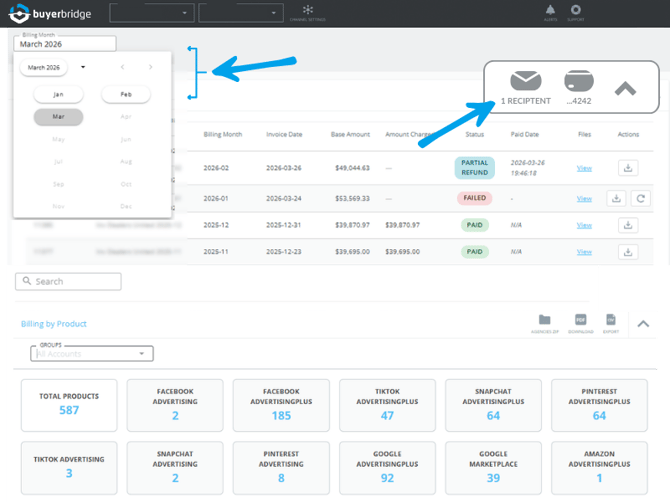
How to Access Your Billing Statement in BuyerBridge
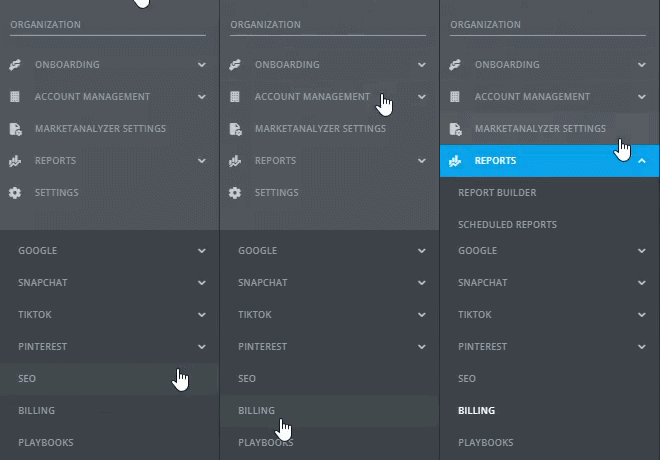
To view your billing statement:
-
Log in to your BuyerBridge account
-
Go to Reports in the left-hand menu
- Expand the Reports dropdown
- Select "Billing" from the available report options.
Once you open the Billing page, your invoice history will appear at the top of the page under Invoices.
Below that, you can also review your Billing by Product details.
What You Can View on the Billing Page
The Billing page gives you a centralized view of your BuyerBridge billing activity.
From this page, you can:
- Review invoice history
- See invoice totals and billing months
- Check payment status
- View paid dates
- Open invoice files
- Download invoice records
- Review billing details by product
- Add, update, or manage a payment method when available
Invoices continue to be generated as part of your normal billing process, so there is no disruption to your regular billing cycle.
How to View Your Invoices
The Invoices section shows your invoice history in BuyerBridge.
Each invoice row includes the following columns:
- Invoice Number
- Name
- Billing Month
- Invoice Date
- Base Amount
- Amount Charged
- Status
- Paid Date
- Files
- Actions
To open an invoice file, click View in the Files column.
Depending on the invoice, the Actions column may also include options such as downloading the invoice or taking action on an unpaid invoice.
Understanding the Billing Statement Columns
Here is what each invoice column means:
| Invoice Number |
The unique invoice ID for that billing record. |
| Name |
The invoice name tied to your organization and billing period. |
| Billing Month |
The service month the invoice covers. |
| Invoice Date |
The date the invoice was created. |
| Base Amount |
The original billed amount before any payment-related adjustments. |
| Amount Charged |
The final amount charged, when applicable. |
| Status |
The current state of the invoice, such as Paid, Failed, or Partial Refund. |
| Paid Date |
The date the payment was completed, when available. |
| Files |
A link to view the invoice file. |
| Actions |
Available invoice actions, which may include downloading the invoice or resolving an invoice issue. |
How to Review Billing by Product
The Billing by Product section gives you a more detailed breakdown of what is included in your bill.
This section helps you review:
- Which products are active
- Which rooftops are being billed
- Product onboarding dates
- Start and end dates
- Rates
- Amounts
- Discounts
- Billing amounts
You can also use the product summary cards at the top of this section to quickly review billed products across your account.
Payment Method Management
BuyerBridge supports payment method management inside the platform when available.
Depending on your account setup, you may be able to add, update, or manage your payment method directly in BuyerBridge.
Available payment options include:
- ACH bank transfer — no processing fee
- Credit card — 3% service fee
If you choose to pay by credit card, the 3% service fee will be shown during the payment flow. If you choose ACH, no processing fee applies.
ACH Bank Verification
If you add a bank account manually in BuyerBridge, your payment method may show a Bank Verification Pending status.
This means your bank account information has been entered, but setup is not complete yet.
To finish setup:
- Go to Reports > Billing
- Find the payment method showing Bank Verification Pending
- Click that status
- Open the verification link in the modal
- Enter the verification code sent to your email through Stripe
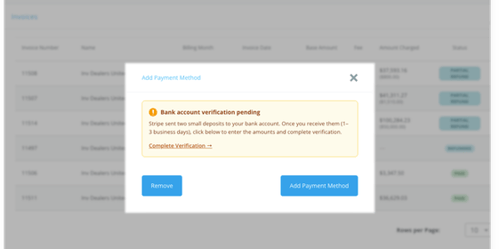
Once verification is complete, your bank account will appear as an added payment method on the Billing page.
Important: ACH setup is not complete until bank verification is finished. ACH payments have no processing fee, but the bank account must be fully verified before it can be used for billing.
If a payment method is not yet on file or cannot be completed in-app, BuyerBridge may send a secure payment link to help complete setup.
Frequently Asked Questions (FAQs)
Is this page for BuyerBridge billing or my client billing?
This page is for BuyerBridge partner billing only.
Can I view my invoices in BuyerBridge?
Yes. Invoice history is available in the Billing section.
What invoice statuses might I see?
Depending on the invoice, you may see statuses such as Paid, Failed, or Partial Refund.
Can I download my invoice from this page?
Yes. Download options may be available in the Actions column.
Can I manage my payment method in BuyerBridge?
Depending on your account setup, you may be able to add, update, or manage your payment method directly in the app.
What payment methods are supported?
BuyerBridge supports ACH bank transfer and credit card payments.
Does ACH have a processing fee?
No. ACH payments are processed at no additional cost.
Does credit card billing include a fee?
Yes. Credit card payments include a 3% service fee, which is shown during the payment flow.
Who should I contact if I have a billing question?
If you have questions about your billing statement or would like more details about your account charges, please reach out to billing@buyerbridge.com or contact your PX directly.
We’re here to make managing your BuyerBridge billing simple, transparent, and stress-free.