![BuyerBridge_LOGO-dark-2.png]](https://support.buyerbridge.com/hs-fs/hubfs/BuyerBridge_LOGO-dark-2.png?height=40&name=BuyerBridge_LOGO-dark-2.png)
This guide covers how to build a dealer's competitor set in Market Intelligence and how to read the Competitors tab. Set it up once per dealer. Every tab that compares against the Competitor list uses it.
Quick Links
- What Is a Competitor Set?
- How to Add a Competitor
- How to Remove a Competitor
- How to Read the Competitors Tab
- Troubleshooting
What Is a Competitor Set?
A competitor set is the saved list of rooftops a dealer is compared against. When Compared to is set to Competitor list, every tab uses this set. The left panel shows how many competitors are configured.
How to Add a Competitor
- Pick the dealer, then open Market Intelligence.
- Click the Competitors tab.
- In the Add competitor panel on the right, type at least two letters of the dealership's name. Rooftops already on the list are marked.
- Select the rooftop to add it.
Data for a new competitor shows right away. Competitors come from dealerships already in the data, with their history loaded.
How to Remove a Competitor
- Open the Competitors tab.
- Find the dealer in Your competitor set.
- Click the remove icon at the end of that row.
How to Read the Competitors Tab
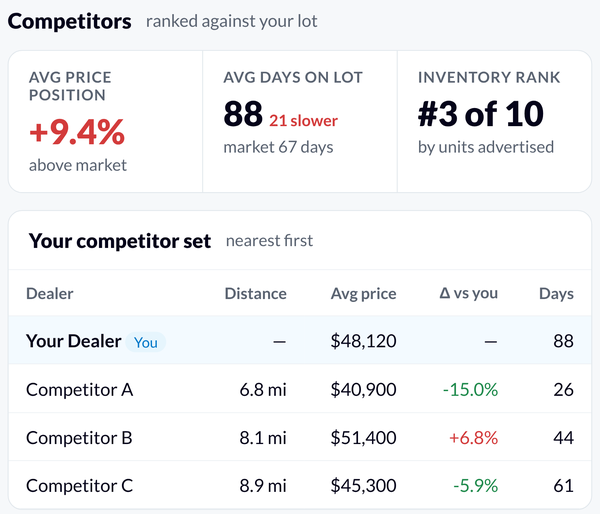
Three numbers at the top rank the dealer against the set:
- Avg price position: how far the dealer's average price sits above or below the market.
- Avg days on lot: the dealer's average days on lot next to the market's.
- Inventory rank: where the dealer ranks in the set by units advertised.
Your competitor set lists each rooftop, nearest first:
- Distance: miles from the dealer.
- Advertised: vehicles the rooftop lists on its website.
- Own stock: how many of those listings the rooftop holds itself. Group stores often advertise a shared pool, so this can be much lower than Advertised.
- Avg price and Δ vs you: the rooftop's average price and how it compares to the dealer's.
- Days: average days on lot.
- New / used: the split of the rooftop's listings.
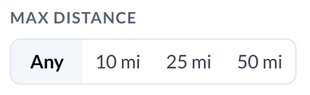
To narrow the list, use Max distance in the left panel: Any, 10 mi, 25 mi, or 50 mi.
Click Export CSV to download the list.
Troubleshooting
A competitor shows under "Not shown"
The rooftop isn't linked to a dealership in the website inventory data, so there is nothing to compare. Search for it again in Add competitor and add it from the results to link it.
A competitor advertises far more than it stocks
That's normal for group stores. Many listed vehicles appear at more than one rooftop. Check Own stock for what the rooftop holds.