![BuyerBridge_LOGO-dark-2.png]](https://support.buyerbridge.com/hs-fs/hubfs/BuyerBridge_LOGO-dark-2.png?height=40&name=BuyerBridge_LOGO-dark-2.png)
This guide covers how to build a dealer's competitor set in Market Intelligence and how to read the Competitors tab. Set it up once per dealer. Every tab that compares against the Competitor list uses it.
Quick Links
- What Is a Competitor Set?
- How to Add a Competitor
- How to Remove a Competitor
- How to Read the Competitors Tab
- Troubleshooting
What Is a Competitor Set?
A competitor set is the saved list of rooftops a dealer is compared against. When Compared to is set to Competitor list, You vs Market, Pricing, Problem Movers and Demand & Ad Fit compare against this set. The left panel shows how many competitors are configured.
Onboarding asks for at least one competitor when Market Intelligence is set up.
Note: Client users can view Market Intelligence and reorder competitors, but can't add or remove competitors or change focus vehicles.
How to Add a Competitor
- Pick the dealer, then open Market Intelligence.
- Click the Competitors tab.
- In the Add competitor panel on the right (on smaller screens, click Add competitor), type at least two letters of the dealership's name. Rooftops already on the list show On your list.
- Click Add next to the rooftop you want.
Data for a new competitor shows right away. Competitors come from dealerships already in the data, with their history loaded.
How to Remove a Competitor
- Open the Competitors tab.
- Find the dealer in Your competitor set.
- Click the remove icon at the end of that row.
How to Read the Competitors Tab
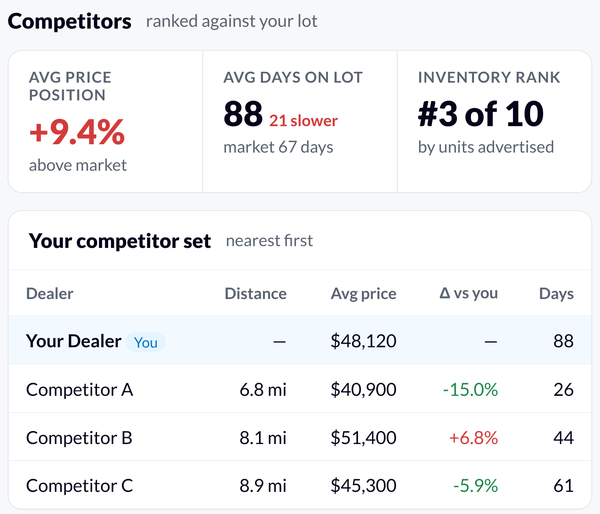
Three numbers at the top rank the dealer against the set:
- Avg price position: how far the dealer's average price sits above or below the typical rooftop in the competitor set.
- Avg days on lot: the dealer's average days on lot next to the typical competitor's.
- Inventory rank: where the dealer ranks in the set by units advertised.
Your competitor set lists each rooftop in the order you choose. Drag a row by its handle to move it. Tables with room for only a few rooftops, here and in reports, show them in this order. To reorder, first clear any distance filter or column sort. Each row shows:
- Distance: miles from the dealer.
- Advertised: vehicles the rooftop lists on its website.
- Own stock: how many of those listings appear only at this rooftop and nowhere else. Group stores often advertise a shared pool, so this can be much lower than Advertised.
- Avg price and Δ vs you: the rooftop's average price and how it compares to the dealer's.
- Days: average days on lot.
- New / used: the split of the rooftop's listings.
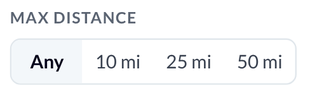
To narrow the list, use Max distance in the left panel: Any, 10 mi, 25 mi, or 50 mi.
Max distance narrows the table only. The three numbers at the top always use the whole set.
Click Export CSV to download the list.
Troubleshooting
A competitor shows under "Not shown"
The rooftop isn't linked to a dealership in the website inventory data, so there is nothing to compare. Search for it again in Add competitor and add it from the results to link it. If it doesn't come up in search, the rooftop has no vehicles listed online right now.
A competitor advertises far more than it stocks
That's normal for group stores. Many listed vehicles appear at more than one rooftop. Check Own stock for the cars only this rooftop lists.
A competitor in another country doesn't show up. Market Intelligence covers the US and Canada only, so rooftops outside them can't be added.