![BuyerBridge_LOGO-dark-2.png]](https://support.buyerbridge.com/hs-fs/hubfs/BuyerBridge_LOGO-dark-2.png?height=40&name=BuyerBridge_LOGO-dark-2.png)
The BuyerBridge Campaign Management tool gives you one central place to manage all of your client's campaigns, from the campaign level down to the ad level, across every connected advertising channel in BuyerBridge.
Note: The Campaign Management tool supports:
- Meta (Facebook and Instagram)
- Snapchat
- TikTok
Quicklinks
- How the Campaign Management Tool Works
- How to Manage Campaigns, Sets, and Ads
- How to Create New Ads
- How to View Ad Previews
How the Campaign Management Tool Works
What is the Campaign Management Tool?
Campaign Management is where you manage, adjust, and view performance for your client's active campaigns, sets, and ads across all connected channels. From here your team can edit budgets, turn campaigns on and off, preview ad creative, and more without going into each channel's ads manager.
Where the Campaign Management Tool Is Located
- Use the Account dropdown at the top of the platform to select the account you want to work in.
- In the left navigation, select Campaign Management.
At the top, use the Channel buttons (Google, Meta, Snapchat, TikTok, Pinterest, Reddit) to choose which channel you want to view and set the Date Range. You'll see campaigns, sets, and ads for that channel, similar to viewing them in the channel's own ads manager.
Important: Only channels your client is enrolled in will show data. If a client is not enrolled in a channel, nothing displays for it.
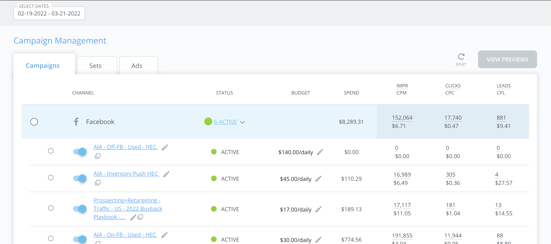
By default, the Campaigns tab is selected. You can move between the Deployed Ads, Campaigns, Sets, and Ads tabs at any time.
To view campaign-specific sets, select the campaign(s) you want, then toggle to the Sets tab.
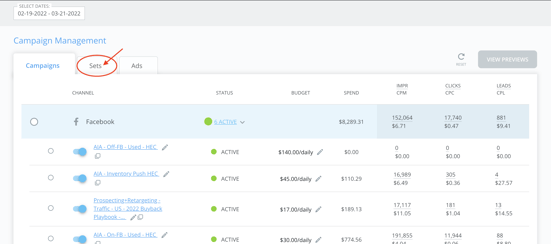
At the set level, select the specific set(s) you want to dive into.
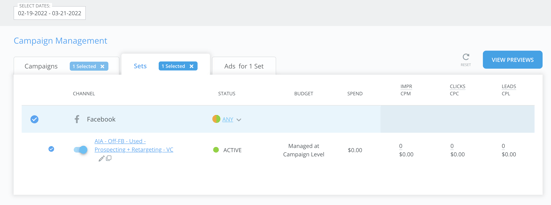
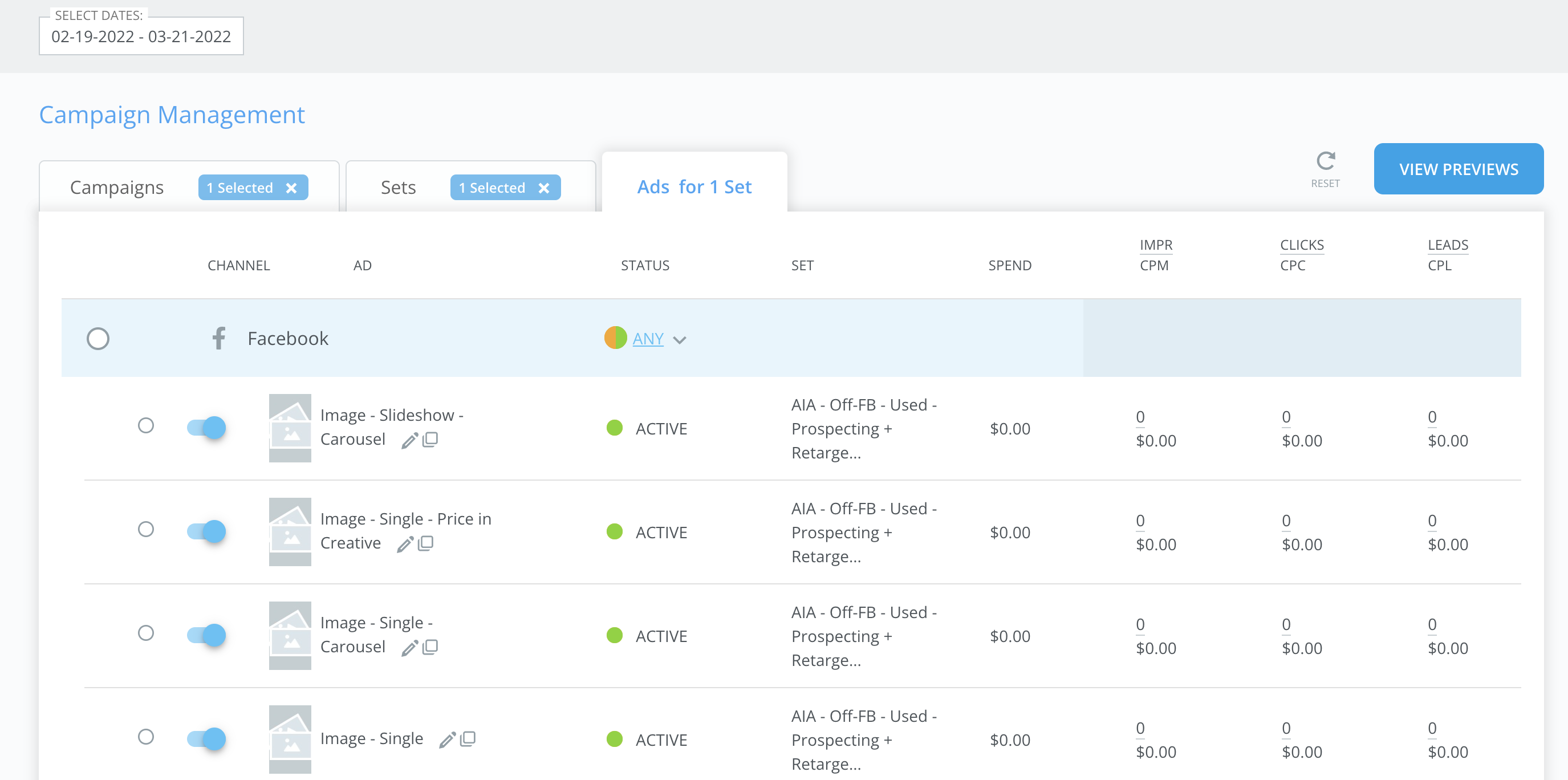
Then click Ads for [#] Set(s), and all ads for the selected campaigns and sets will display.
How To Manage Campaigns, Sets, and Ads
With Campaign Management, you no longer need to go into each channel's ads manager to manage your client's advertising. 🎉
Inside the Campaign Management Tool, you will have visibility into the following stats at all Campaign levels:
- Spend
- Impressions/CPM
- Clicks/CPC
- Leads/CPL
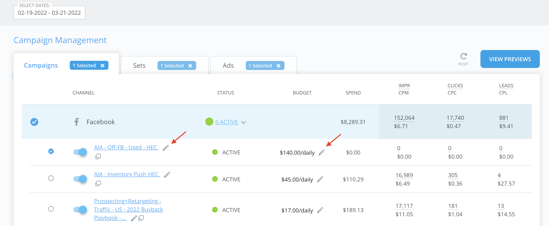
You can also edit names and budgets and quickly turn anything active to inactive and back.
To edit a name or budget: click the pencil icon next to the campaign, set, or ad you want to change.
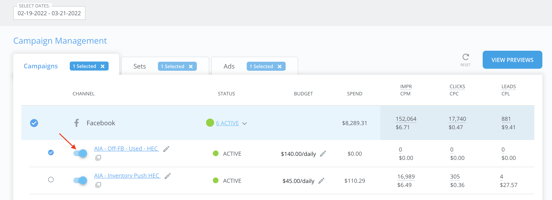
To turn a campaign, set, or ad on or off: click the toggle to the left of its name.
Note: Any of the above can be done at any level by selecting that level's tab.
Status Indicators And What They Mean
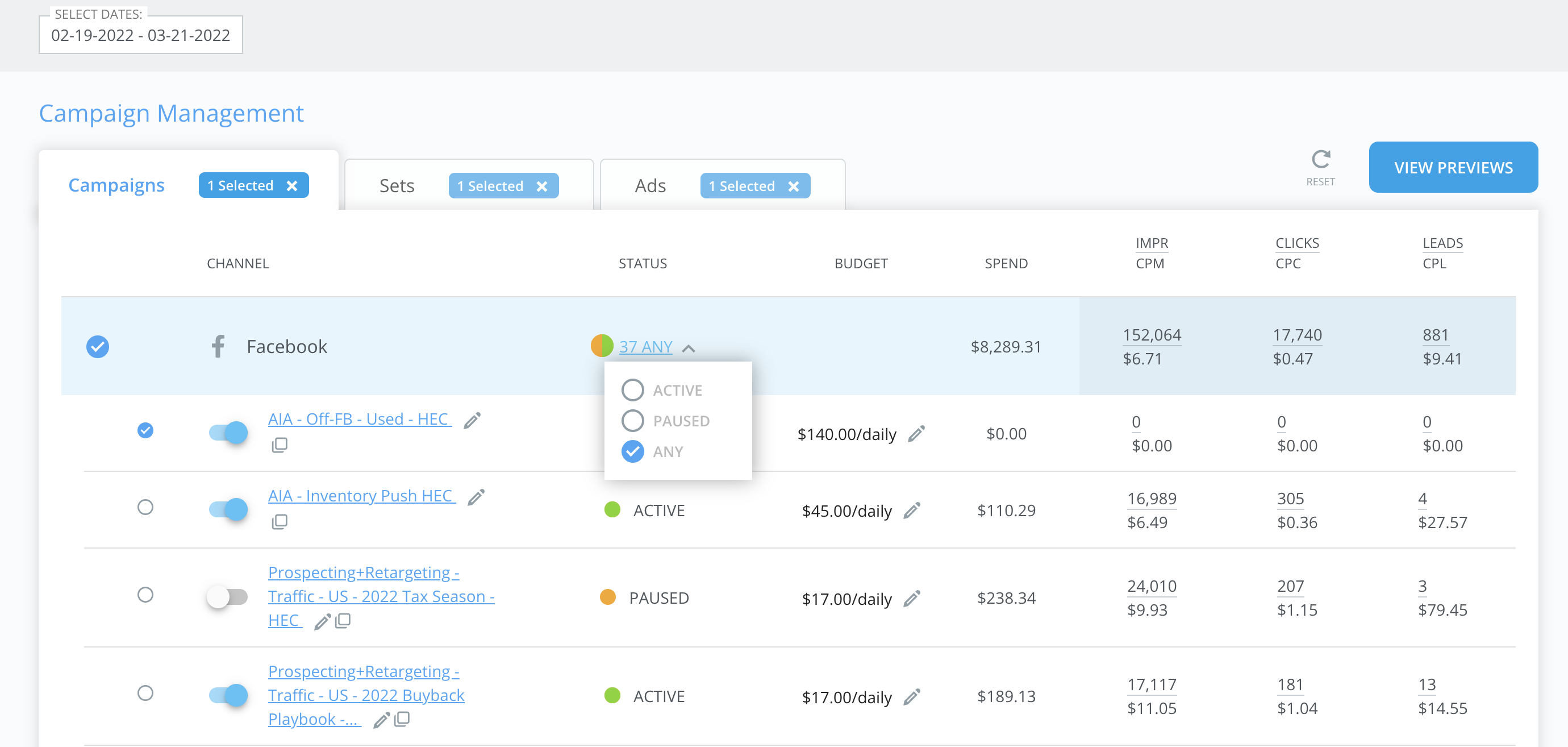
At the Campaign, Set, and Ad levels there are status indicators that let you know in real-time their Active status. You also will be able to filter by Active, Paused, or Any.
- Green = Active
- Orange = Paused
- Orange/Green = The channel contains both Active and Paused
NOTE: You will only ever see the Orange/Green Status indicator for the status of individual channels.
How to Create New Ads
You can launch new ads right from Campaign Management. Click Create New in the upper right and choose:
- Create New Ad(s) to build a standard ad
- Create Inventory Ad(s) to build ads from the client's inventory feed
Use Previews to review creative before it goes out, and Reset to clear filters and selections.
How to View Ad Previews
Our Ad Previews Page shows your organization previews for your client’s ads.
- Select any campaigns, sets, or ads, then click Previews in the upper right.
- Use this anytime to see what the ads will look like on each channel.
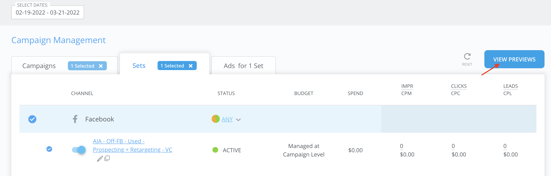
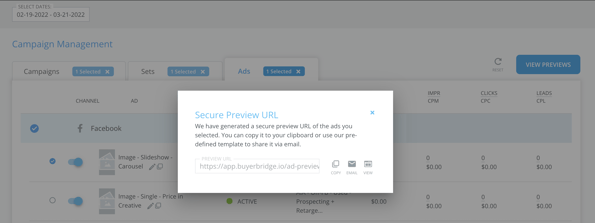
This generates a Secure Preview URL for the ads you selected.
🔍 You can copy the Secure Preview URL, email it to clients using our predefined template, or view the previews immediately.
Inside The Ad Previews Page
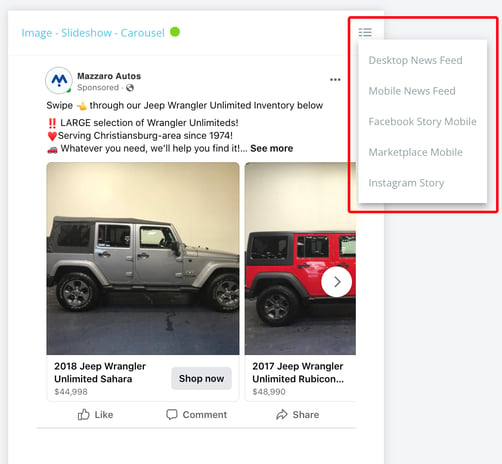
Below is an example of what the previews page will look like. Dynamic ads will not display on the Ad Preview page. Any ad using a product catalog will not show.
On the previews page you can view:
- Status Indicators: see whether the ad you're previewing is active or inactive.
- Preview Placement: view the ad in different placements (for example, Mobile News Feed or Instagram Story). Click the dropdown in the top left corner of the ad preview and select a placement.
If you have questions you can reach out to your partner experience manager or contact BuyerBridge Support via email: support@buyerbridge.com.