![BuyerBridge_LOGO-dark-2.png]](https://support.buyerbridge.com/hs-fs/hubfs/BuyerBridge_LOGO-dark-2.png?height=40&name=BuyerBridge_LOGO-dark-2.png)
The Overview tab sums up how AI assistants treat your client. The Prompts tab shows the answer to every question. New to AI Visibility? Start with How to Use AI Visibility in BuyerBridge.
Quick Links
- The Four Scores
- How to Filter
- How to Compare Assistants
- Sentiment and What Assistants Say
- Crawlability
- How to Read the Prompts Tab
- How to Read a Prompt's Answers
The Four Scores
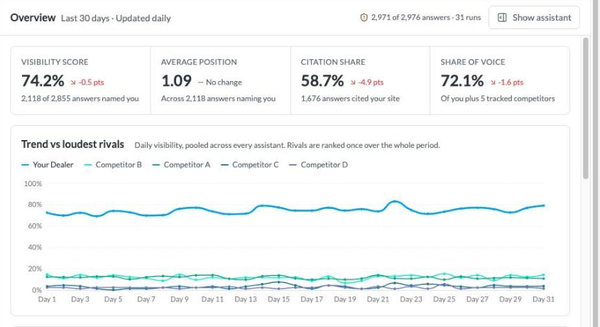
- Visibility Score: the share of AI answers that name your client.
- Average Position: where your client appears in the answers that name it. 1.00 means first.
- Citation Share: the share of answers that cite your client's own website.
- Share of Voice: your client's share of mentions out of itself plus its tracked competitors.
Each card compares the current period to the previous one. Below the cards, Trend vs loudest rivals plots daily visibility for your client and the competitors named most often.
How to Filter
The left panel filters every tab:
- Assistant: one assistant, or all of them.
- Prompt scope: Branded prompts name the dealer. Unbranded prompts don't.
- Topics: one topic, like Car Financing.
- Intent and page status filters sit lower in the panel.
Tip: Start with Unbranded. That's where a shopper hasn't picked a dealer yet, and where visibility is won or lost.
How to Compare Assistants
- On the Overview tab, select Show assistant.
- Select an assistant icon at the top of the panel.
- Review its visibility, average position and citation rate, split by branded and unbranded prompts.
- Select Read ChatGPT's answers to open its answers. The button names whichever assistant you picked.
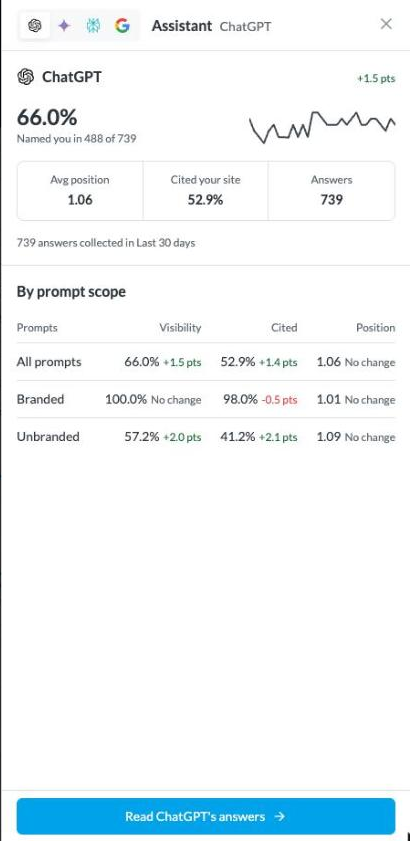
Note: Google AI Overviews also get their own card on the Overview. They count in the headline score, but they're a search feature, so they can move for different reasons.
Sentiment and What Assistants Say
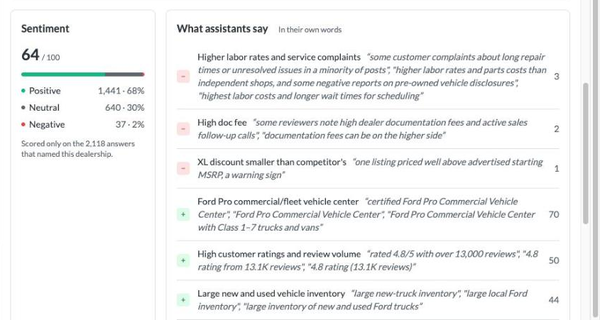
Sentiment scores your client out of 100, using only the answers that named it. It splits those answers into positive, neutral and negative.
What assistants say groups the themes that come up about your client, with quotes from the answers and a count for each. A minus sign marks a negative theme. A plus sign marks a positive one.
Crawlability
AI assistants can only cite pages their crawlers can read. The Crawlability card at the bottom of the Overview checks your client's site.
- Checked, Named, Blocked: how many AI crawlers AI Visibility checked, how many your client's robots.txt names, and how many it blocks.
- Site checks: HTTPS, TLS certificate, robots.txt and llms.txt.
- Crawler policies: the rule that applies to each crawler.
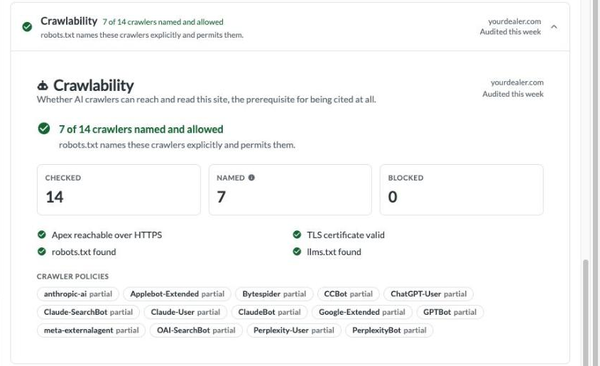
Important: If crawlers are blocked, fix that with your client's website provider before planning new pages.
How to Read the Prompts Tab
- Select the Prompts tab.
- Review each prompt's intent, visibility, change, position and how often your client's site was cited. Hover over a column header to see what it measures.
- Check the Your page column. It shows whether a page on your client's site answers the prompt well: Covered, or Weak page.
- Sort any column, or search prompts by keyword, like "trucks."
- Select Export CSV to download the list.
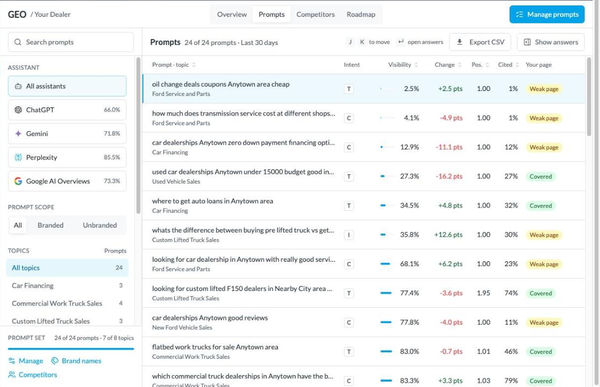
Tip: Press J and K to move up and down the list, and Enter to open a prompt's answers.
How to Read a Prompt's Answers
Select any prompt to open its panel. It has three tabs.
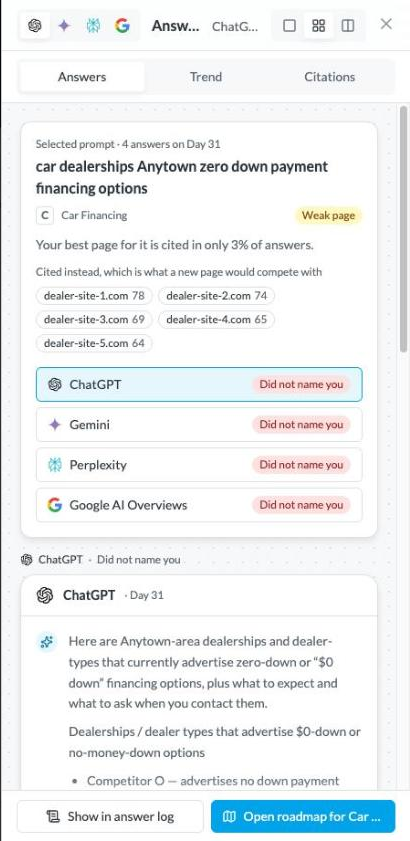
Answers shows whether each assistant named your client, how often your client's best page for the prompt gets cited, and the sites cited instead. Those sites are what a new page would compete with. Scroll down to read each assistant's full answer.
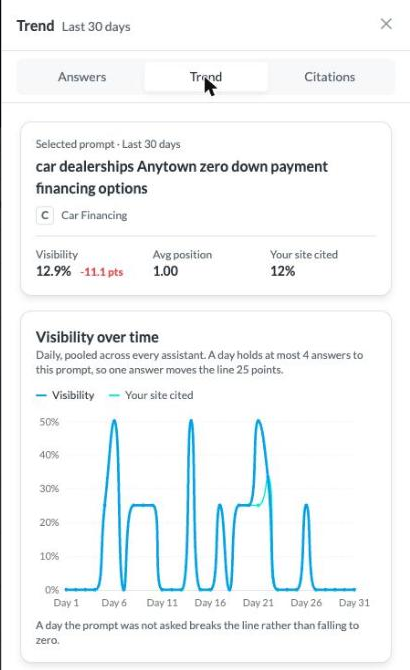
Trend shows the prompt's visibility and your site's citation rate day by day.
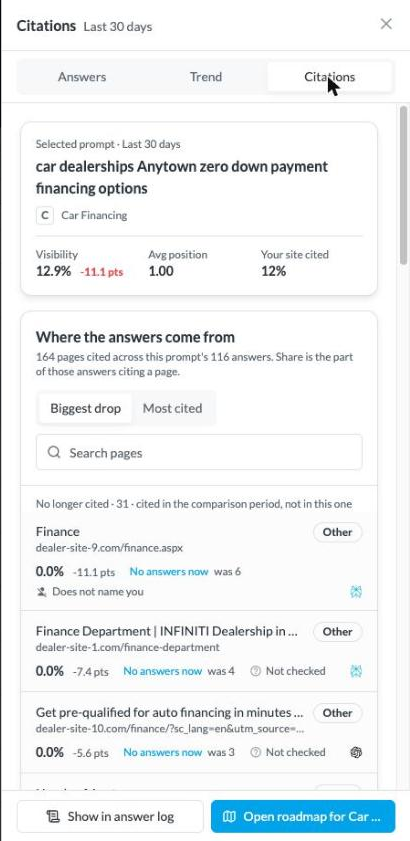
Citations lists every page cited for the prompt. Switch between Biggest drop and Most cited to see which sources are gaining or losing.
From the panel, select Open roadmap to see the page AI Visibility recommends for that topic.