![BuyerBridge_LOGO-dark-2.png]](https://support.buyerbridge.com/hs-fs/hubfs/BuyerBridge_LOGO-dark-2.png?height=40&name=BuyerBridge_LOGO-dark-2.png)
The Channel Settings panel shows how a client account is connected on each ad channel. Links in the panel open the asset straight in the channel's own business tools, so you skip the hunt through menus.
Quick Links
- How to Open Channel Settings
- Meta Tab
- Snapchat, TikTok and Pinterest Tabs
- Google Tab
- Channels the Client Doesn't Have Yet
How to Open Channel Settings
- Pick the client in the account dropdown at the top of the page.
- Click the sliders icon in the top bar. On a small screen, open the ⋮ menu and choose Channel settings.
The panel opens on the right. Website opens the client's site in a new tab, and Account Settings opens the client's settings page.
The tabs are Meta, Snapchat, TikTok, Pinterest, Google and SEO. Agencies with Reddit also see a Reddit tab.
💡 Note: Channel Settings is for agency users. Client logins don't see it.
Meta Tab
Buttons at the top of the tab:
- Business Manager access: shows whether your connection user has access to the client's Business Manager. Click it for details, such as You need to accept the invitation!
- Assign Permissions: give your user access to the client's assets. Pick All Assets, or choose the Page, Ad Account, Pixel or Catalogs one by one.
- Alerts: open alerts for the account.
Below the buttons, one card per asset:
- Page: the Facebook Page the account uses.
- Ad Account: links to the ad account, plus Billing, Payment Settings, Audiences and Reporting.
- Pixels: the client's pixel.
- Catalog(s): the vehicle catalog, plus Data Sources and Events.
- Google Links: a shortcut to the client's Google Analytics.
Each asset card shows whether your user has permission and has a BM Settings button that opens the asset in Business Manager.
Snapchat, TikTok and Pinterest Tabs
These tabs list the client's Ad Account, Pixel and Catalog. Click any of them to open it in that channel's business tools. Still being set up means the asset isn't connected yet.
Google Tab
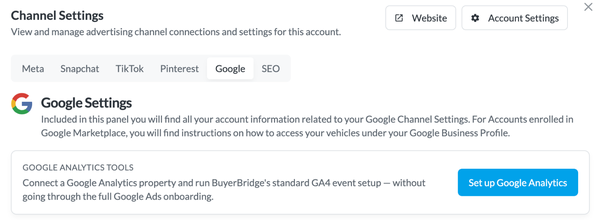
- Google Analytics Tools: click Set up Google Analytics to connect a Google Analytics property and run BuyerBridge's standard GA4 event setup, without the full Google Ads onboarding.
- Google Vehicle Listings: if the account still needs a linked Merchant Center feed and a Business Profile store code, click Set up Vehicle Listings. Once it's done, the card says You are all set up on Google Vehicle Listings! and Manage Assets lets you change them.
To see the listings, search for the dealership on Google and scroll to Cars for sale on its Business Profile. The card has a link that runs the search for you. Listings can take up to 72 hours to show.
Channels the Client Doesn't Have Yet
When the client isn't on a channel, its tab says so and shows a card for that channel. Click Setup to start onboarding. When the button reads Authenticate & Setup, BuyerBridge asks you to connect your agency to the channel first.