![BuyerBridge_LOGO-dark-2.png]](https://support.buyerbridge.com/hs-fs/hubfs/BuyerBridge_LOGO-dark-2.png?height=40&name=BuyerBridge_LOGO-dark-2.png)
Take control of your Google Ads spend and avoid costly surprises. The Google Budget Tool gives you a single place to track budgets, spot pacing issues, and make smarter decisions, so you never have to hunt through spreadsheets or risk overspending.
Quick Links
Where to Find the Google Budgeting Tool
-
Log in to BuyerBridge
-
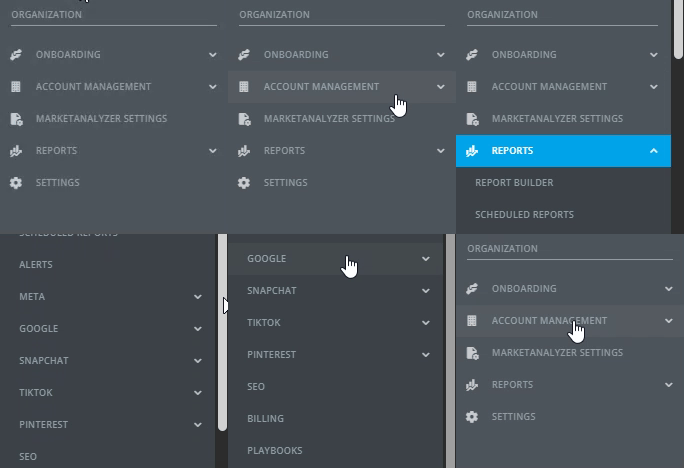
In the left menu, go to Organization
-
Go to Reports
-
Expand the Google options
-
Select Google Budgeting
How to Load and Filter Your Budget Report
-
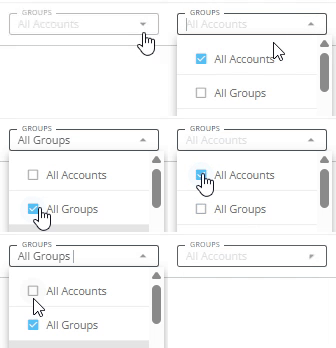
Choose Your Group: Use the “Groups” dropdown to select “All Accounts” or filter by team, location, or custom groups.
-
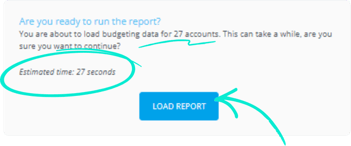
Load the Report: After picking your filter, click Load Report on the prompt (with estimated load time).
-
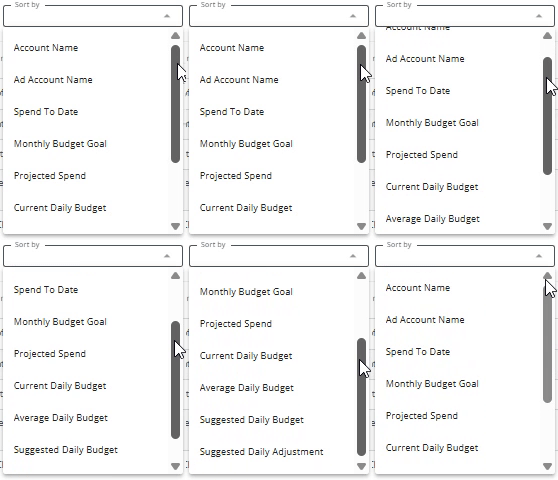
Filter & Search: Use the search bar or sort by Account Name, Ad Account Name, Spend to Date, Budget Goal, and more.
-
Advanced Filtering:
-
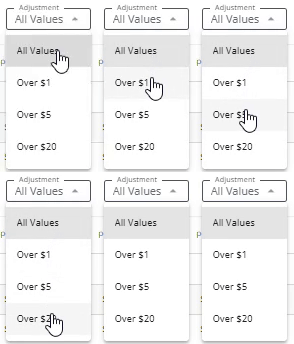
By Adjustment: All Values, Over $1, Over $2, Over $5
-
By Spend to Date: All Accounts, Spend Accounts, No Spend Accounts
-
Breaking Down the Data Columns
| Account Name | Name of the client/account |
| Ad Account Name | Clickable, links to the ad account |
| Settings Icon (Gear) | View Settings in Business Manager |
| Payment Icon (Moneybag) | View Payment Settings & Spend Limits |
| Status |
Green, Yellow, Red |
| Spend to Date | Google Ads spend so far (with a progress bar |
| Monthly Budget Goal | Your target spend (editable) |
| Projected Spend | Estimated spend by month-end at current pace |
| Current Daily Budget | What’s set in Google right now |
| Average Daily Budget | What’s actually been spent per day so far |
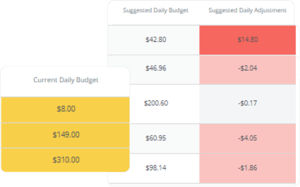
| Suggested Daily Budget | The budget you should be setting to stay on track (auto-calculated when you edit the Monthly Budget Goal) |
| Suggested Daily Adjustment | The daily budget change needed to hit your goal |
Editing Budgets and Making Adjustments
-
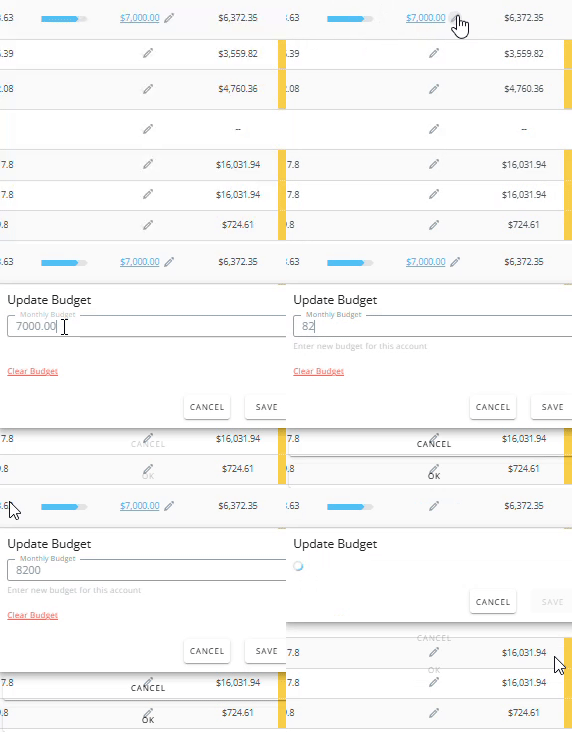
To update the Monthly Budget Goal: Click the pencil icon next to the goal and enter your new target. BuyerBridge will recalculate your Suggested Daily Budget and Adjustment instantly.
-
Want to see how much to change today? Check Suggested Daily Adjustment for a clear answer.
Exporting Your Google Budgeting Report
-
Change rows per page at the bottom, or arrow through pages to review all accounts.

-
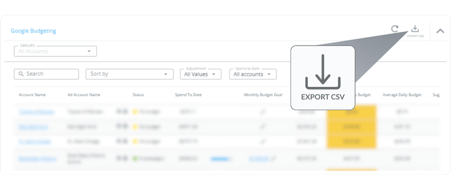
Click Export CSV at the top right to download your report for further analysis or easy sharing with your team or clients.
Tips & Why It Matters
Why use the Google Budget Tool?
-
Never overspend or underspend: See at a glance which accounts are pacing ahead or behind.
-
Save time: Eliminate manual budget checks, back-and-forth emails, and daily spreadsheet updates.
-
Spot issues before they cost you: Status colors and Suggested Daily Adjustments highlight what needs attention.
-
Proactive management: Make changes before the end of the month—not after the damage is done.
Pro tip: Sort by Status or Suggested Daily Adjustment to instantly find the accounts that need action today.
Related Guides