![BuyerBridge_LOGO-dark-2.png]](https://support.buyerbridge.com/hs-fs/hubfs/BuyerBridge_LOGO-dark-2.png?height=40&name=BuyerBridge_LOGO-dark-2.png)
Inventory Details lists every vehicle in a client's inventory feed and shows which ad channels are advertising it. Use it to check a new feed, find out why a vehicle isn't in ads, or grab a channel's catalog export URL.
Quick Links
- Where to Find Inventory Details
- Inventory Analysis
- Channel Activation
- The Vehicle Table
- Catalog Exports
- Data Sources
Where to Find Inventory Details
- Pick the client in the account dropdown at the top of the page.
- In the left menu, open Inventory and click Details.
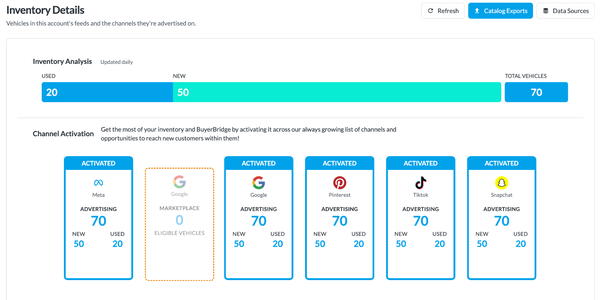
Three buttons sit at the top right: Refresh reloads the inventory, Catalog Exports opens the export URLs, and Data Sources jumps to the feed settings at the bottom of the page.
Inventory Analysis
The bar splits the client's vehicles into Used and New, with Total Vehicles on the right.
Channel Activation
Each channel the client has gets a card:
- Activated: the channel is advertising inventory. The card shows how many vehicles it's advertising, split into New and Used.
- Attention: something in the channel's setup needs finishing.
- Filtered: vehicles left out of that channel's catalog. Click it to see each reason with a count, then click view to filter the table to those vehicles.
Dashed cards are channels that can't advertise inventory yet. The note under the card says what's missing, for example Complete onboarding to activate this channel.
The Vehicle Table
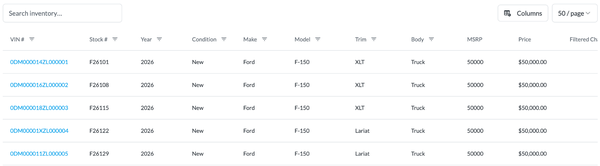
- Search inventory…: type to search the vehicle list.
- Filter icons in the column headers narrow the table. Active filters show as chips next to Filtered by:, with Clear all to reset.
- Columns: add or hide columns, such as Mileage, Days On Lot, Date Added or Features.
- The page size menu shows 10, 20 or 50 vehicles per page.
- Filtered Channel and Filtered Reason show where a vehicle was left out and why.
- VDP opens the vehicle's page on the client's website. View in the Details column opens the full vehicle record.
Catalog Exports
Click Catalog Exports to see the export URL BuyerBridge builds for each advertising channel, and copy the one you need.
Data Sources
The Data Sources card at the bottom of the page shows where the client's inventory comes from. Click Refresh there to pull the feed again.
💡 Tip: If the page asks Are you getting the most out of your inventory?, the account doesn't have an inventory product yet. Pick a channel on that screen to add one.