![BuyerBridge_LOGO-dark-2.png]](https://support.buyerbridge.com/hs-fs/hubfs/BuyerBridge_LOGO-dark-2.png?height=40&name=BuyerBridge_LOGO-dark-2.png)
VINFlow is how BuyerBridge picks which vehicles go into inventory ads. You filter a client's inventory down to the vehicles you want to push, save that as a Product Set, and deploy it with an inventory Playbook. Sets update on their own as vehicles that match your filters come and go.
Quick Links
- What Is VINFlow?
- Quick Start: Deploy Without a Product Set
- Where to Find the Product Set Builder
- How to Create Your First Product Set
- How to Deploy a Product Set
- Quick Checks Before You Deploy
What Is VINFlow?
Left alone, ad platforms tend to spend most of an inventory budget on a few easy vehicles. VINFlow lets you decide which vehicles get the spend, for example aged units, one model line or a manager's special list.
You can build a Product Set two ways:
- Vehicle filters: year, price, days on lot, make, model, body type and condition. Available on every agency tier.
- Ads Performance filters and the VIN Filter: build from real results (spend, impressions, clicks, CTR, leads, views) or paste exact VINs. These need the Plus or Elite agency tier. On Core you can try them, but you can't deploy a set that uses them.
Quick Start: Deploy Without a Product Set
If you're advertising All Vehicles, All New or All Used, skip the Product Set and deploy an AIA Playbook made for that group.
- In the left menu, open Playbooks and click Browse.
- In Filters, set Focus to Inventory, or type AIA in Search playbooks….
- Pick the AIA Playbook that fits the goal: Sales (Off-FB), Leads (Web), Leads (Forms - Qualified Leads), Leads (Forms - Max Leads w/ SMS Verify), or one of the two Full Funnel Playbooks.
- Click Deploy, choose Meta, and follow the steps.
- On the Review step, pick a Launch status: Paused (recommended) or Active. Then deploy.
🔗 Not sure which to pick? See AIA Playbooks 101: How to Pick the Best Fit.
Where to Find the Product Set Builder
- Pick the client in the account dropdown at the top of the page.
- In the left menu, open Inventory and click Product Sets.
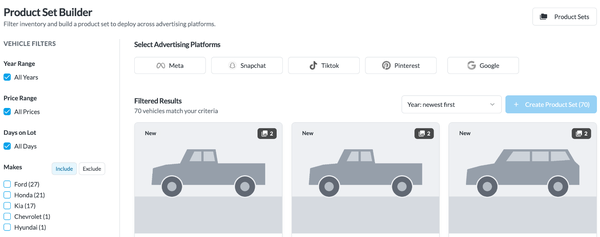
The Product Set Builder opens with every vehicle showing:
- Vehicle Filters on the left: Year Range, Price Range, Days on Lot, Makes, Models, Body Type and Condition (New, Used, Certified). Makes and Models can Include or Exclude.
- Ads Performance filters and the VIN Filter further down the left panel (Plus and Elite).
- Select Advertising Platforms at the top: the channels set up for inventory ads on this account.
- Filtered Results: the vehicles that match, with a sort menu.
- Product Sets at the top right: your saved sets, with vehicle count, date created, last synced and a Deploy button.
How to Create Your First Product Set
- Pick one or more platforms under Select Advertising Platforms.
- Narrow the vehicles with the filters on the left. To use Ads Performance filters, pick a single platform: performance numbers differ by platform, so they can't be mixed.
- Click Create Product Set. The button shows how many vehicles match.
- Enter a Product Set Name, check the Product Set Summary and save.
💡 Note: Google limits feed labels to 20 characters, so a longer name is cut short on Google.
🔗 Full walkthrough: How to Create a Product Set (Step-by-Step)
How to Deploy a Product Set
- Click Product Sets at the top right of the builder.
- Click Deploy next to the set. BuyerBridge opens Playbooks > Browse filtered to Inventory Playbooks.
- Pick a Playbook and click Deploy. Your Product Set is already selected on the wizard's Product Sets step.
- Finish the remaining steps and deploy.
A Meta deploy goes live right away. If you pick several channels at once, or a channel the Playbook has no ready-made play for, it goes through an order instead: our team builds it, usually within 3 business days.
🔗 Read more: How to Deploy a Playbook
Quick Checks Before You Deploy
- ✅ Fast path: All Vehicles, All New or All Used? Use the matching AIA Playbook and skip the Product Set.
- ✅ Platforms: did you pick the right ones at the top of the builder?
- ✅ Vehicle count: is the set big enough to deliver, and not every vehicle by mistake?
- ✅ Filters: do they match the goal, such as aged inventory, a price band or a body style?
- ✅ Name: will your team know what this set is later? Example: Aged 45+ Days - Used - Under 35K.
Continue Learning
- AIA Playbooks 101: How to Pick the Best Fit
- How to Deploy a Playbook
- How to Create a Product Set (Step-by-Step)
- How to Build Product Sets Using Performance Filters
- How to Target Exact VINs in Product Sets
- How to Use the Inventory Details Page
- Playbook Update: AIA Sales Campaign New Custom Audience Requirements