![BuyerBridge_LOGO-dark-2.png]](https://support.buyerbridge.com/hs-fs/hubfs/BuyerBridge_LOGO-dark-2.png?height=40&name=BuyerBridge_LOGO-dark-2.png)
The Playbooks Report lists every Playbook deployment across your organization's client accounts in one place: which Playbook went to which account, on which channel, and whether the build finished.
Quick Links
Where to Find the Report
- In the left menu, under Organization, open Reports.
- Click Playbooks.
The report is for agency users. Client logins don't see it.
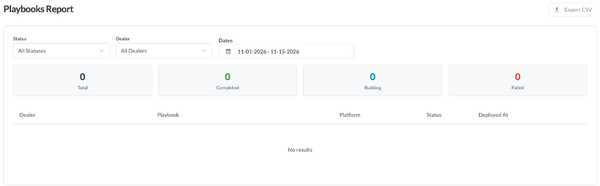
Filter the Report
- Status: Queued, Building, Completed or Failed. Defaults to All Statuses.
- Dealer: one client account, or All Dealers.
- Dates: show deployments made in this date range.
Reading the Report
The cards at the top count deployments in the current view: Total, Completed, Building and Failed. The table shows one row per deployment with Dealer, Playbook, Platform, Status and Deployed At.
To manage a client's deployed Playbooks, retry a failed build or turn campaigns on, go to that account's Playbooks > Manage. See How to Deploy a Playbook.
Export the Report
Click Export CSV at the top right to download the current view.