---
title: "VINFlow 101: Starting Guide"
description: Learn VINFlow basics, when you don’t need a Product Set, and how Plus/Elite unlocks VIN paste + performance-based Product Sets for AIAs.
---
[Skip to content](https://support.buyerbridge.com/knowledge/vinflow-starting-guide#main-content)
English
Show submenu for translations
[Submit a ticket](https://support.buyerbridge.com/knowledge/kb-tickets/new?hsLang=en)
![BuyerBridge\_LOGO-dark-2.png\]](https://support.buyerbridge.com/hs-fs/hubfs/BuyerBridge_LOGO-dark-2.png?height=40&name=BuyerBridge_LOGO-dark-2.png)
Open main navigation
Close main navigation
- English
Show submenu for translations
- [Submit a ticket](https://support.buyerbridge.com/knowledge/kb-tickets/new)
- Go to buyerbridge.com
Go to buyerbridge.com
Welcome to the BuyerBridge Help Center!
- There are no suggestions because the search field is empty.
1. [Help Center](https://support.buyerbridge.com/knowledge?hsLang=en)
2. [Platform Tools](https://support.buyerbridge.com/knowledge/platform-tools?hsLang=en)
3. [VINFlow](https://support.buyerbridge.com/knowledge/platform-tools?hsLang=en#vinflow)
# VINFlow 101: Starting Guide
## Build (or use) vehicle Product Sets, deploy AIA Playbooks, and keep inventory targeting working the right way.
**Quick Links**
- [What is VINFlow?](https://support.buyerbridge.com/knowledge/vinflow-starting-guide#what_is_VINFlow)
- [Quick Start (5 Minutes)](https://support.buyerbridge.com/knowledge/vinflow-starting-guide#quick_start)
- [Where to Find Product Sets in BuyerBridge](https://support.buyerbridge.com/knowledge/vinflow-starting-guide#find_product_sets)
- [How to Create Your First Product Set](https://support.buyerbridge.com/knowledge/vinflow-starting-guide#first_product_set)
- [How to Use Spend Guardrails (optional)](https://support.buyerbridge.com/knowledge/vinflow-starting-guide#spend_guardrails)
- [Quick Quality Assurance Tips](https://support.buyerbridge.com/knowledge/vinflow-starting-guide#q_a_tips)
- [Next Steps + Continued Reading](https://support.buyerbridge.com/knowledge/vinflow-starting-guide#next_steps)
---
### **What is VINFlow? Watch a live, in-app demo.**
VINFlow is a VIN-level marketing workflow inside BuyerBridge. It helps you build and use **vehicle Product Sets** for inventory advertising so your targeting supports the vehicles that need attention, stays repeatable, and easier to control.
#### **What Makes VINFlow Unique**
VINFlow gives you a smarter way to build and use Product Sets for inventory advertising so you’re not stuck letting ad platforms spend most of your budget on only the “easy” vehicles.
##### **Build Product Sets in two powerful ways *(Plus + Elite tiers)***
1. **Copy + paste VINs** to target exact vehicles. Perfect for manager specials or “push these today” lists.
2. **Use Ads Performance filters** to build sets from real results. Filter by impressions, spend, clicks, CTR, leads, or views, then narrow the set further using standard filters like SUVs/Trucks, New/Used/Certified, make/model, price, days on lot, and more.
#### **Launch Playbooks Using Your Product Sets**
Once you’ve built a Product Set, you can attach it to an inventory Playbook (ready-made campaign templates like AIAs and VLAs) to launch faster and keep targeting consistent.
💡**Good to know:** Product Sets auto-update as new vehicles enter your inventory and match your rules.
**Note:** If you’re only advertising **All Vehicles**, **All New**, or **All Used**, you can deploy inventory Playbooks without building a custom Product Set.
**🔗 [Learn How to Deploy a Playbook](https://support.buyerbridge.com/knowledge/how-to-deploy-a-playbook?hsLang=en)**
---
### **Quick Start (5-Min Path to Launch)**
If you’re only advertising **All Vehicles**, **All New**, or **All Used,** you can [deploy an AIA Playbook](https://support.buyerbridge.com/knowledge/how-to-deploy-a-playbook?hsLang=en) without creating a Product Set. BuyerBridge will automatically handle the correct vehicle group + audience behind the scenes.
**Do this next:**
1. Open the Playbooks library and select **Browse**
2. On the left side filter options, scroll to the **Focus** category and select **Inventory,** or
search AIA in the search bar
3. Choose the **AIA Playbook** that matches your goal:
- Sales
- Lead Forms
- Lead Forms with SMS Verify
- Web Leads
- Full Funnel+ (All of the Above)
1. **Deploy the Playbook**
1. Click the blue **Deploy** button
2. Select **Meta** as the channel
3. Click **Deploy** to start the launch process
2. Complete the launch steps until you reach Targeting & Budgeting → Product Set:
1. Select your Product Set
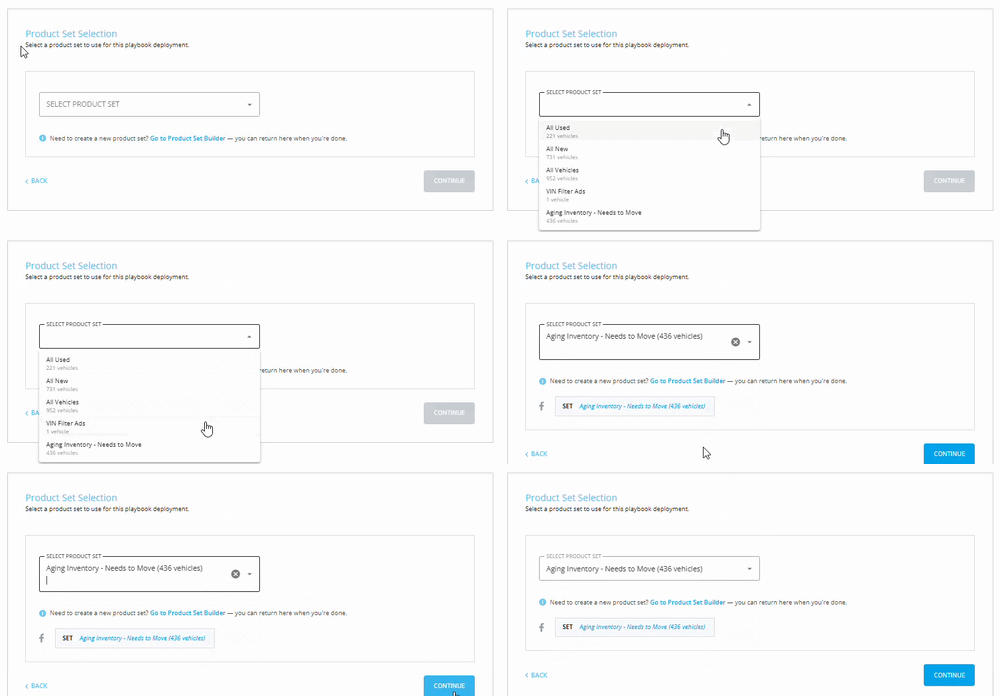
3. Review setup and click Deploy Playbook!
**Helpful links:**
🔗 **[How to Create a Product Set (Step-by-Step)](https://support.buyerbridge.com/knowledge/how-to-create-a-product-set-step-by-step?hsLang=en)**
[🔗 **How to Deploy AIA Playbooks**](https://support.buyerbridge.com/knowledge/how-to-deploy-a-playbook?hsLang=en)
🔗 **[AIA Playbooks 101: How to Pick the Best Fit](https://support.buyerbridge.com/knowledge/aia-playbooks?hsLang=en)**
---
### **Where to Find Product Sets in BuyerBridge**
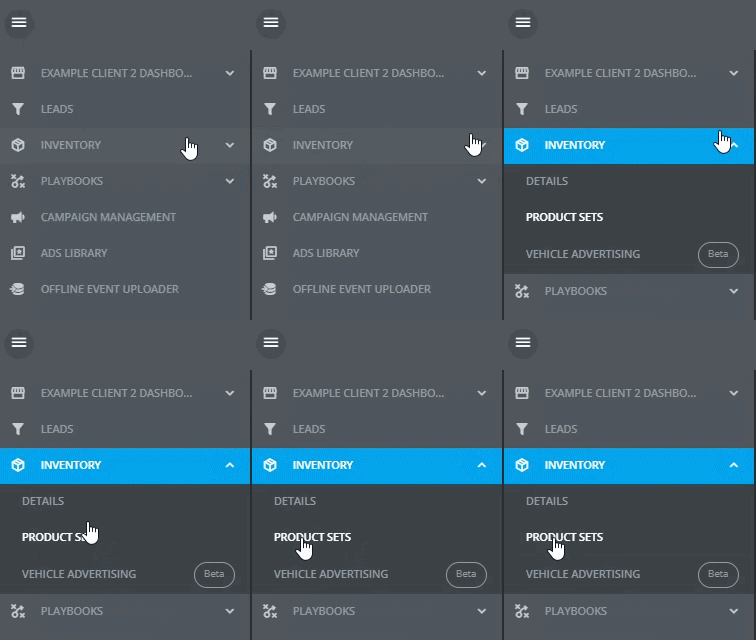
VINFlow lives directly inside the BuyerBridge app under the **Inventory** tab.
1. Log in to BuyerBridge
2. From the left menu, click **Inventory**
3. Click **Product Sets
**
#### **What you’ll see after clicking Product Sets**
When you open **Inventory → Product Sets**, you’ll land on the dashboard where **all vehicles are shown by default**.
On this page, you’ll typically see:
- **A Product Set dropdown displays:**
- Product Sets Name
- Number of Vehicles in the product set
- The date the product set was created
- Last sync = when the product set catalog was synced
- A Deploy button to open the Playbooks Library
- Edit icon
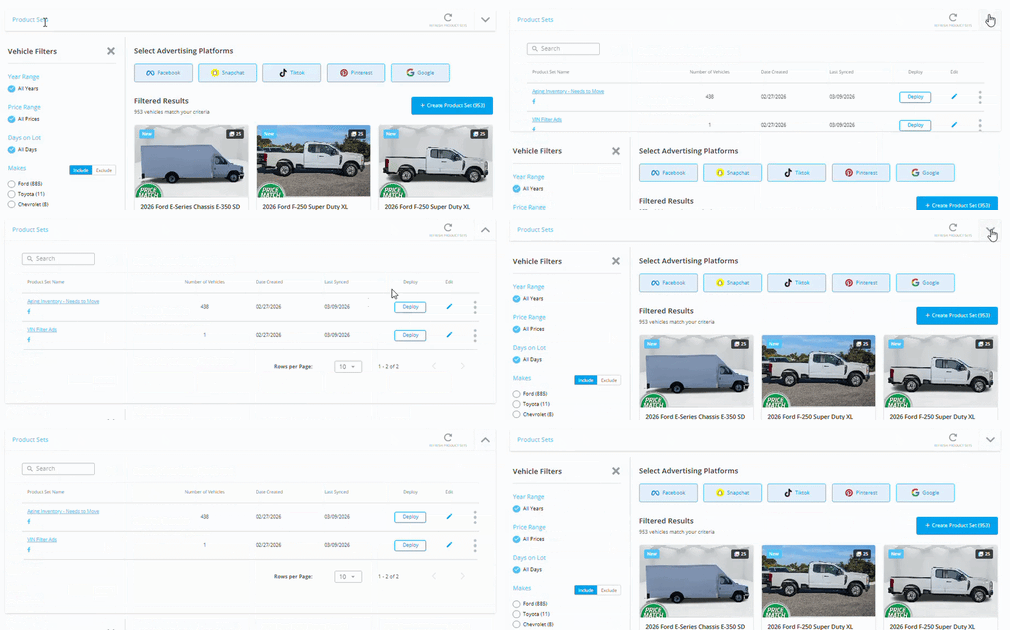
- **Advertising Platforms** (Google, Meta, Snapchat, TikTok, Pinterest)

- A grid of vehicles (your current catalog results)
- **Vehicle Filters**
- Year Range
- Price Range
- Day on Lot
- Makes
- Models
- Body Type
- Condition (New/Used/Certified)
- **Ads Performance Filters (Plus + Elite tiers)**
- Spend
- Impression
- Clicks
- CTR
- Leads
- All Views
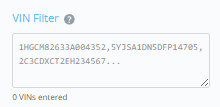
- VIN Filter **(Plus + Elite tiers)**
- copy-paste specific VINs
- A **Create Product Set** button (this saves your filtered selection as a Product Set)
[**🔗 Want the full step-by-step walkthrough? Learn** **How to Build Product Sets Using Performance Filters**](https://support.buyerbridge.com/knowledge/how-to-build-product-sets-using-performance-filters?hsLang=en)
---
### **How to Create a Your First Product Set**
Once you’re on the **Product Sets** page, you’ll see **all vehicles by default**. Your goal is to narrow that list and save it as your first **Product Set**.
Here’s the quick flow:
1. Go to **Inventory → Product Sets**
2. Use the filters on the left to narrow your vehicles
1. Use standard filters like **Body Type, Days on Lot, Condition, Make/Model, Price, Year**
2. **Plus + Elite tiers** include **Ads Performance filters** (impressions, clicks, CTR, spend, leads, views) and a **VIN copy/paste** section
3. Click **Create Product Set** (upper right)
4. Name the Product Set clearly and **Save**
**💡 Tip:** Click the arrow in the upper-right to open the Product Sets drawer and view/edit sets you’ve already built.

**🔗 Want the full step-by-step walkthrough? Learn [How to Create Product Sets](https://support.buyerbridge.com/knowledge/how-to-create-a-product-set-step-by-step?hsLang=en)**
**Helpful links:**
- AIA Playbooks: [https://support.buyerbridge.com/knowledge/aia-playbooks](https://support.buyerbridge.com/knowledge/aia-playbooks?hsLang=en)
- How to Deploy a Playbook: [https://support.buyerbridge.com/knowledge/how-to-deploy-a-playbook](https://support.buyerbridge.com/knowledge/how-to-deploy-a-playbook?hsLang=en)
#### **How to Use Spend Guardrails (optional)**
Spend guardrails are optional controls (excluding TikTok) that help prevent budget from piling onto only a few “easy” vehicles.
**When to use spend guardrails:**
- You’re pushing **aged inventory** or **slow movers**
- You want tighter control on spend distribution
- You’re seeing spend concentrate heavily on a small number of vehicles
**When you can skip it**
- You’re testing a new Product Set and want to see natural delivery first
- Your set is already very small and tightly defined
---
### **Quick QA Tips (30 seconds before you move on)**
Before you save (or use) a Product Set, do this quick check:
✅ **Fast-path check:** If you’re only advertising All Vehicles / All New / All Used vehicle sets, you don’t need a custom Product Set—just deploy the corresponding pre-built Playbook.
✅ **Platform check:** Did you pick the right platform(s) at the top (you can multi-select)?
✅ **Vehicle count check:** Did you accidentally include all vehicles? Is the set too small to be useful?
✅ **Filter check:** Do your filters match the goal (aged inventory, price band, body style, etc.)?
✅ **Naming check:** Would your whole team understand this set name later?
Example: “Aged 45+ Days – Used – Under $35K”
✅ **Optional guardrail check:** If you turned onspend guardrails, does the cap match your plan (and is it truly needed for this set)?
---
### **Next Steps + Continued Reading**
**Deploying Playbooks**
🔗 [AIA Playbooks 101 : How to Pick the Best Fit](https://support.buyerbridge.com/knowledge/aia-playbooks?hsLang=en)
🔗 [How to Deploy a Playbook](https://support.buyerbridge.com/knowledge/how-to-deploy-a-playbook?hsLang=en)
**Going deeper with VINFlow (Plus + Elite)**
🔗 [How to Create a Product Set (Step-by-Step)](https://support.buyerbridge.com/knowledge/how-to-create-a-product-set-step-by-step?hsLang=en)
🔗 [How to Build Product Sets Using Performance Filters](https://support.buyerbridge.com/knowledge/how-to-build-product-sets-using-performance-filters?hsLang=en)
**🔗** [How to Target Exact VINs in Product Sets](https://support.buyerbridge.com/knowledge/how-to-target-exact-vins-in-product-sets?hsLang=en)
**Important reference**
🔗 [Playbook Update: AIA Sales Campaign New Custom Audience Requirements](https://support.buyerbridge.com/knowledge/playbook-update-aia-sales-campaign-new-custom-audience-requirements?hsLang=en)
- [Getting Started](https://support.buyerbridge.com/knowledge/getting-started?hsLang=en#main-content)
- [Welcome Kit](https://support.buyerbridge.com/knowledge/getting-started?hsLang=en#welcome-kit)
- [Getting Started](https://support.buyerbridge.com/knowledge/getting-started?hsLang=en#getting-started)
- [Navigating the Platform](https://support.buyerbridge.com/knowledge/getting-started?hsLang=en#navigating-the-platform)
- [Account Management](https://support.buyerbridge.com/knowledge/getting-started?hsLang=en#account-management)
- [Onboarding Clients](https://support.buyerbridge.com/knowledge/onboarding-clients?hsLang=en#main-content)
- [Channel Onboarding](https://support.buyerbridge.com/knowledge/onboarding-clients?hsLang=en#channel-onboarding)
- [Google Onboarding](https://support.buyerbridge.com/knowledge/onboarding-clients?hsLang=en#google-onboarding)
- [Meta Onboarding](https://support.buyerbridge.com/knowledge/onboarding-clients?hsLang=en#meta-onboarding)
- [Pinterest Onboarding](https://support.buyerbridge.com/knowledge/onboarding-clients?hsLang=en#pinterest-onboarding)
- [SEO Onboarding](https://support.buyerbridge.com/knowledge/onboarding-clients?hsLang=en#seo-onboarding)
- [Snapchat Onboarding](https://support.buyerbridge.com/knowledge/onboarding-clients?hsLang=en#snapchat-onboarding)
- [TikTok Onboarding](https://support.buyerbridge.com/knowledge/onboarding-clients?hsLang=en#tiktok-onboarding)
- [Platform Tools](https://support.buyerbridge.com/knowledge/platform-tools?hsLang=en#main-content)
- [Ad Builder](https://support.buyerbridge.com/knowledge/platform-tools?hsLang=en#ad-builder)
- [Ad Launcher](https://support.buyerbridge.com/knowledge/platform-tools?hsLang=en#ad-launcher)
- [Ads Library](https://support.buyerbridge.com/knowledge/platform-tools?hsLang=en#ads-library)
- [Best Practices](https://support.buyerbridge.com/knowledge/platform-tools?hsLang=en#best-practices)
- [Budgeting](https://support.buyerbridge.com/knowledge/platform-tools?hsLang=en#budgeting)
- [Campaign Management](https://support.buyerbridge.com/knowledge/platform-tools?hsLang=en#campaign-management)
- [EventFlow](https://support.buyerbridge.com/knowledge/platform-tools?hsLang=en#eventflow)
- [MarketAnalyzer](https://support.buyerbridge.com/knowledge/platform-tools?hsLang=en#marketanalyzer)
- [Playbooks](https://support.buyerbridge.com/knowledge/platform-tools?hsLang=en#playbooks)
- [SEOFlow](https://support.buyerbridge.com/knowledge/platform-tools?hsLang=en#seoflow)
- [Reports](https://support.buyerbridge.com/knowledge/platform-tools?hsLang=en#reports)
- [VINFlow](https://support.buyerbridge.com/knowledge/platform-tools?hsLang=en#vinflow)
- [White Labeling](https://support.buyerbridge.com/knowledge/platform-tools?hsLang=en#white-labeling)
- [Multichannel Advertising](https://support.buyerbridge.com/knowledge/multichannel-advertising?hsLang=en#main-content)
- [Overview](https://support.buyerbridge.com/knowledge/multichannel-advertising?hsLang=en#overview)
- [Google](https://support.buyerbridge.com/knowledge/multichannel-advertising?hsLang=en#google)
- [Meta](https://support.buyerbridge.com/knowledge/multichannel-advertising?hsLang=en#meta)
- [Pinterest](https://support.buyerbridge.com/knowledge/multichannel-advertising?hsLang=en#pinterest)
- [Snapchat](https://support.buyerbridge.com/knowledge/multichannel-advertising?hsLang=en#snapchat)
- [TikTok](https://support.buyerbridge.com/knowledge/multichannel-advertising?hsLang=en#tiktok)
- [Agency Sales Assets](https://support.buyerbridge.com/knowledge/agency-sales-assets?hsLang=en#main-content)
- [Facebook Sales Assets](https://support.buyerbridge.com/knowledge/agency-sales-assets?hsLang=en#facebook-sales-assets)
- [Google Sales Assets](https://support.buyerbridge.com/knowledge/agency-sales-assets?hsLang=en#google-sales-assets)
- [Graphics & Web Elements](https://support.buyerbridge.com/knowledge/agency-sales-assets?hsLang=en#graphics-web-elements)
- [Instagram Sales Assets](https://support.buyerbridge.com/knowledge/agency-sales-assets?hsLang=en#instagram-sales-assets)
- [Meta Sales Assets](https://support.buyerbridge.com/knowledge/agency-sales-assets?hsLang=en#meta-sales-assets)
- [Omnichannel Sales Assets](https://support.buyerbridge.com/knowledge/agency-sales-assets?hsLang=en#omnichannel-sales-assets)
- [Pinterest Sales Assets](https://support.buyerbridge.com/knowledge/agency-sales-assets?hsLang=en#pinterest-sales-assets)
- [Snapchat Sales Assets](https://support.buyerbridge.com/knowledge/agency-sales-assets?hsLang=en#snapchat-sales-assets)
- [TikTok Sales Assets](https://support.buyerbridge.com/knowledge/agency-sales-assets?hsLang=en#tiktok-sales-assets)
- [SEO for Dealers](https://support.buyerbridge.com/knowledge/agency-sales-assets?hsLang=en#seo-for-dealers)
- [Product Updates & Enhancements](https://support.buyerbridge.com/knowledge/product-updates-enhancements?hsLang=en#main-content)
- [Enhancements](https://support.buyerbridge.com/knowledge/product-updates-enhancements?hsLang=en#enhancements)
- [Product Updates](https://support.buyerbridge.com/knowledge/product-updates-enhancements?hsLang=en#product-updates)
- [Announcements](https://support.buyerbridge.com/knowledge/product-updates-enhancements?hsLang=en#announcements)
- [Monthly Updates](https://support.buyerbridge.com/knowledge/product-updates-enhancements?hsLang=en#monthly-updates)
- [Metrics](https://support.buyerbridge.com/knowledge/metrics?hsLang=en#main-content)
- [Offline Events](https://support.buyerbridge.com/knowledge/metrics?hsLang=en#offline-events)
- [Metrics Defined](https://support.buyerbridge.com/knowledge/metrics?hsLang=en#metrics-defined)
- [Leads](https://support.buyerbridge.com/knowledge/metrics?hsLang=en#leads)
- [Reporting](https://support.buyerbridge.com/knowledge/metrics?hsLang=en#reporting)
- [SEO Reporting](https://support.buyerbridge.com/knowledge/metrics?hsLang=en#seo-reporting)
- [Supported Providers](https://support.buyerbridge.com/knowledge/supported-providers?hsLang=en#main-content)
- [CRM Integrations](https://support.buyerbridge.com/knowledge/supported-providers?hsLang=en#crm-integrations)
- [Inventory & Feed Providers](https://support.buyerbridge.com/knowledge/supported-providers?hsLang=en#inventory-feed-providers)
- [Website Providers](https://support.buyerbridge.com/knowledge/supported-providers?hsLang=en#website-providers)
- [3rd Party Support](https://support.buyerbridge.com/knowledge/3rd-party-support?hsLang=en#main-content)
- [Google Help Center](https://support.buyerbridge.com/knowledge/3rd-party-support?hsLang=en#google-help-center)
- [Facebook Platform Help](https://support.buyerbridge.com/knowledge/3rd-party-support?hsLang=en#facebook-platform-help)
- [TikTok Help Center](https://support.buyerbridge.com/knowledge/3rd-party-support?hsLang=en#tiktok-help-center)
[](https://buyerbridge.com/)
buyerbridge.com | Help Center
Copyright © 2026, Dealers United