![BuyerBridge_LOGO-dark-2.png]](https://support.buyerbridge.com/hs-fs/hubfs/BuyerBridge_LOGO-dark-2.png?height=40&name=BuyerBridge_LOGO-dark-2.png)
Quick Links
What is VINFlow? Watch a live, in-app demo.
VINFlow is a VIN-level marketing workflow inside BuyerBridge. It helps you build and use vehicle Product Sets for inventory advertising so your targeting supports the vehicles that need attention, stays repeatable, and easier to control.
What Makes VINFlow Unique
VINFlow gives you a smarter way to build and use Product Sets for inventory advertising so you’re not stuck letting ad platforms spend most of your budget on only the “easy” vehicles.
Build Product Sets in two powerful ways (Plus + Elite tiers)
-
Copy + paste VINs to target exact vehicles. Perfect for manager specials or “push these today” lists.
-
Use Ads Performance filters to build sets from real results. Filter by impressions, spend, clicks, CTR, leads, or views, then narrow the set further using standard filters like SUVs/Trucks, New/Used/Certified, make/model, price, days on lot, and more.
Launch Playbooks Using Your Product Sets
Once you’ve built a Product Set, you can attach it to an inventory Playbook (ready-made campaign templates like AIAs and VLAs) to launch faster and keep targeting consistent.
💡Good to know: Product Sets auto-update as new vehicles enter your inventory and match your rules.
Note: If you’re only advertising All Vehicles, All New, or All Used, you can deploy inventory Playbooks without building a custom Product Set.
🔗 Learn How to Deploy a Playbook
Quick Start (5-Min Path to Launch)
If you’re only advertising All Vehicles, All New, or All Used, you can deploy an AIA Playbook without creating a Product Set. BuyerBridge will automatically handle the correct vehicle group + audience behind the scenes.
Do this next:
-
Open the Playbooks library and select Browse
- On the left side filter options, scroll to the Focus category and select Inventory, or
search AIA in the search bar -
Choose the AIA Playbook that matches your goal:
- Sales
- Lead Forms
- Lead Forms with SMS Verify
- Web Leads
- Full Funnel+ (All of the Above)
-
Deploy the Playbook
-
Click the blue Deploy button
-
Select Meta as the channel
-
Click Deploy to start the launch process
-
-
Complete the launch steps until you reach Targeting & Budgeting → Product Set:
- Select your Product Set
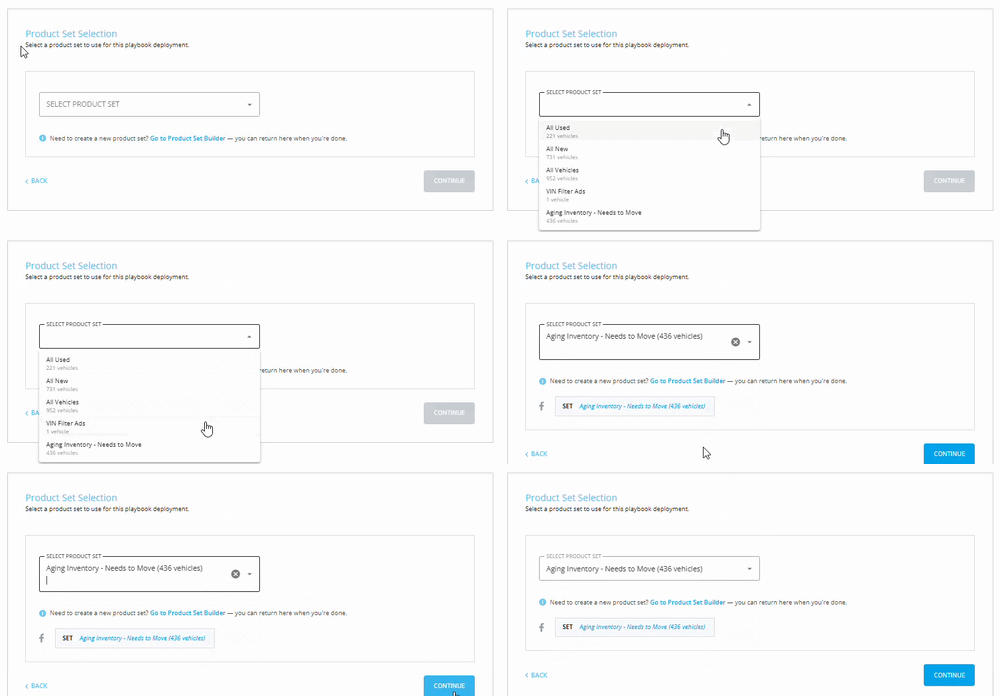
- Select your Product Set
-
Review setup and click Deploy Playbook!
Helpful links:
🔗 How to Create a Product Set (Step-by-Step)
🔗 AIA Playbooks 101: How to Pick the Best FitWhere to Find Product Sets in BuyerBridge
VINFlow lives directly inside the BuyerBridge app under the Inventory tab.
-
Log in to BuyerBridge
-
From the left menu, click Inventory
-
Click Product Sets
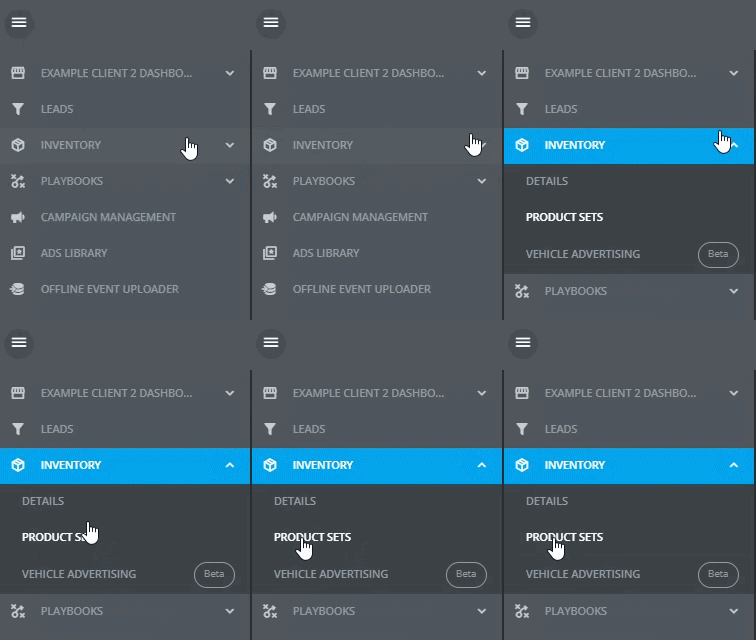
What you’ll see after clicking Product Sets
When you open Inventory → Product Sets, you’ll land on the dashboard where all vehicles are shown by default.
On this page, you’ll typically see:
- A Product Set dropdown displays:
- Product Sets Name
- Number of Vehicles in the product set
- The date the product set was created
- Last sync = when the product set catalog was synced
- A Deploy button to open the Playbooks Library
- Edit icon
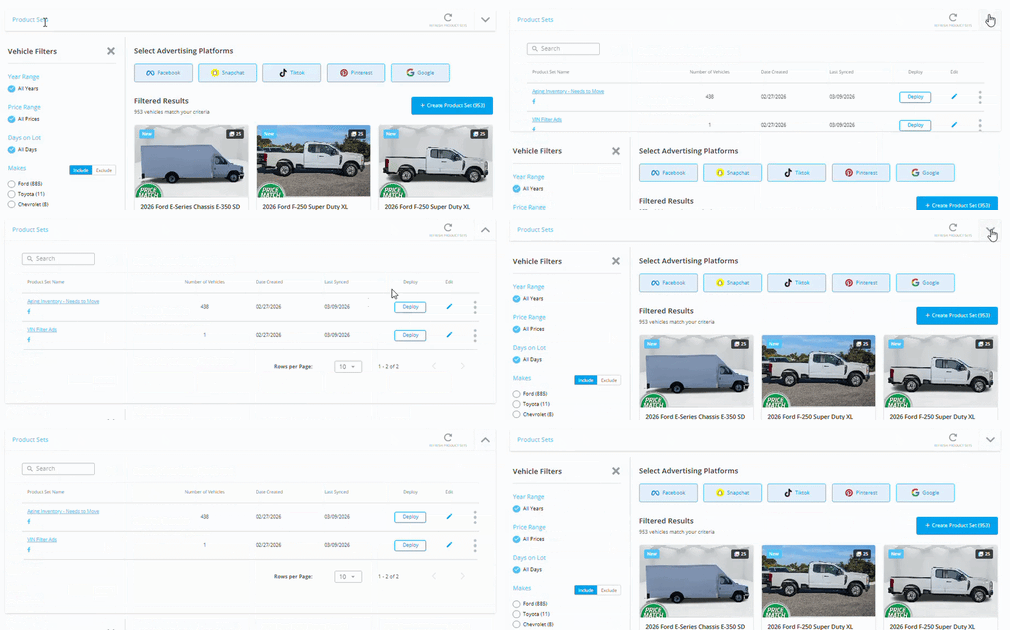
-
Advertising Platforms (Google, Meta, Snapchat, TikTok, Pinterest)

- A grid of vehicles (your current catalog results)
-
Vehicle Filters
- Year Range
- Price Range
- Day on Lot
- Makes
- Models
- Body Type
- Condition (New/Used/Certified)
- Ads Performance Filters (Plus + Elite tiers)
- Spend
- Impression
- Clicks
- CTR
- Leads
- All Views
-
VIN Filter (Plus + Elite tiers)
- copy-paste specific VINs
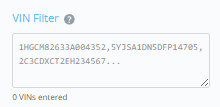
- copy-paste specific VINs
-
A Create Product Set button (this saves your filtered selection as a Product Set)
How to Create a Your First Product Set
Once you’re on the Product Sets page, you’ll see all vehicles by default. Your goal is to narrow that list and save it as your first Product Set.
Here’s the quick flow:
-
Go to Inventory → Product Sets
-
Use the filters on the left to narrow your vehicles
- Use standard filters like Body Type, Days on Lot, Condition, Make/Model, Price, Year
-
Plus + Elite tiers include Ads Performance filters (impressions, clicks, CTR, spend, leads, views) and a VIN copy/paste section
- Click Create Product Set (upper right)
- Name the Product Set clearly and Save
💡 Tip: Click the arrow in the upper-right to open the Product Sets drawer and view/edit sets you’ve already built.
🔗 Want the full step-by-step walkthrough? Learn How to Create Product Sets
Helpful links:
-
AIA Playbooks: https://support.buyerbridge.com/knowledge/aia-playbooks
-
How to Deploy a Playbook: https://support.buyerbridge.com/knowledge/how-to-deploy-a-playbook
How to Use Spend Guardrails (optional)
Spend guardrails are optional controls (excluding TikTok) that help prevent budget from piling onto only a few “easy” vehicles.
When to use spend guardrails:
-
You’re pushing aged inventory or slow movers
-
You want tighter control on spend distribution
-
You’re seeing spend concentrate heavily on a small number of vehicles
When you can skip it
-
You’re testing a new Product Set and want to see natural delivery first
-
Your set is already very small and tightly defined
Quick QA Tips (30 seconds before you move on)
Before you save (or use) a Product Set, do this quick check:
✅ Fast-path check: If you’re only advertising All Vehicles / All New / All Used vehicle sets, you don’t need a custom Product Set—just deploy the corresponding pre-built Playbook.
✅ Platform check: Did you pick the right platform(s) at the top (you can multi-select)?
✅ Vehicle count check: Did you accidentally include all vehicles? Is the set too small to be useful?
✅ Filter check: Do your filters match the goal (aged inventory, price band, body style, etc.)?
✅ Naming check: Would your whole team understand this set name later?
Example: “Aged 45+ Days – Used – Under $35K”
✅ Optional guardrail check: If you turned on spend guardrails, does the cap match your plan (and is it truly needed for this set)?