---
title: "Google Tools 101: Starting Guide"
description: "Google Tools 101 for BuyerBridge: onboard, deploy Search campaigns, and find your dashboards, campaign management, reporting, and ad-preview approvals."
---
[Skip to content](https://support.buyerbridge.com/knowledge/google-tools-101-starting-guide#main-content)
English
Show submenu for translations
[Submit a ticket](https://support.buyerbridge.com/knowledge/kb-tickets/new?hsLang=en)
![BuyerBridge\_LOGO-dark-2.png\]](https://support.buyerbridge.com/hs-fs/hubfs/BuyerBridge_LOGO-dark-2.png?height=40&name=BuyerBridge_LOGO-dark-2.png)
Open main navigation
Close main navigation
- English
Show submenu for translations
- [Submit a ticket](https://support.buyerbridge.com/knowledge/kb-tickets/new)
- Go to buyerbridge.com
Go to buyerbridge.com
Welcome to the BuyerBridge Help Center!
- There are no suggestions because the search field is empty.
1. [Help Center](https://support.buyerbridge.com/knowledge?hsLang=en)
2. [Multichannel Advertising](https://support.buyerbridge.com/knowledge/multichannel-advertising?hsLang=en)
3. [Google](https://support.buyerbridge.com/knowledge/multichannel-advertising?hsLang=en#google)
# Google Tools 101: Starting Guide
## A quick tour of BuyerBridge’s Google tools, including what they do, where to find them, and what to click first after you’re connected.
**Quick Links**
- [Before You Get Started](https://support.buyerbridge.com/knowledge/google-tools-101-starting-guide#before_you_get_started)
- [How to Onboard](https://support.buyerbridge.com/knowledge/google-tools-101-starting-guide#onboarding)
- [How to Deploy Google Campaign Playbooks](https://support.buyerbridge.com/knowledge/google-tools-101-starting-guide#how_to_deploy)
- [Where to Find Google in BuyerBridge](https://support.buyerbridge.com/knowledge/google-tools-101-starting-guide#find_google)
- [Where to Find the Google Dashboard](https://support.buyerbridge.com/knowledge/google-tools-101-starting-guide#google_dashboard)
- [Breaking Down the Google Dashboard](https://support.buyerbridge.com/knowledge/google-tools-101-starting-guide#google_dashboard)
- [Breaking Down the Vehicle Advertising Report](https://support.buyerbridge.com/knowledge/google-tools-101-starting-guide#vehicle_advertising_report) (*Automotive-View Onl*y)
- [How to Use the “Influenced” Sales Toggle](https://support.buyerbridge.com/knowledge/google-tools-101-starting-guide#how_to_use_toggle)
- [How BuyerBridge Measure "Influenced" Sales](https://support.buyerbridge.com/knowledge/google-tools-101-starting-guide#influenced_sales)
- [How to Find Google in Campaign Management](https://support.buyerbridge.com/knowledge/google-tools-101-starting-guide#campaign_management)
- [How to Send Google Ad Previews](https://support.buyerbridge.com/knowledge/google-tools-101-starting-guide#ad_previews)
- [How to Find Reporting and Available Reports](https://support.buyerbridge.com/knowledge/google-tools-101-starting-guide#google_reporting)
#### **🚧 Before You Get Started**
**➡️** Before you connect Google to BuyerBridge, make sure you have one **master Google login** that has access to the client’s:
- **Google Ads account**
- **GA4 (Google Analytics) property**
- **Google Search Console property**
**‼️ Tip:** Double-check you’re connecting the correct client/property. Most “missing data” issues come from selecting the wrong GA4 or Search Console setup.
### **How to Onboard**
Before you can deploy campaigns or see reporting, you'll complete a one-time onboarding for each client's Google channel. It connects their Google accounts and sets up the feed, conversion tracking, and account assets, so campaigns can launch and data flows cleanly.
**How it works:**
You'll connect your client's Google Ads account, Google Business Profile, Google Analytics, and Google Merchant Center inside BuyerBridge. From there, BuyerBridge builds the feed, sets conversion tracking, and generates the account assets Google needs, so the account is ready to deploy Search, PMax, and Vehicle Listing Ads.
**Ready to get started?**
Follow our step-by-step onboarding guide to 👉 **[How to Onboard a Client's Google Account](https://support.buyerbridge.com/knowledge/onboarding-a-clients-google-channel-in-buyerbridge?hsLang=en)**
Once your Google VLA onboarding is complete, you’ll see inventory, performance, and influenced sales data appear in your BuyerBridge dashboard.
---
### **How to Deploy Google Campaigns**
Once a client's Google channel is connected, you can deploy Google Search campaigns through Playbooks in a guided, step-by-step flow, from budgets and keywords to ad copy. Campaigns deploy paused until the client turns them live.
🔗 For the full walkthrough, see **[How to Deploy a Google Search Campaign with Playbooks](https://support.buyerbridge.com/knowledge/how-to-deploy-a-google-search-campaign-with-playbooks?hsLang=en)**.
### **Where to Find Google in BuyerBridge**
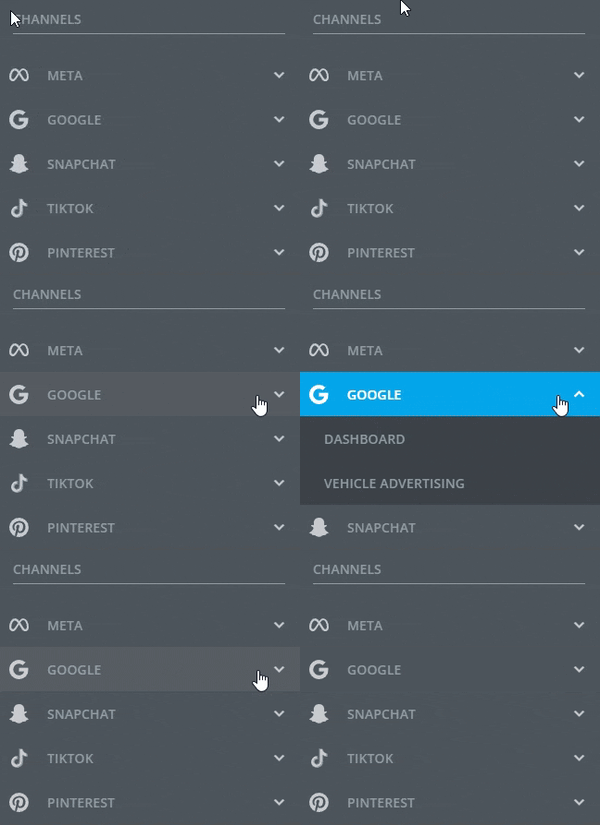
To access Google tools in BuyerBridge:
1. Log in to BuyerBridge
2. In the left navigation, go to **Channels**
3. Expand the **Google section**
****
---
### **Where to Find The Google Dashboard (Your Home Base)**
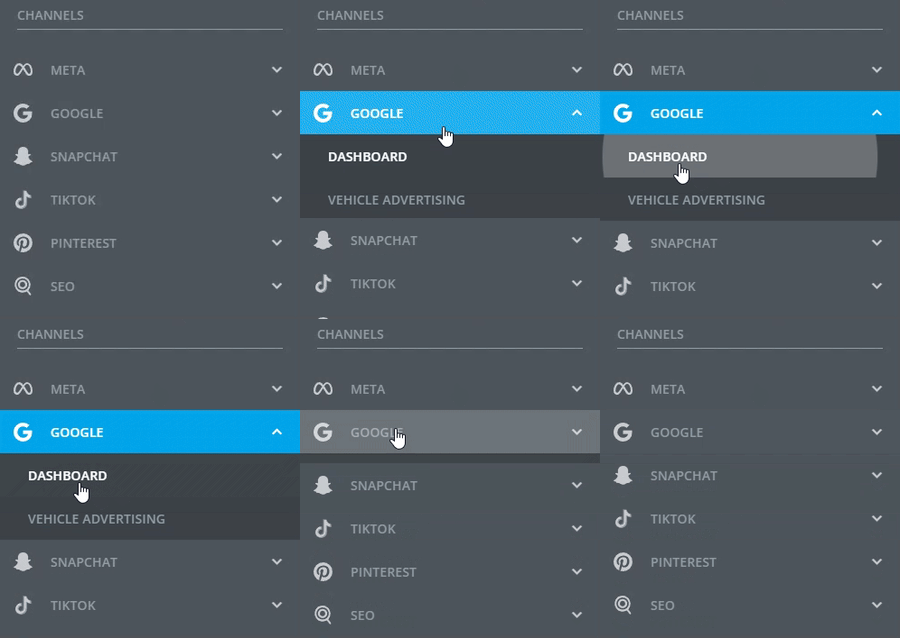
To access Google tools in BuyerBridge:
1. In the left navigation, go to **Channels**
2. Click **Google**
3. Choose the **Dashboard**
#### **Breaking Down The Google Dashboard**
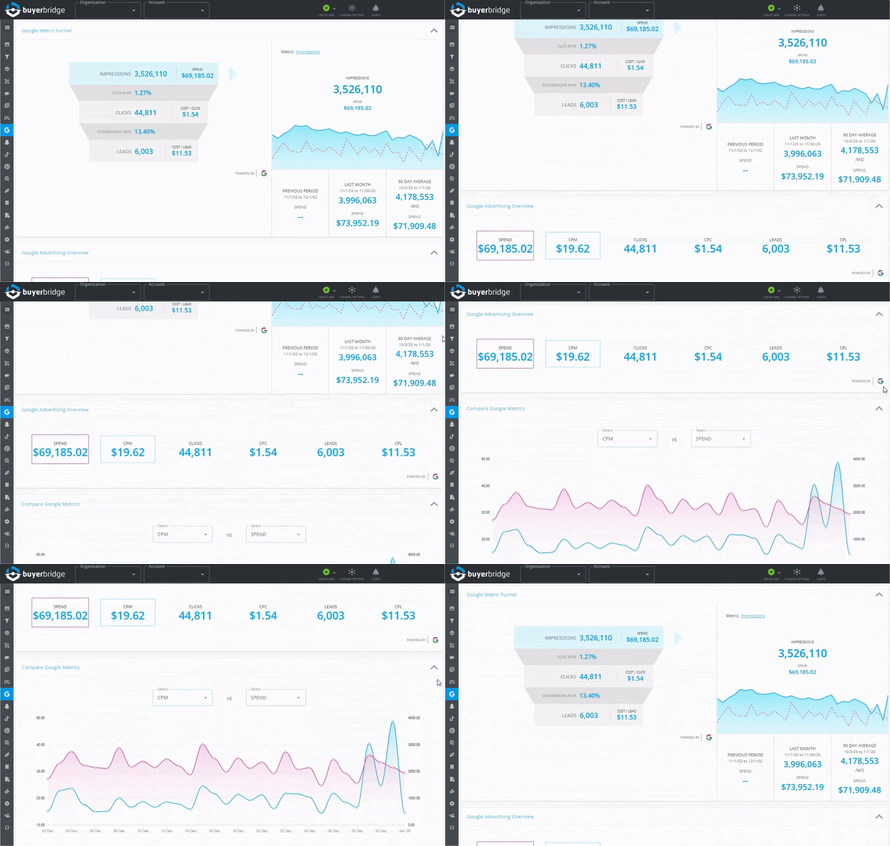
The Google Dashboard in BuyerBridge gives you a real-time view of performance across your connected Google properties so you can spot changes fast, explain results clearly, and take action without bouncing between platforms.
🔋 Reporting insights are powered by your integrations with Google Ads, GA4 (Google Analytics), and Google Search Console.
- **Google Metric Funnel** – A full-funnel snapshot of impressions, clicks, leads, and cost metrics in one view.
- **Performance Trend by Metric** – Track one KPI at a time (like leads) and see how it moves over your selected date range.
- **Period Comparisons** – Quick benchmark tiles for **Previous Period**, **Last Month**, and **90-Day Average** so you can answer “what changed?” instantly.
- **Google Ads Overview KPIs** – At-a-glance totals for spend, CPM, clicks, CPC, leads, and CPL—perfect for quick updates.
- **Compare Google Metrics** – Side-by-side charts (like clicks vs spend) to spot relationships, pacing issues, and performance shifts faster.
🔗 For a detailed walkthrough, see **[Google Dashboard Overview in BuyerBridge](https://support.buyerbridge.com/knowledge/google-dashboard-overview-in-buyerbridge?hsLang=en)**
#### **Breaking Down the Vehicle Advertising Report**
The Vehicle Advertising report gives you a vehicle-by-vehicle view of performance, so you can quickly see what inventory is getting attention (and what’s not).
- **Vehicle Advertising Summary** – Quick totals at the top, including Avg Cost per VDP View, Total VDP Views, Total Leads, Total Spend, Daily VDP View Range, and Avg Impressions.
- **Make / Model Stats** – Fast links to see top-performing models by impressions, VDP views, and leads (great for quick “what’s working?” checks).
- **Inventory Details Table** – A full list of vehicles with performance metrics likeSpend, Impressions, Clicks, CPC, CTR, Leads, and CPA—so you can spot winners and underperformers fast.
- **Days in Lot + Days in BuyerBridge** – Helpful context columns so you can see how long a unit has been sitting and how long it’s been tracked.
- **Status Tracking (like SOLD)** – Vehicle status is visible in the table, making it easier to review performance with real inventory outcomes in mind.
##### **How to Use the “Influenced” Toggle in the Google Vehicle Advertising Report**
The **Influenced toggle** in BuyerBridge makes it easy to prove your ads are driving real results, not just leads or clicks. Here’s how to use it, and what’s happening behind the scenes:
###### **How to Toggle “Influenced” On and Off**
1. **Go to the Vehicle Advertising report** in BuyerBridge.
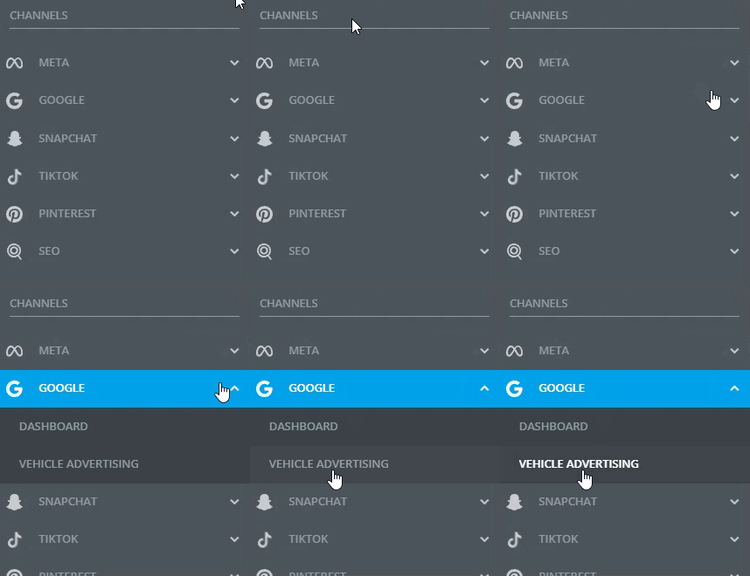
2. **Find the Influenced toggle** at the top of the report.

3. **Switch it ON** to highlight vehicles where your Google ads influenced a sale.
4. **Switch it OFF** to view standard performance for all inventory.
##### **How BuyerBridge Measures “Influenced” Sales**
A sale is considered **influenced** if:
- The vehicle (VIN) had Google ad spend,
- It received at least one click engagement,
- And it was later marked as sold.
If all three are true, BuyerBridge credits your Google ads with influencing that sale.
This is especially useful for dealers who don’t upload full “sold” reports, and as platforms like Facebook make offline attribution more challenging.
**Why this matters:**
The Influenced feature shows clients the true impact of your ads—even if you don’t have full matchback data from the dealership.
**Pro tip:** Use the Influenced view in client meetings to quickly spotlight which vehicles were moved with help from your campaigns.
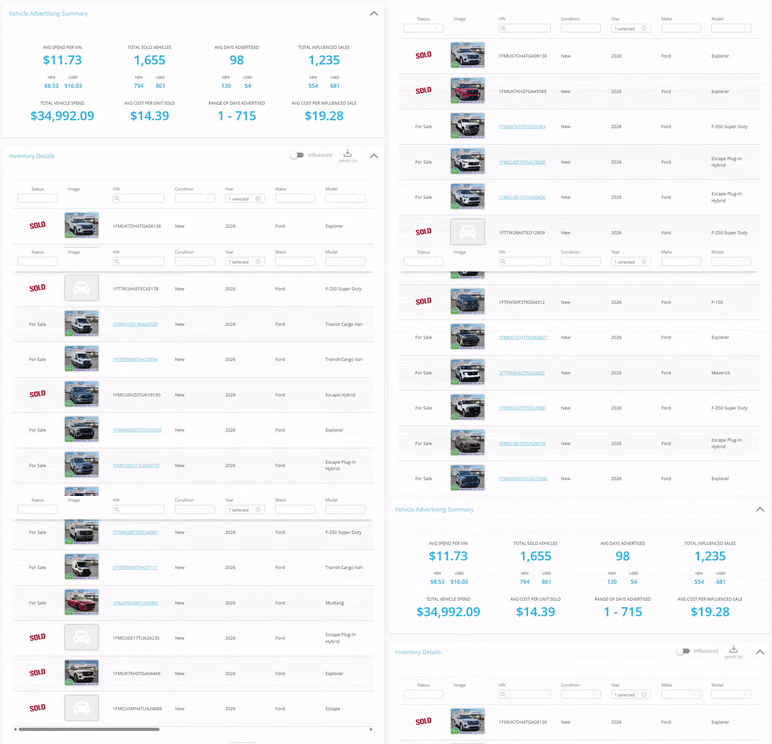
🔗 For a detailed walkthrough, seethe**[Google Vehicle Advertising Report](https://support.buyerbridge.com/knowledge/google-vehicle-advertising-report-in-buyerbridge?hsLang=en)**
---
### **How to Locate Google Campaign Management**
Campaign Management is your “single screen” view for checking Google performance (and comparing it to other channels) without tab switching.
- Compare Google to other channels side-by-side so you can spot changes faster
- Scan key Google KPIs quickly like spend, clicks, CPC, leads, and totals
- Catch Google pacing issues early when performance dips or budget shifts
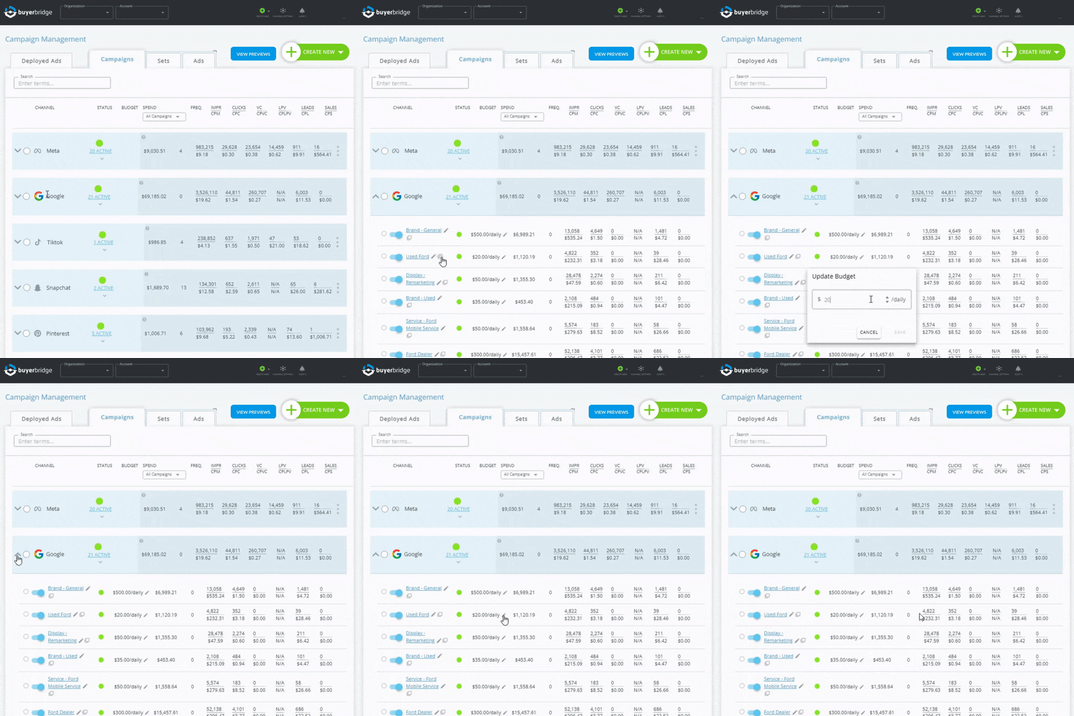
**💡 Tip:** Use Google Campaign Management as your weekly “health check” before building Google reports or hopping on client calls.
🔗 For a detailed walkthrough, see [**Unpacking Google Campaign Management**](https://support.buyerbridge.com/knowledge/unpacking-google-campaign-management-in-buyerbridge?hsLang=en).
#### **Google Ad Previews in Campaign Management**
BuyerBridge lets you generate a Secure Preview URL from Google Campaign Management so clients can review ads in a clean view.
- Create one shareable Google Ads preview link for client review
- Reduce “which Google ad is this?” confusion and email back-and-forth
- Speed up approvals so Google campaigns can launch sooner
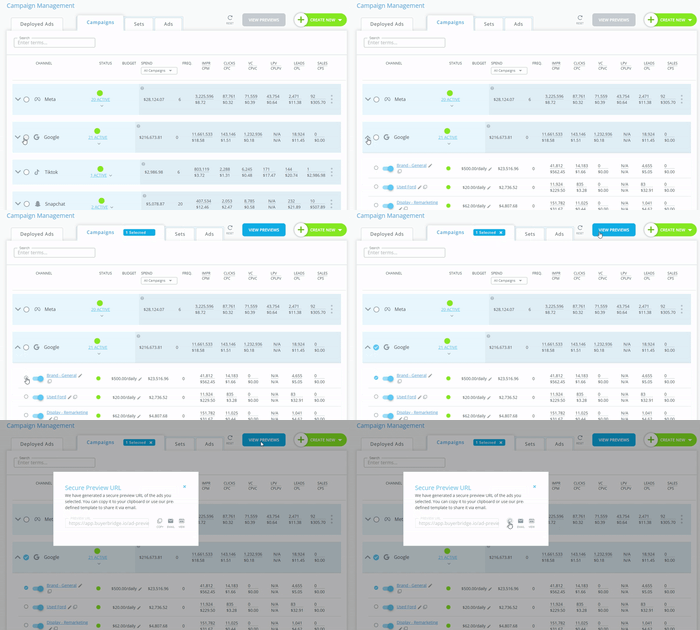
🔗 For a detailed walkthrough, see **[How to Generate Ad Previews in BuyerBridge](https://support.buyerbridge.com/knowledge/how-to-generate-ad-previews-in-buyerbridge?hsLang=en)**.
---
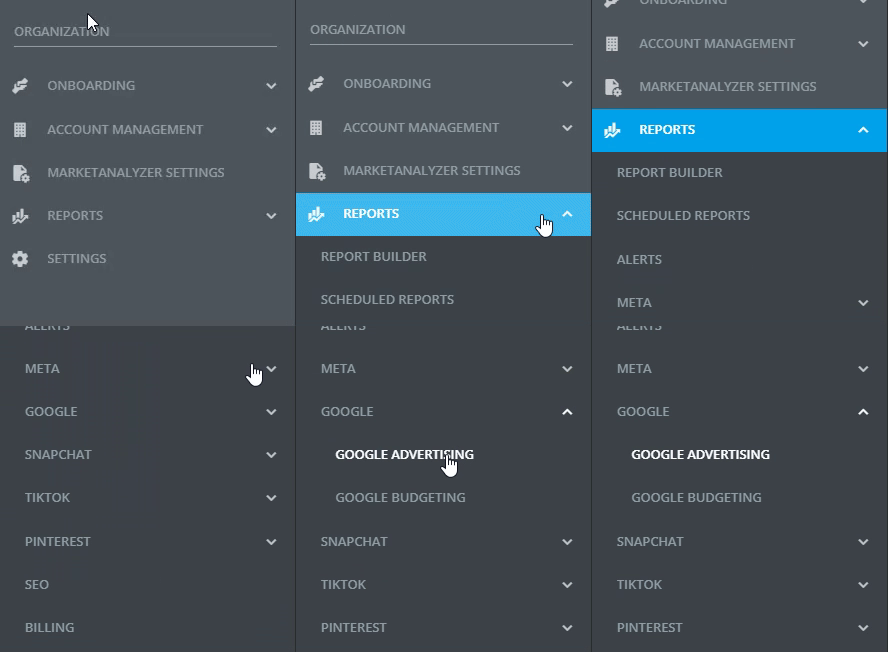
### **How to Find Reporting in BuyerBridge**
Google reporting in BuyerBridge is designed to be fast and repeatable so you’re not rebuilding the same report every week.
#### **Available Google Reports in BuyerBridge**
- **Pre-Built Google Reports:**
Quickly access ready-made Google advertising reports for instant, consistent performance updates across all accounts.
- **Custom Google Reports:**
Build reports with specific KPIs and time frames when clients or campaigns require more granular insights.
- **[Google Budgeting Tool](https://support.buyerbridge.com/knowledge/how-to-use-the-google-budgeting-tool-in-buyerbridge?hsLang=en):**
Monitor and manage Google Ads budgets at scale. Track spend by account, set monthly goals, review projected spend, and adjust daily budgets with just a few clicks. Suggested daily budget and daily adjustment columns help teams stay on track and prevent overspend.
- **[VIN-Level & Vehicle Advertising Reports (Automotive)](https://support.buyerbridge.com/knowledge/google-vehicle-advertising-report-in-buyerbridge?hsLang=en):**
For automotive clients, get inventory-level visibility into performance. See spend, impressions, clicks, leads, and sales broken out by VIN. Use the Influenced Sales toggle to understand which ads contributed directly to a sale.
##### **Where the Data Comes From**
Google reporting insights are powered by integrations with:
- **Google Ads**
- **Google Analytics 4 (GA4)**
- **Google Search Console**
Connect these properties in BuyerBridge to unlock robust cross-channel and funnel-level reporting.
**💡 Tip:** Start with a pre-built report first. Once you know what the client cares about most, customize from there.
---
#### **Next Steps**
- [Onboarding Google VLAs in BuyerBridge (Step-by-Step Setup) →](https://support.buyerbridge.com/knowledge/onboarding-google-vlas-in-buyerbridge-step-by-step-setup?hsLang=en)
- [Google Dashboard Overview in BuyerBridge](https://support.buyerbridge.com/knowledge/google-dashboard-overview-in-buyerbridge?hsLang=en) **→**
- [Unpacking Google Campaign Management →](https://support.buyerbridge.com/knowledge/unpacking-google-campaign-management-in-buyerbridge?hsLang=en)
- [How to Deploy a Google Search Campaign with Playbooks →](https://support.buyerbridge.com/knowledge/how-to-deploy-a-google-search-campaign-with-playbooks?hsLang=en)
- [How Keyword Suggestions Work in Google Search Playbooks →](https://support.buyerbridge.com/knowledge/how-keyword-suggestions-work-in-google-search-playbooks?hsLang=en)
- [Keyword Best Practices for Google Search Campaigns →](https://support.buyerbridge.com/knowledge/how-keyword-suggestions-work-in-google-search-playbooks?hsLang=en)
- [How to Generate Ad Previews in BuyerBridge →](https://support.buyerbridge.com/knowledge/how-to-generate-ad-previews-in-buyerbridge?hsLang=en)
- [How to Use the Google Budgeting Tool in BuyerBridge **→**](https://support.buyerbridge.com/knowledge/how-to-use-the-google-budgeting-tool-in-buyerbridge?hsLang=en)
- [Google Vehicle Advertising Report](https://support.buyerbridge.com/knowledge/google-vehicle-advertising-report-in-buyerbridge?hsLang=en) **→**
- [Getting Started](https://support.buyerbridge.com/knowledge/getting-started?hsLang=en#main-content)
- [Welcome Kit](https://support.buyerbridge.com/knowledge/getting-started?hsLang=en#welcome-kit)
- [Getting Started](https://support.buyerbridge.com/knowledge/getting-started?hsLang=en#getting-started)
- [Navigating the Platform](https://support.buyerbridge.com/knowledge/getting-started?hsLang=en#navigating-the-platform)
- [Account Management](https://support.buyerbridge.com/knowledge/getting-started?hsLang=en#account-management)
- [Onboarding Clients](https://support.buyerbridge.com/knowledge/onboarding-clients?hsLang=en#main-content)
- [Channel Onboarding](https://support.buyerbridge.com/knowledge/onboarding-clients?hsLang=en#channel-onboarding)
- [Google Onboarding](https://support.buyerbridge.com/knowledge/onboarding-clients?hsLang=en#google-onboarding)
- [Meta Onboarding](https://support.buyerbridge.com/knowledge/onboarding-clients?hsLang=en#meta-onboarding)
- [Pinterest Onboarding](https://support.buyerbridge.com/knowledge/onboarding-clients?hsLang=en#pinterest-onboarding)
- [SEO Onboarding](https://support.buyerbridge.com/knowledge/onboarding-clients?hsLang=en#seo-onboarding)
- [Snapchat Onboarding](https://support.buyerbridge.com/knowledge/onboarding-clients?hsLang=en#snapchat-onboarding)
- [TikTok Onboarding](https://support.buyerbridge.com/knowledge/onboarding-clients?hsLang=en#tiktok-onboarding)
- [Platform Tools](https://support.buyerbridge.com/knowledge/platform-tools?hsLang=en#main-content)
- [Ad Builder](https://support.buyerbridge.com/knowledge/platform-tools?hsLang=en#ad-builder)
- [Ad Launcher](https://support.buyerbridge.com/knowledge/platform-tools?hsLang=en#ad-launcher)
- [Ads Library](https://support.buyerbridge.com/knowledge/platform-tools?hsLang=en#ads-library)
- [Best Practices](https://support.buyerbridge.com/knowledge/platform-tools?hsLang=en#best-practices)
- [Budgeting](https://support.buyerbridge.com/knowledge/platform-tools?hsLang=en#budgeting)
- [Campaign Management](https://support.buyerbridge.com/knowledge/platform-tools?hsLang=en#campaign-management)
- [EventFlow](https://support.buyerbridge.com/knowledge/platform-tools?hsLang=en#eventflow)
- [MarketAnalyzer](https://support.buyerbridge.com/knowledge/platform-tools?hsLang=en#marketanalyzer)
- [Playbooks](https://support.buyerbridge.com/knowledge/platform-tools?hsLang=en#playbooks)
- [SEOFlow](https://support.buyerbridge.com/knowledge/platform-tools?hsLang=en#seoflow)
- [Reports](https://support.buyerbridge.com/knowledge/platform-tools?hsLang=en#reports)
- [VINFlow](https://support.buyerbridge.com/knowledge/platform-tools?hsLang=en#vinflow)
- [White Labeling](https://support.buyerbridge.com/knowledge/platform-tools?hsLang=en#white-labeling)
- [Multichannel Advertising](https://support.buyerbridge.com/knowledge/multichannel-advertising?hsLang=en#main-content)
- [Overview](https://support.buyerbridge.com/knowledge/multichannel-advertising?hsLang=en#overview)
- [Google](https://support.buyerbridge.com/knowledge/multichannel-advertising?hsLang=en#google)
- [Meta](https://support.buyerbridge.com/knowledge/multichannel-advertising?hsLang=en#meta)
- [Pinterest](https://support.buyerbridge.com/knowledge/multichannel-advertising?hsLang=en#pinterest)
- [Snapchat](https://support.buyerbridge.com/knowledge/multichannel-advertising?hsLang=en#snapchat)
- [TikTok](https://support.buyerbridge.com/knowledge/multichannel-advertising?hsLang=en#tiktok)
- [Agency Sales Assets](https://support.buyerbridge.com/knowledge/agency-sales-assets?hsLang=en#main-content)
- [Facebook Sales Assets](https://support.buyerbridge.com/knowledge/agency-sales-assets?hsLang=en#facebook-sales-assets)
- [Google Sales Assets](https://support.buyerbridge.com/knowledge/agency-sales-assets?hsLang=en#google-sales-assets)
- [Graphics & Web Elements](https://support.buyerbridge.com/knowledge/agency-sales-assets?hsLang=en#graphics-web-elements)
- [Instagram Sales Assets](https://support.buyerbridge.com/knowledge/agency-sales-assets?hsLang=en#instagram-sales-assets)
- [Meta Sales Assets](https://support.buyerbridge.com/knowledge/agency-sales-assets?hsLang=en#meta-sales-assets)
- [Omnichannel Sales Assets](https://support.buyerbridge.com/knowledge/agency-sales-assets?hsLang=en#omnichannel-sales-assets)
- [Pinterest Sales Assets](https://support.buyerbridge.com/knowledge/agency-sales-assets?hsLang=en#pinterest-sales-assets)
- [Snapchat Sales Assets](https://support.buyerbridge.com/knowledge/agency-sales-assets?hsLang=en#snapchat-sales-assets)
- [TikTok Sales Assets](https://support.buyerbridge.com/knowledge/agency-sales-assets?hsLang=en#tiktok-sales-assets)
- [SEO for Dealers](https://support.buyerbridge.com/knowledge/agency-sales-assets?hsLang=en#seo-for-dealers)
- [Product Updates & Enhancements](https://support.buyerbridge.com/knowledge/product-updates-enhancements?hsLang=en#main-content)
- [Enhancements](https://support.buyerbridge.com/knowledge/product-updates-enhancements?hsLang=en#enhancements)
- [Product Updates](https://support.buyerbridge.com/knowledge/product-updates-enhancements?hsLang=en#product-updates)
- [Announcements](https://support.buyerbridge.com/knowledge/product-updates-enhancements?hsLang=en#announcements)
- [Monthly Updates](https://support.buyerbridge.com/knowledge/product-updates-enhancements?hsLang=en#monthly-updates)
- [Metrics](https://support.buyerbridge.com/knowledge/metrics?hsLang=en#main-content)
- [Offline Events](https://support.buyerbridge.com/knowledge/metrics?hsLang=en#offline-events)
- [Metrics Defined](https://support.buyerbridge.com/knowledge/metrics?hsLang=en#metrics-defined)
- [Leads](https://support.buyerbridge.com/knowledge/metrics?hsLang=en#leads)
- [Reporting](https://support.buyerbridge.com/knowledge/metrics?hsLang=en#reporting)
- [SEO Reporting](https://support.buyerbridge.com/knowledge/metrics?hsLang=en#seo-reporting)
- [Supported Providers](https://support.buyerbridge.com/knowledge/supported-providers?hsLang=en#main-content)
- [CRM Integrations](https://support.buyerbridge.com/knowledge/supported-providers?hsLang=en#crm-integrations)
- [Inventory & Feed Providers](https://support.buyerbridge.com/knowledge/supported-providers?hsLang=en#inventory-feed-providers)
- [Website Providers](https://support.buyerbridge.com/knowledge/supported-providers?hsLang=en#website-providers)
- [3rd Party Support](https://support.buyerbridge.com/knowledge/3rd-party-support?hsLang=en#main-content)
- [Google Help Center](https://support.buyerbridge.com/knowledge/3rd-party-support?hsLang=en#google-help-center)
- [Facebook Platform Help](https://support.buyerbridge.com/knowledge/3rd-party-support?hsLang=en#facebook-platform-help)
- [TikTok Help Center](https://support.buyerbridge.com/knowledge/3rd-party-support?hsLang=en#tiktok-help-center)
[](https://buyerbridge.com/)
buyerbridge.com | Help Center
Copyright © 2026, Dealers United