![BuyerBridge_LOGO-dark-2.png]](https://support.buyerbridge.com/hs-fs/hubfs/BuyerBridge_LOGO-dark-2.png?height=40&name=BuyerBridge_LOGO-dark-2.png)
What are Product Sets?
Product Sets are saved groups of vehicles you create in VINFlow. You can use them during Playbook deployment to control what inventory a campaign is built around.
Core + Plus + Elite Partners can build Product Sets using standard vehicle filters (Body Type, Days on Lot, Condition, Make/Model, Price, Year, etc.).
Plus + Elite: Access advanced filters including a VIN copy/paste section for specific VIN targeting + Ads Performance filters (impressions, clicks, CTR, spend, leads, views).
Where Product Sets Are Used?
Product Sets are chosen during Playbook deployment under: Targeting & Budgeting → Product Set
BuyerBridge supports deploying an AIA playbook with an automatically-created custom audience based on the vehicle set selected during playbook deployment, and recommends deploying through BuyerBridge (not duplicating in Ads Manager) so your audience matches your product set selection.
Where to find Product Sets
-
Log in to BuyerBridge
-
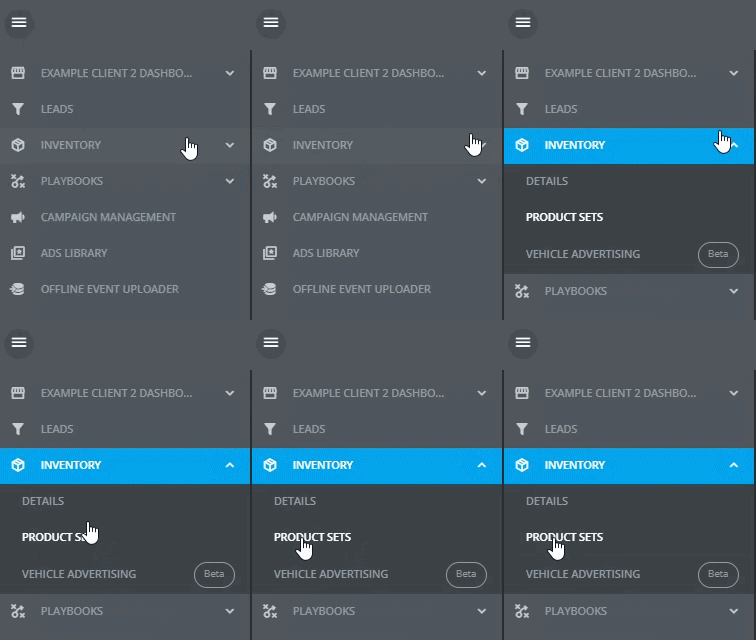
From the left menu, click Inventory
-
Click Product Sets
When the page loads, you’ll see all vehicles by default until you apply filters.
How to View Saved Product Sets (drop-down drawer)
On the Product Sets page, click the small arrow in the upper-right corner to expand the Product Sets drawer.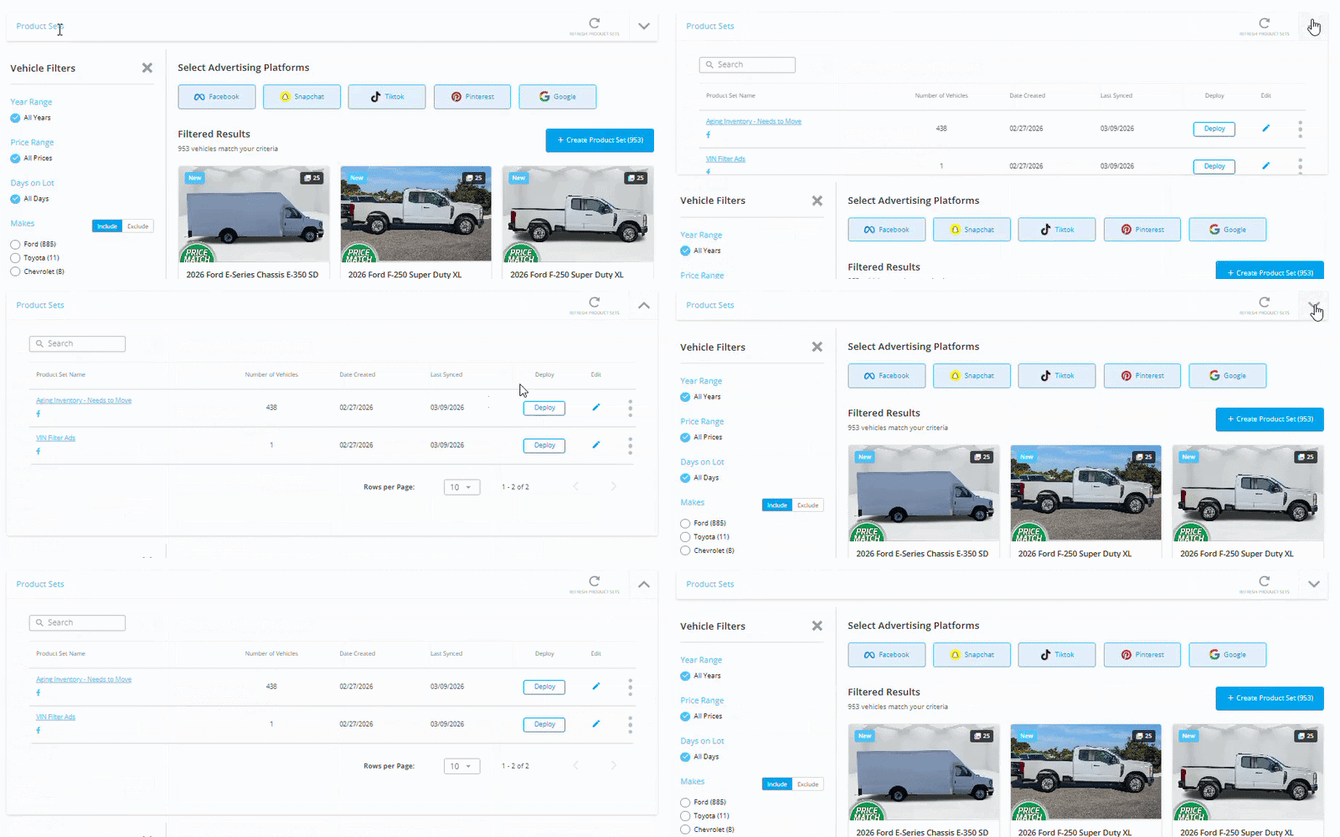
In the drawer, you’ll see saved Product Sets with:
-
Product Set Name
-
Number of Vehicles
-
Date Created
-
Last Synced
-
Deploy button
-
Edit (pencil icon)
Use this drawer to reuse a set, edit a set, or quickly start deployment.
How to Create a Product Set (standard filters)
-
Go to Inventory → Product Sets
-
Use the Vehicle Filters on the left to narrow your list. As you click filters, the vehicle grid updates automatically.
Common filters include:-
Body Type (SUV / Truck / Sedan, etc.)
-
Days on Lot
-
Condition (New / Used / Certified)
-
Make / Model
-
Price Range
-
Year Range
-
- Click Create Product Set (upper right)
- Name the set and save it
Good naming examples:
-
Aged 45+ Days – Used
-
Under $35K SUVs – Used
-
Trucks – New
-
Certified – Under $45K
Tip: Name it so someone else can reuse it later without guessing.
How to Use Advanced VIN + Ads Performance Filtering (Plus + Elite tiers)
Plus + Elite partners can add two powerful layers:
-
VIN copy/paste
Use the VIN Filter box to paste the exact VINs you want in the set. This is great for manager specials or “push these today” lists.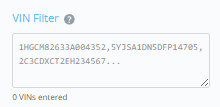
-
Ads Performance filters
-
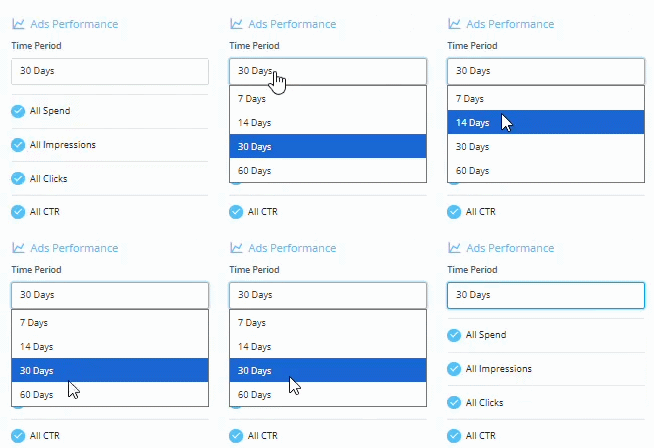
Adjust Ads Performance Time Period (automatically defaults to 30 days)
-
Use Ads Performance filters to build sets based on results, like:
-
-
-
Impressions
-
Clicks
-
CTR
-
Spend
-
Leads
-
Views
-
Important note about platforms: Selecting one or more platforms at the top is what loads the performance data you can filter by. You can select multiple platforms.
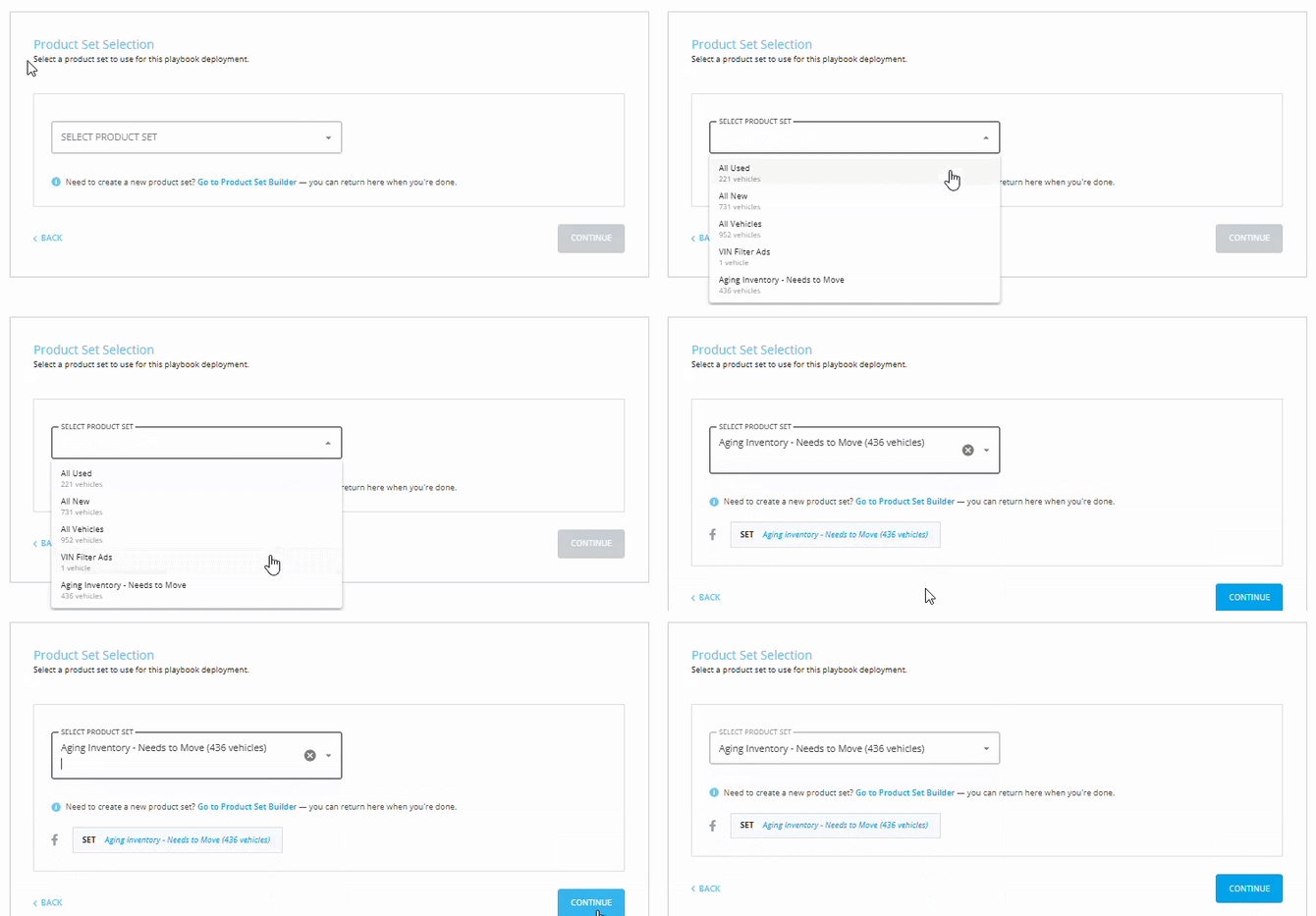
How to Select Product Set During Playbook Deployment
You’ll select your Product Set during the Playbook launch flow at: Targeting & Budgeting → Product Set
Quick path to deployment:
-
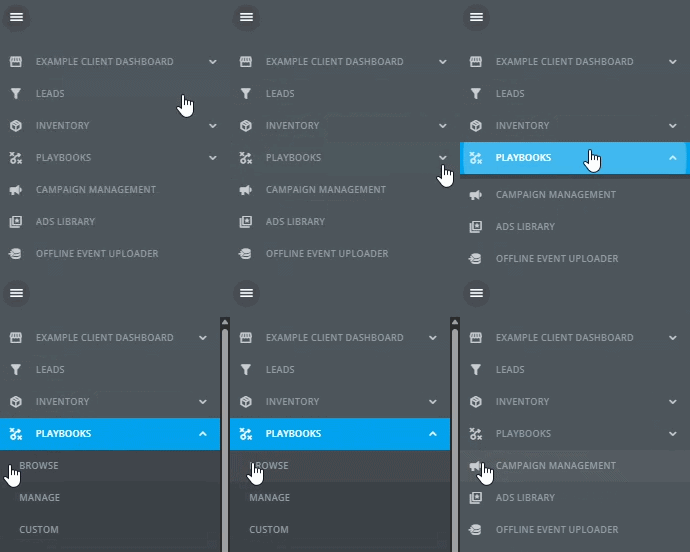
Playbooks → Browse
-
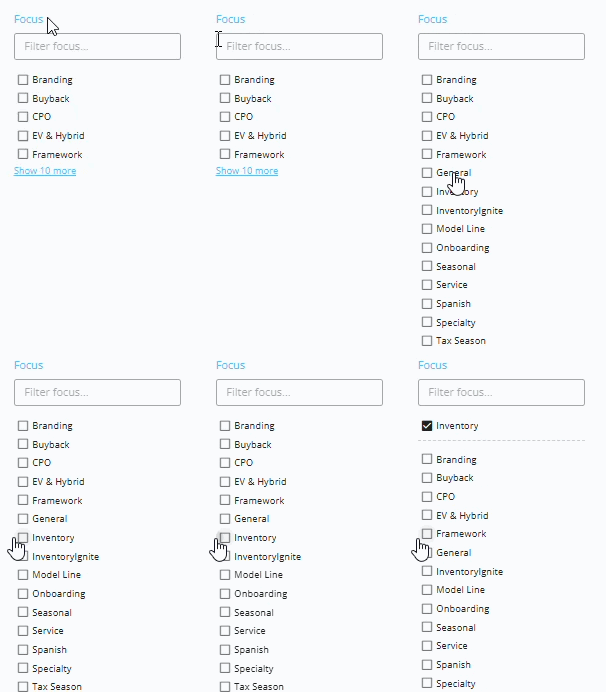
Filter by Inventory or search “AIA”
-
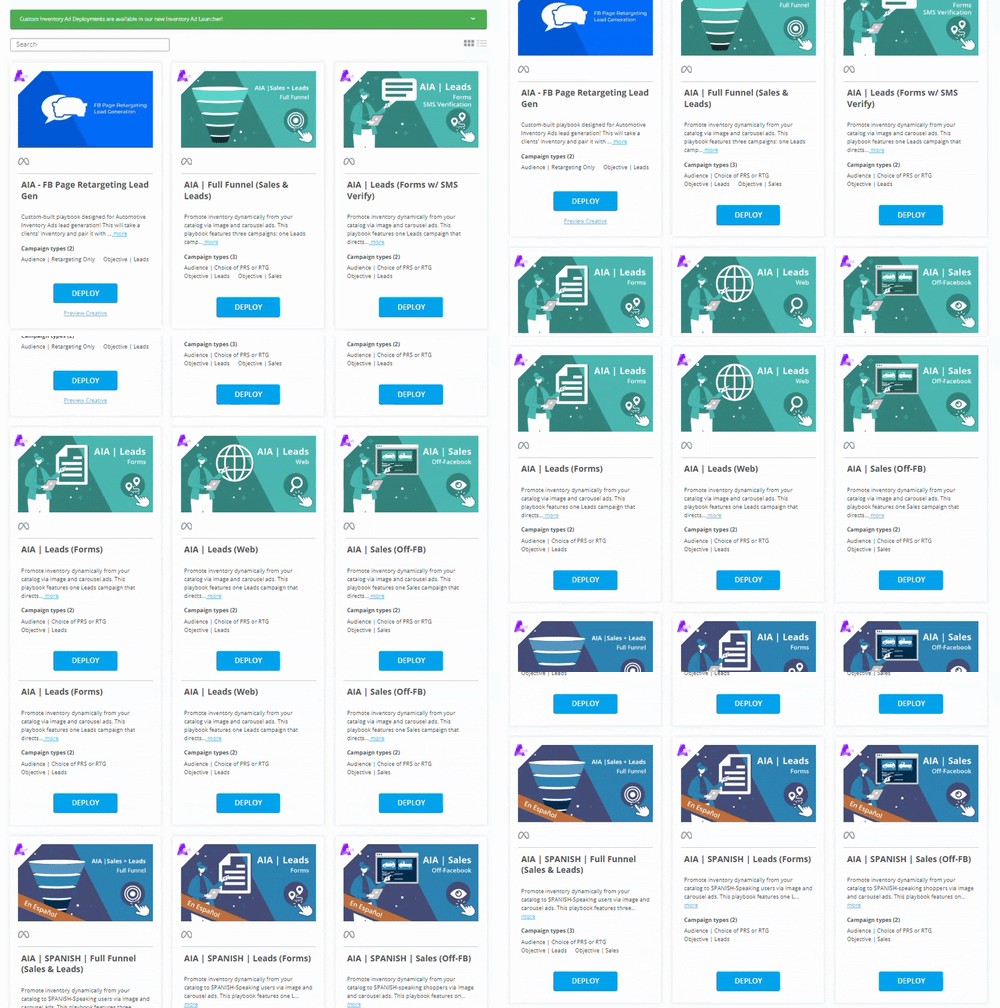
Choose the Playbook that matches your goal
-
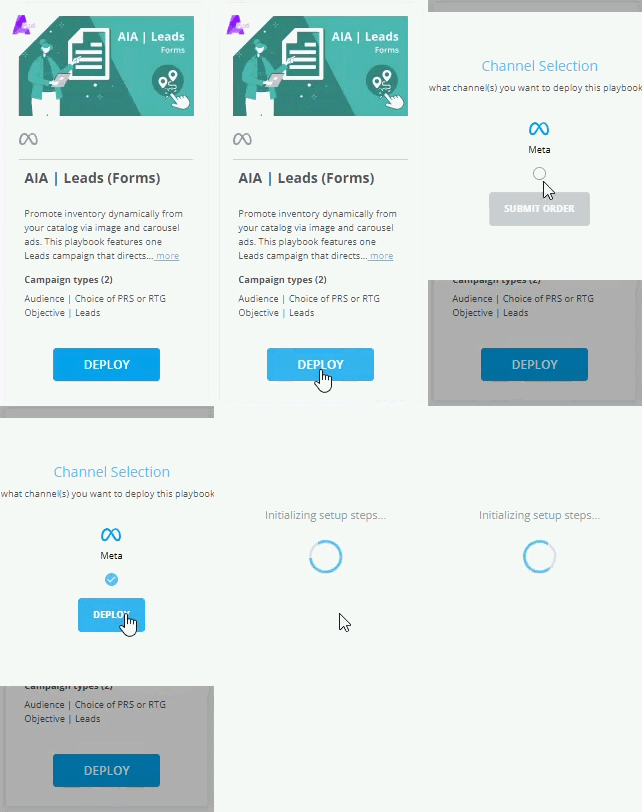
Click Deploy
-
Select Meta as the channel
-
Click Deploy to start the launch process
-
Continue until you reach Product Set, then select your set
-
Review your deployment settings, and select Deploy Playbook
Quick QA tips (30 seconds before you save or deploy)
✅ Vehicle count check: Did you accidentally include all vehicles? Is the set too small?
✅ Filter check: Do your filters match the goal (aged, price band, body type, etc.)?
✅ Naming check: Would your whole team understand the name later?
✅ Platform check (Plus/Elite): If you used performance filters, did you select the platform(s) you wanted data from?
Common mistakes
-
Rebuilding a set that already exists: Check the upper-right drawer first.
-
Saving “everything” by accident: Sanity-check your filters and vehicle count.
-
Forgetting the platform selection (Plus/Elite): Performance filters won’t work without platform data.
-
Unclear naming: “Set 1” won’t help anyone later.
Continued Reading
🔗 AIA Playbooks 101: How to pick the best fit
If you’re deploying AIAs and want the “why this changed” background:
🔗 Playbook Update: AIA Lead Campaign New Custom Audience Requirements
🔗 Playbook Update: AIA Sales Campaign New Custom Audience Requirements